If your Native Instruments plugin opens in demo mode after updating in Native Access, it’s usually caused by duplicate or outdated VST files being loaded by your DAW.
Follow the steps below to resolve the issue
.
TABLE OF CONTENTS
Why This Happens
This can happen if VST files are moved after installation and / or if a duplicate or outdated version of the plug-in is used in your DAW.
Solution
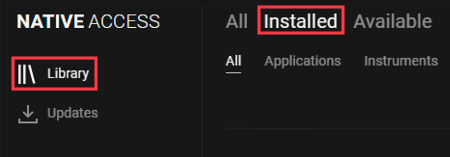
- Start Native Access and go to Library > Installed.
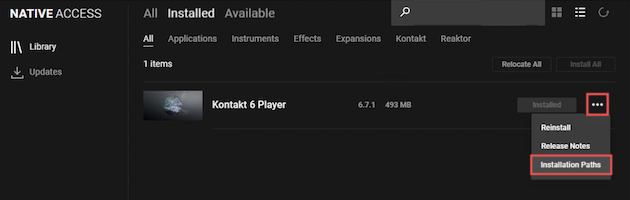
- Find the affected product and select Installation Paths from the product menu.
- If you want to change the VST Location path, click the folder icon on the right. In this example, the default VST path is used:
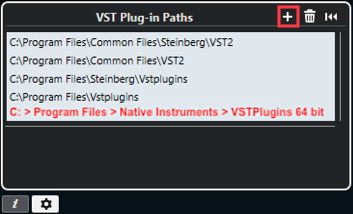
C: > Program Files > Native Instruments > VSTPlugins 64 bit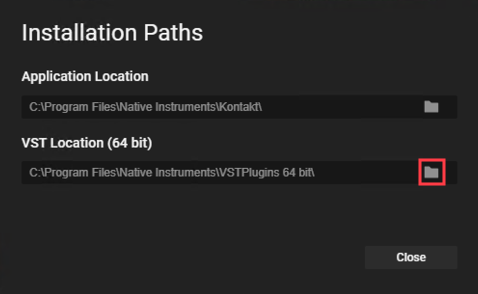
Note: Current NI products are 64-bit only. If both 32 and 64-bit locations are listed, disregard the 32-Bit version.
- Close the Preferences window and select Reinstall from the product menu.
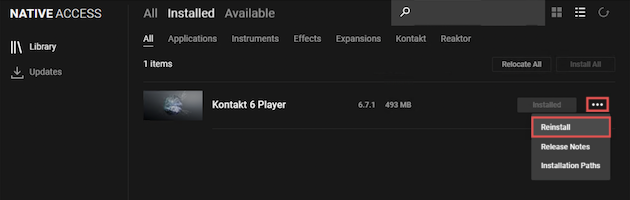
Note: Allow the reinstall to complete before proceeding to the next steps.
- Launch your DAW and open the VST plug-in manager.
Note: The VST plug-in manager is similar within every DAW, but please check your DAW documentation if needed.
- Open Windows Explorer and go to each folder path listed in your DAW plug-in manager. Check these folders for any duplicates of the NI VST file.
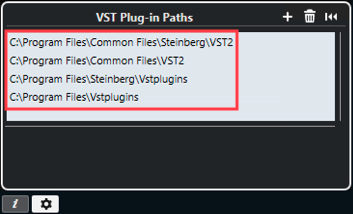
- Delete any duplicates of the VST plug-in that are found in these paths, as these may be outdated.
Important: Please do not delete the VST plug-in you just reinstalled!
- Check the VST plug-in paths in your DAW for the VST location shown in Native Access (i.e. step 3 above). If the VST location from Native Access is not listed, click the option to add the path.
- Use your DAW plug-in manager to rescan your plug-ins.
- Once the plug-in scan is complete, relaunch your DAW and load your instrument.
The current version of the VST plug-in should now be open. You can verify the version number by clicking the NI Logo and checking the software details.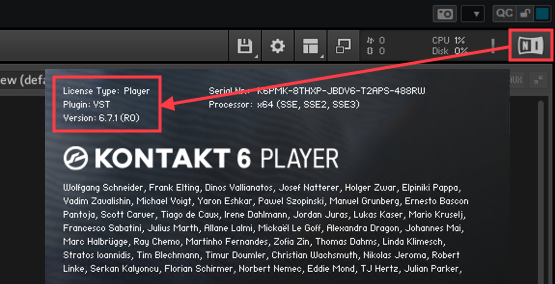
To learn more about VST plug-in administration on Windows, please see this tutorial.
Was this article helpful?
That’s Great!
Thank you for your feedback
Sorry! We couldn't be helpful
Thank you for your feedback
Feedback sent
We appreciate your effort and will try to fix the article