This article outlines the recommended drive types and disk formats for storing Native Instruments sound libraries.
TABLE OF CONTENTS
Network or NAS Drives
We generally don't recommend using NAS drives for storing your NI libraries. However, Network / NAS drives can be used to store library backups.
Instead, we recommend storing your NI libraries using external USB / Thunderbolt drives, or your system's internal drive.
Note: This article explains how to set the download and content locations in Native Access.
Disk Format
For best results, your external drive should have the same format as your computer's internal system drive. For further information on how to check what your disk is formatted to on a Mac computer, please see this article.
We recommend using only the disk formats outlined below for your respective operating system:
macOS
- On macOS 10.12 Sierra (and earlier versions of OS X), the standard HFS+ / Mac OS Extended (Journaled) format is recommended.
- On macOS 10.13 High Sierra and later, the Apple File System (APFS) format is recommended.
Note: See this article from Apple Support to learn how to reformat a storage drive on macOS.
Windows
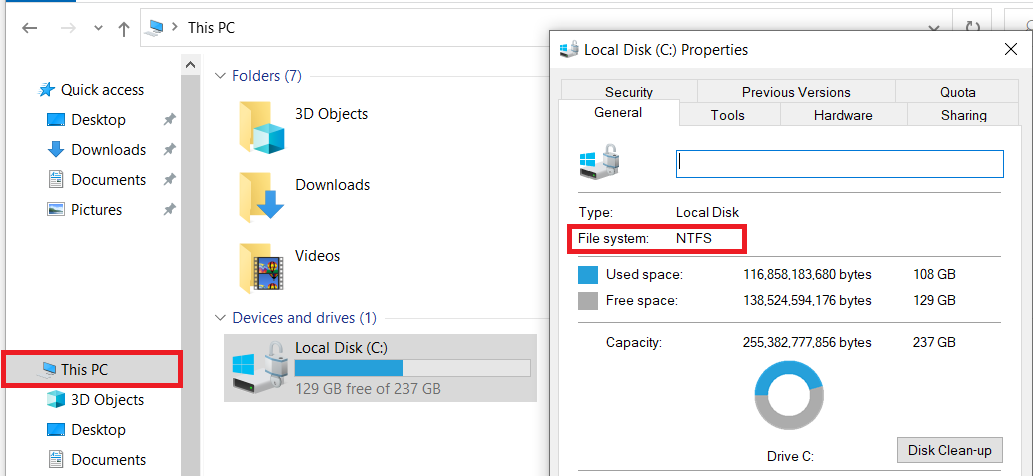
The standard format is NTFS. Follow these steps to check the format of your internal and external hard drives:
- Open a Windows Explorer window.
- Choose "This PC" from the left menu pane.
- Right-click on the hard drive you want to check and select "Properties" from the menu.
- The file system format will be found near the top of the Properties window.
Note: See this article from Microsoft Support to learn how to reformat a storage drive on Windows.
Was this article helpful?
That’s Great!
Thank you for your feedback
Sorry! We couldn't be helpful
Thank you for your feedback
Feedback sent
We appreciate your effort and will try to fix the article