Native Access | How To Set Up The AKOUSTIK PIANO / ELEKTRIK PIANO Library
This article explains how to set up the AKOUSTIK PIANO and ELEKTRIK PIANO 1.5 Libraries using Native Access.
Note: These libraries require KONTAKT 5.6.8 (Player) or higher, as well as a valid AKOUSTIK PIANO / ELEKTRIK PIANO license.
Please choose your version of Native Access below:
TABLE OF CONTENTS
Native Access 2
Note: Unfortunately, AKOUSTIK PIANO cannot be installed on Windows with Native Access 2 at the moment. As a workaround, please downgrade to Native Access 1, then follow the instructions in the Native Access 1 chapter below.
1. Use the following links to download the library folders:
AKOUSTIK PIANO
ELEKTRIK PIANO
2. Unzip the downloaded file and choose a location to store the Library folder (e.g. sample libraries folder or external drive).
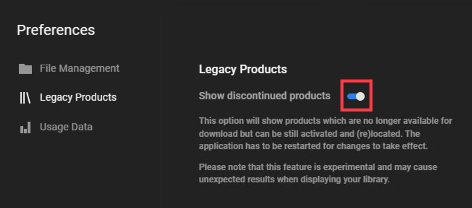
3. Start Native Access and go to Preferences > Legacy Products.
4. Click to enable the option to Show discontinued products and click the X to close the Native Access Preferences.
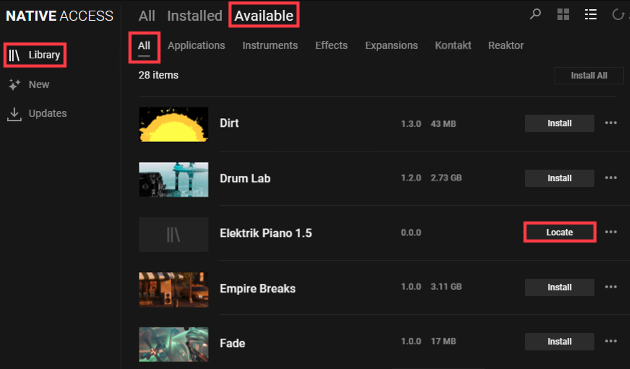
5. Go to Library > Available > All and click Locate next to the Library that you want to set up. In this example, we're locating the ELEKTRIK PIANO library.
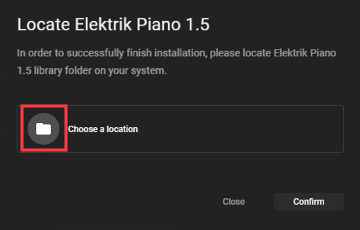
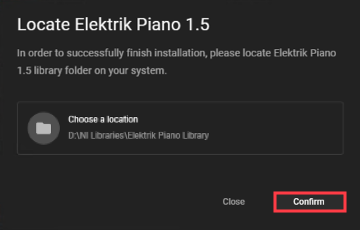
7. Locate and select the library folder.
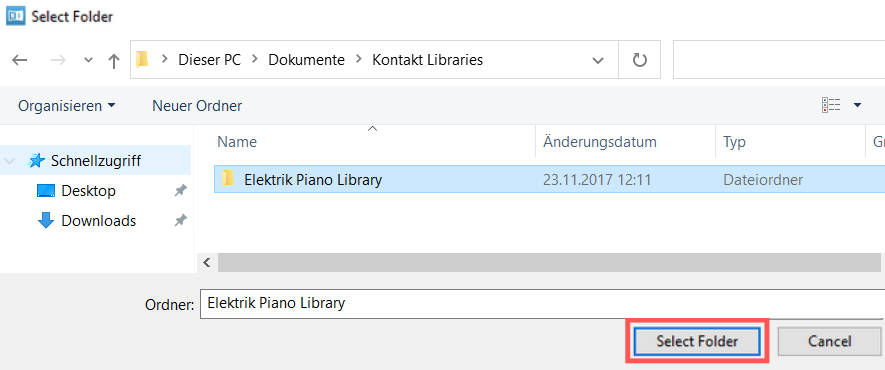
8. Click Confirm to finish the setup process.
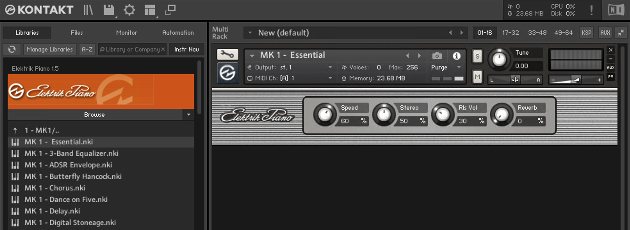
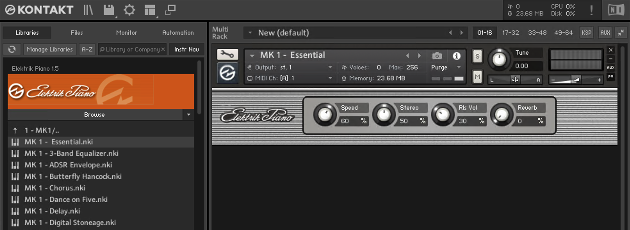
The Library will now appear in the Libraries browser.
Native Access 1
1. Use the following links to download the library folders:
AKOUSTIK PIANO
ELEKTRIK PIANO
2. Unzip the downloaded file and choose a location to store the library folder (e.g. sample libraries folder or external drive).
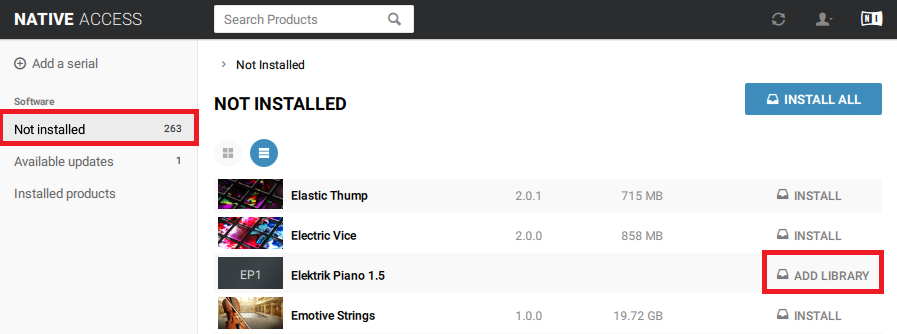
3. Start Native Access. In the Not installed tab, find the Library that you want to set up and click ADD LIBRARY. In this example, we're adding the ELEKTRIK PIANO library.
4. Click the BROWSE button to choose the location where your library folder is being stored.
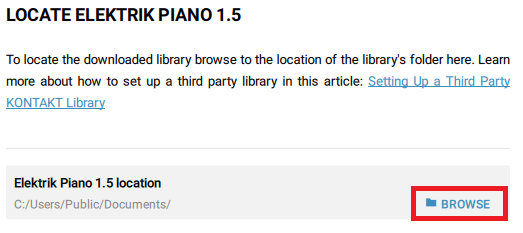
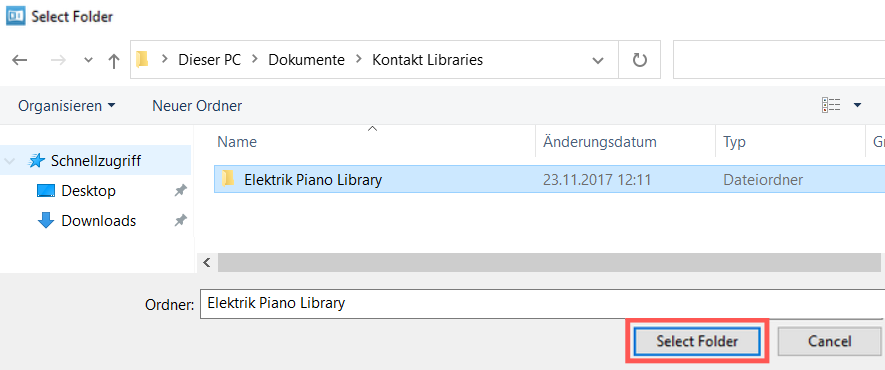
5. Locate and select the library folder.
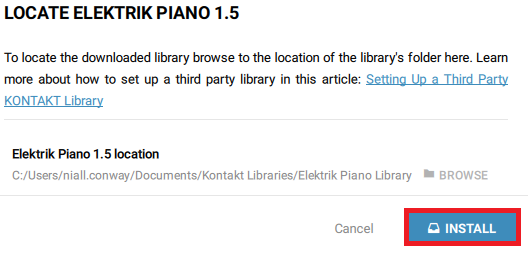
6. Click INSTALL to finish the setup process.
Was this article helpful?
That’s Great!
Thank you for your feedback
Sorry! We couldn't be helpful
Thank you for your feedback
Feedback sent
We appreciate your effort and will try to fix the article