This article explains how to download and install a TRAKTOR software update.
TABLE OF CONTENTS
Installing a TRAKTOR Update from Native Access
- Start Native Access and click the Updates tab on the left.
- Click Update on the right of the Traktor Pro 3 entry to start the download.
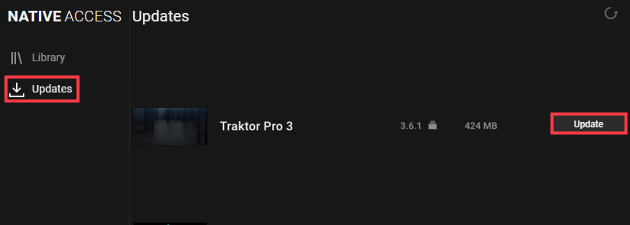
- Allow the installation to complete, then you can start the updated version of TRAKTOR.
Installing a TRAKTOR Update from the Update Manager
TRAKTOR PRO 3 updates are only available via Native Access. If you are looking for a TRAKTOR update for an earlier major version (e.g. TRAKTOR PRO 2), they will be available in the Update Manager section of our website.
- Go to the UPDATES area and log in if prompted.
- Type 'Traktor 2' in the search field (or 'Traktor 1' if you are a TRAKTOR 1 user) and press the Enter key.
- Click on the latest TRAKTOR update for your operating system to download the installer. In the example below, we are downloading the Traktor 2.11.0 Mac OS X Update.
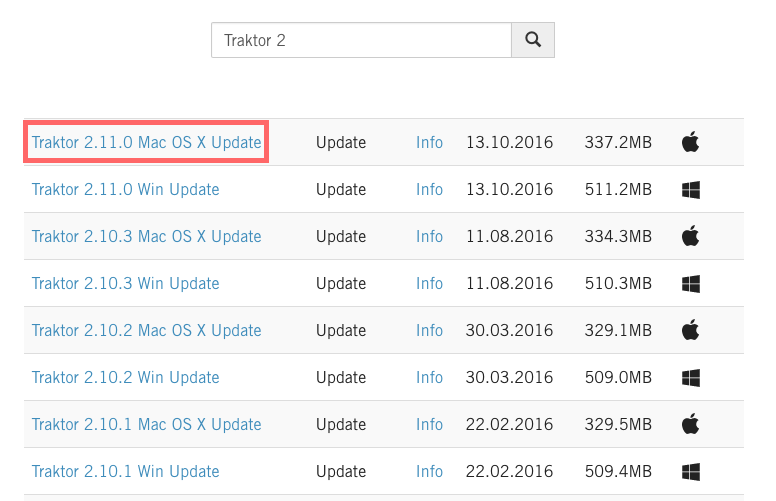
- Once the update has finished downloading, go to your downloads folder and run the installer.
Note: If you want to downgrade to an older version of TRAKTOR verify first if the earlier version of TRAKTOR you require is already found in your system as explained in this article.
Was this article helpful?
That’s Great!
Thank you for your feedback
Sorry! We couldn't be helpful
Thank you for your feedback
Feedback sent
We appreciate your effort and will try to fix the article