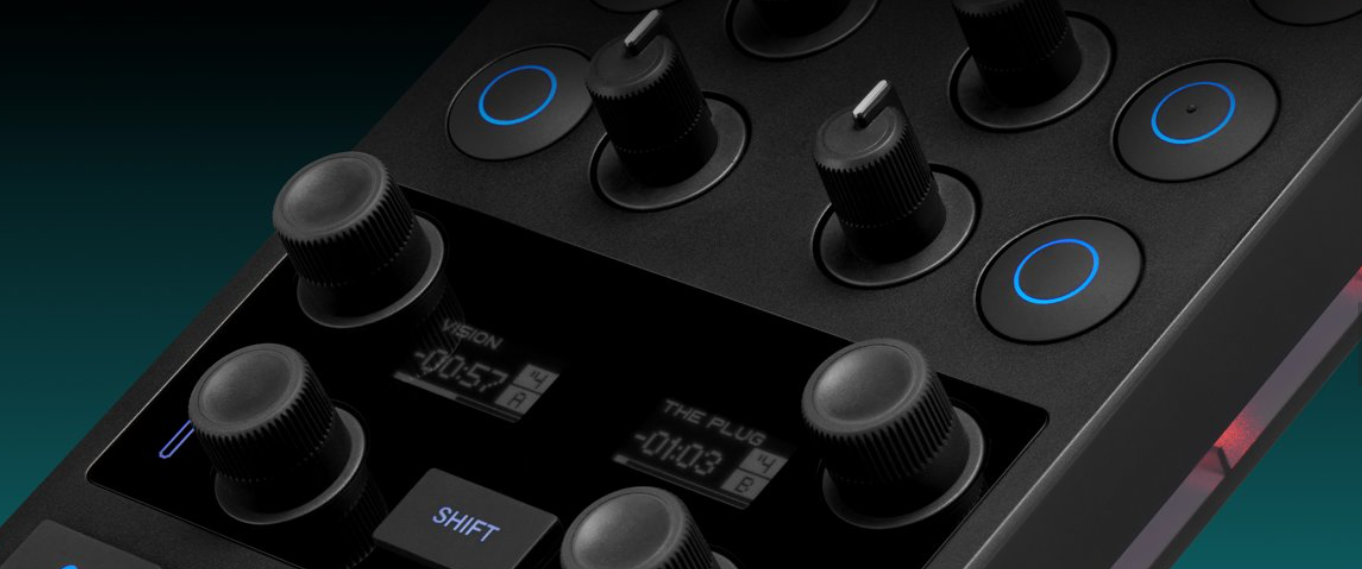
Please note that you need to install Traktor Pro 3.10 or higher to use the X1 MK3.
1. Download, install, and launch Native Access. This application manages the download, installation, and updates for all Native Instruments software.
- Click here to download Native Access.
- Start Native Access and log in with your NI username and password. If you don't have an account yet, you can create one within the app.
2. In Native Access, click Add serial and enter your 25-digit serial number as shown on the card in your product box or on the bottom of your hardware.
3. After entering the serial number, go to the Library tab, locate the Traktor Pro 3 entry and click Install.
If you already have Traktor Pro 3 installed, update to the latest version on the Updates tab.
'Traktor Pro Plus' users can install via the Subscription tab.
4. After the installation, launch Traktor Pro 3 and go through the library initialization steps.
When the software is up and running, connect the X1 to your computer using the included USB cable. You may have to use a USB-C adapter if your laptop does not have USB-A connectors.
- After a short start-up sequence, the lower displays will show the current deck settings, and the upper displays will show the current FX unit settings.
- Change the deck settings using any of the 4 encoders next to the lower displays.
- Change the FX unit settings using the arrow buttons at the top of the unit.
- Confirm your selection by pushing one of the 4 encoders next to the lower displays.
- The displays will show Deck and Effects information, and your setup is ready.
Note: the X1 MK3 must be connected to the power supply to use the built-in USB hub.
Manuals and more:
Was this article helpful?
That’s Great!
Thank you for your feedback
Sorry! We couldn't be helpful
Thank you for your feedback
Feedback sent
We appreciate your effort and will try to fix the article