Native Instruments | Switching Your Controller To MIDI Mode
Every NI controller uses a 'Native' data transfer protocol which allows for the automatic integration and advanced operation of your controller that would not be possible using the MIDI standard protocol. However, it is possible to switch most NI controllers to MIDI mode.
Note: If your NI controller is not listed in the table below, it cannot be switched to MIDI mode.
Operating your NI controller in MIDI mode is useful in the following scenarios:
- Use your NI controller as a remote MIDI controller within a 3rd party application that supports MIDI
- Use your NI controller as a MIDI controller within another NI application
You can switch your controller to/from MIDI mode either manually by pressing a specific button combination or automatically by launching the Controller Editor application.
When switching to MIDI mode, your controller will indicate MIDI mode is active by lowering the brightness of specific LEDs to a dimmed state.
Additionally, if the controller features displays (e.g. Mikro, Traktor Kontrol S4), they will read MIDI event messages (e.g CC48) or simply ON (as in the case of Traktor Kontrol S4 / S2's loop display) to indicate MIDI mode is active.
Switching to MIDI Mode Manually by Holding Down a Button Combination on your Controller
To toggle your controller between Native and MIDI mode manually, you need to hold down a specific button combination on your controller. Below is a list of button combinations for each NI controller model.
| Brand | Controller Model | Switch to / from MIDI Mode |
|---|---|---|
| Komplete Kontrol | Kontrol S-Series MK3 | Settings MIDI |
| Komplete Kontrol S-Series MK2 | SHIFT + MIDI / PLUG-IN | |
| Komplete Kontrol S-Series MK1 * | SHIFT + INSTANCE | |
| Komplete Kontrol A-Series | SHIFT + MIDI / PLUG-IN | |
| Komplete Kontrol M32 | SHIFT + MIDI / PLUG-IN | |
| Maschine | Maschine MK1 | SHIFT + CONTROL |
| Maschine MK2 | SHIFT + CONTROL | |
| Maschine MK3 | SHIFT + CHANNEL (MIDI) | |
| Maschine Mikro | SHIFT + F1 | |
| Maschine Mikro MK2 | SHIFT + F1 | |
| Maschine Mikro MK3 | SHIFT + Project button | |
| Maschine Studio | SHIFT + CHANNEL | |
| Maschine Jam | SHIFT + headphones button (MIDI) | |
| Maschine+ ** | SHIFT + CHANNEL (MIDI) | |
| Traktor | Traktor MX2 | SHIFT (left) + SHIFT (right) |
| Traktor Kontrol X1 MK1 | SHIFT + HOTCUE | |
| Traktor Kontrol X1 MK2 | SHIFT + both left and right load buttons (arrow buttons) | |
| Traktor Kontrol X1 MK3 | SHIFT + ☰ button | |
| Traktor Kontrol S2 MK1 | SHIFT (left) + SHIFT (right) | |
| Traktor Kontrol S2 MK2 | SHIFT (left) + SHIFT (right) | |
| Traktor KontrolL S2 MK3 *** | FLX (left) pressed while device is being connected (Disconnect to turn off MIDI mode) | |
| Traktor Kontrol S3 *** | FLX (left) pressed while device is being connected (Disconnect to turn off MIDI mode) | |
| Traktor Kontrol S4 MK1 | SHIFT (left or right Deck) + BROWSE (magnifying glass button) | |
| Traktor Kontrol S4 MK2 | SHIFT (left or right Deck) + PREVIEW (headphones button) | |
| Traktor Kontrol S5 | SHIFT (left or right Deck) + 'Back' button next to Browse encoder (right Deck) | |
| Traktor Kontrol S8 | SHIFT (left or right Deck) + BACK (right Deck) | |
| Traktor Kontrol D2 | SHIFT + BACK | |
| Traktor Kontrol F1 | SHIFT + BROWSE | |
| Traktor Kontrol Z1 | MODE + both left and right cue buttons (A and B) | |
| Traktor Kontrol Z1 Mk2 | Press the --- button together with the ☰ to switch to MIDI mode (the center display will display MIDI MODE). | |
| Traktor Kontrol Z2 | SHIFT + SETTINGS (gearwheel button) | |
| Kore | Kore 1 | VIEW then CONTROL |
| Kore 2 | F1 then CONTROL | |
| Guitar Rig | Rig Kontrol 3 | Automatic switch only (see next section) |
* If using Komplete Kontrol MK1 in stand-alone mode, press only INSTANCE and then turn the Browse knob to switch to MIDI on the computer screen. Switch back to Native mode by pressing SHIFT + INSTANCE.
** The MASCHINE+ hardware must be in Controller mode. See this article to switch to Controller mode.
*** The latest firmware for the controller needs to be installed. Please find instructions on how to update the firmware here.
Switching to MIDI Mode Automatically by Launching Controller Editor
Note: since Controller Editor 1.8.0, support for legacy Native Instruments devices has been discontinued and therefore they will not show up in Controller Editor.
Note: this workflow below does not apply to Traktor Kontrol S2 MK3 and S3.
Your controller will switch automatically from Native to MIDI mode when launching Controller Editor. It is located here on your hard drive:
- OS X: Macintosh HD > Applications > Native Instruments > Controller Editor > "Controller Editor.app"
- Win: C: > Program Files > Native Instruments > Controller Editor > "Controller Editor. exe".
Note: The NI application your controller is communicating with must be closed to enable automatic switching to MIDI mode.
The LEDs / displays of your controller will now show MIDI mode is active (see above) and the Controller Editor application will show a layout of your controller as well as display its name on the Application Control Bar on top.
Additionally, the Connect button next to the name will become highlighted in orange to indicate MIDI mode is active.

Note: If you launch Controller Editor while the dedicated NI software is running, the controller will remain in Native mode. You can click the Connect button to toggle to MIDI mode manually.
With the Controller Editor you can customize every MIDI assignment of your NI controller. You can create entire MIDI templates for your controller in order to to control third-party applications or hardware MIDI devices remotely.
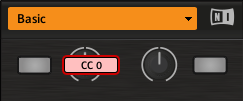
You can press / turn a button / fader / encoder on your controller to display its MIDI information on the software. In the example below, we have turned the top left knob on the Traktor Kontrol X1 MK2 and the corresponding button on the software is displaying its MIDI event message (CC0).
Please consult the Controller Editor documentation in order to learn how to customize your own MIDI templates.
Was this article helpful?
That’s Great!
Thank you for your feedback
Sorry! We couldn't be helpful
Thank you for your feedback
Feedback sent
We appreciate your effort and will try to fix the article