Reinstalling a Komplete bundle without re-downloading Kontakt libraries
This article explains how to reinstall a Komplete bundle when the Kontakt libraries are already installed on a separate hard drive. This procedure is recommended after reinstalling your operating system or if you want to install Komplete on a new computer. This saves a lot of time since the Kontakt libraries are the largest portion of the installation.
TABLE OF CONTENTS
- macOS 12 (and higher) and Windows / Native Access 2
- macOS 10.14 to macOS 11 / Native Access 2
- Mac OS X 10.11 to macOS 10.13 and Windows / Native Access 1
- Mac OS X 10.9 and 10.10 / Native Access 1
macOS 12 (and higher) and Windows / Native Access 2
- Start Native Access and set your installation paths. Make sure to choose the hard drive that contains the Kontakt Libraries as the Content location.
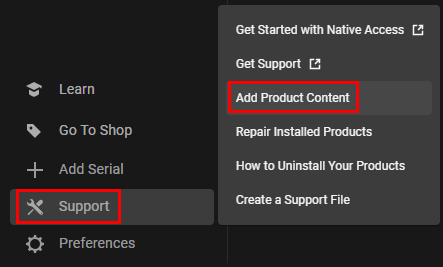
- Click Support and select Add Product Content.
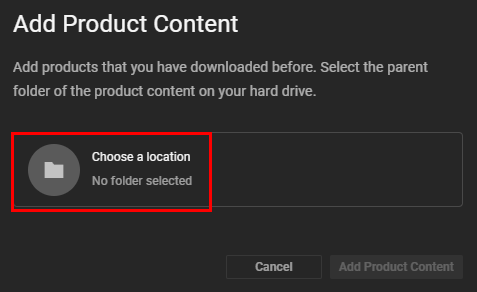
- Click the folder icon.
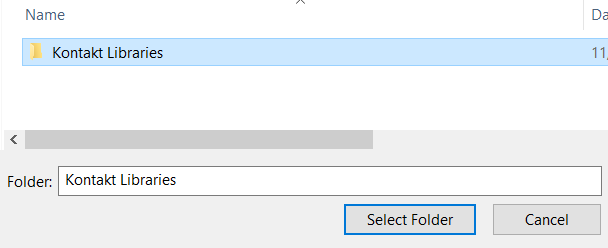
- Navigate to the location of your Kontakt libraries. Select the parent folder which contains all of your libraries. In our example, the parent folder is named Kontakt Libraries:
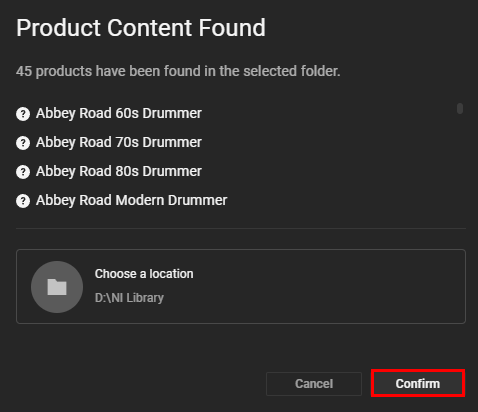
- Native Access scans the folder - this can take a moment. After the scan, it shows the Product Content Found. Click Confirm.
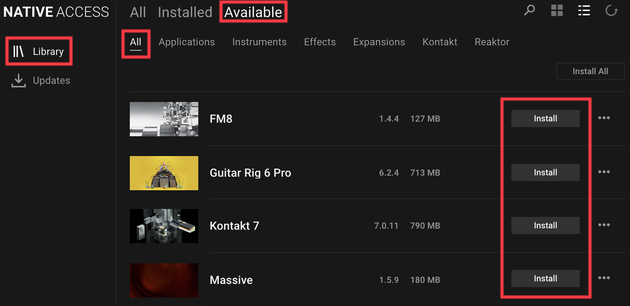
- Now you can click the Install tab for the remaining Komplete products.
macOS 10.14 to macOS 11 / Native Access 2
- Start Native Access and set your installation paths. Make sure to choose the hard drive that contains the Kontakt Libraries as the Content location.
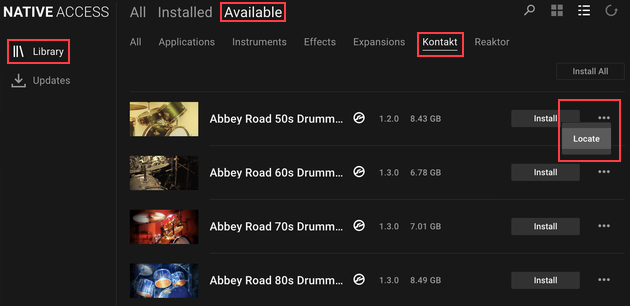
- Go to Library > Available > Kontakt and scroll to the first Kontakt Library to be installed. In this example, we will select Abbey Road 50s Drummer.
Click the three dots next to the product listing and select Locate.
Note: There is no "Locate All" option available for macOS 10.14 to macOS 11. It is only available for newer versions of Native Access (3.13.0 or higher).
Click the folder symbol to choose the product's library folder on your external drive.
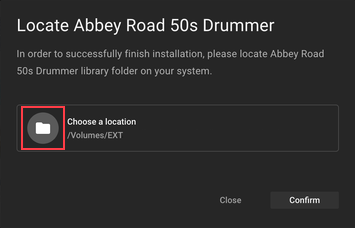
Note: Make sure to choose the specific library folder by name.
- Repeat steps 3 and 4 above for the remaining Kontakt libraries that need to be added.
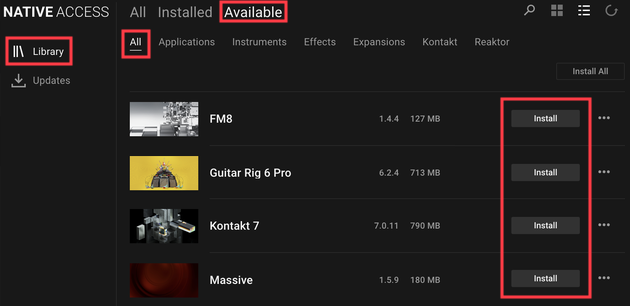
- Once all Kontakt libraries have been located, click the Install tab for the remaining Komplete products.
Mac OS X 10.11 to macOS 10.13 and Windows / Native Access 1
Start Native Access and set your installation paths. Make sure to choose the hard drive that contains the Kontakt Libraries as the Content location.
- Click Not Installed and scroll to the first Kontakt Library to be installed. In this example, we will select Session Guitarist - Electric Sunburst.
- Hover the mouse over the library's entry to find a lens symbol next to the INSTALL tab.
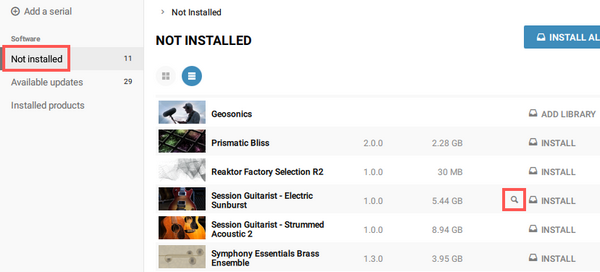
Click the lens symbol, then click BROWSE to choose the product's library folder on your external drive.
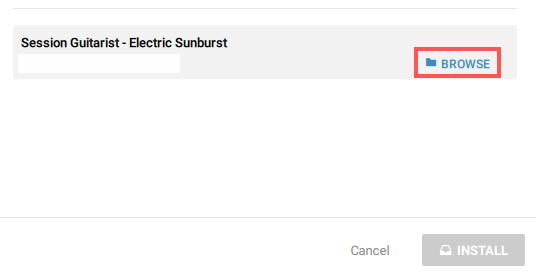
Note: Make sure to choose the specific library folder by name.- Click INSTALL to complete the process.
- Repeat steps 3 to 5 for the remaining Kontakt libraries that need to be added.
- Once all Kontakt libraries have been located, click the Install tab for the remaining Komplete products.
Mac OS X 10.9 and 10.10 / Native Access 1
Start Native Access and set your installation paths. Make sure to choose the hard drive that contains the Kontakt Libraries as the Content location.
- Click Not installed and Install only the Kontakt 5 software.
- Close Native Access.
IMPORTANT: Download and install Kontakt Version 5.6.8 from here.
Note: This is a temporary downgrade that's needed because later versions of Kontakt 5 do not support the Add Library feature described in the next step.
Open Kontakt 5 and add all Kontakt Libraries from the external hard drive.
Important: Do not click the 'Activate' button as seen in the video. The activation will be done automatically for all Libraries when you open Native Access in step 7 below.
- Restart your computer and open Native Access.
- Click Available Updates and update Kontakt 5 to its latest version.
- Click Not installed and install the remaining Komplete products.
Was this article helpful?
That’s Great!
Thank you for your feedback
Sorry! We couldn't be helpful
Thank you for your feedback
Feedback sent
We appreciate your effort and will try to fix the article