You may find that when opening the Maschine software, or when attempting to manually rescan your plug-ins from the Preferences menu, the scan process begins as expected but then becomes unresponsive.
Please select your operating system below for steps to resolve the issue:
TABLE OF CONTENTS
macOS
1. Open Maschine standalone (not in your DAW).
2. Observe the scanning process on the Maschine window. In the upper left, it will show which plug-in is being scanned:
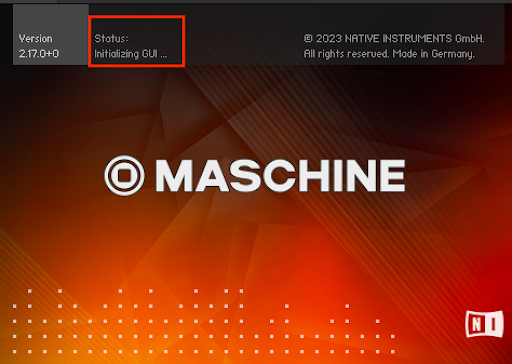
3. Note the plug-in that is being scanned when the Scan App gets stuck or crashes.
4. Remove that plug-in from the following locations (you can simply move it to your desktop):
- MacHD > Library > Audio > Plug-Ins > VST
- MacHD > Library > Audio > Plug-Ins > VST3
- MacHD > Library > Audio > Plug-Ins > Components
5. Open Maschine standalone again. Repeat the process and continue to move any plug-ins that cause the Scan App to crash.
Once all problematic plug-ins have been removed, Maschine will finish its scan and open as expected.
Windows
1. Open Maschine standalone (not in your DAW).
2. Observe the scanning process on the Maschine window. In the upper left, it will show which plug-in is being scanned:
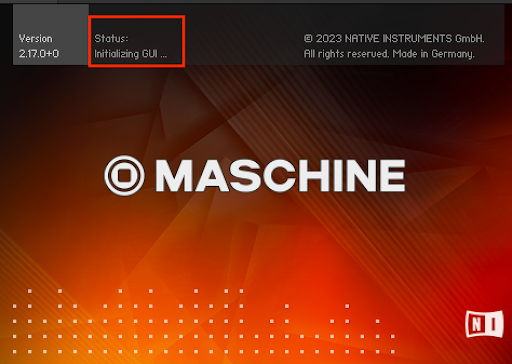
3. Note the plug-in that is being scanned when the Scan App gets stuck or crashes.
4. Open your VST plug-in locations and remove that plug-in from the folder (you can simply move it to your desktop).
5. Open Maschine standalone again. Repeat the process and continue to move any plug-ins that cause the Scan App to crash.
Once all problematic plug-ins have been removed, Maschine will finish its scan and open as expected.
Was this article helpful?
That’s Great!
Thank you for your feedback
Sorry! We couldn't be helpful
Thank you for your feedback
Feedback sent
We appreciate your effort and will try to fix the article