In this article, we will demonstrate how to export sounds from the MASCHINE plug-in to individual tracks in a DAW.
Follow these steps to drag & drop your MASCHINE patterns as loops or one-shot clips directly to an audio track in your DAW. This process works the same way within every DAW.
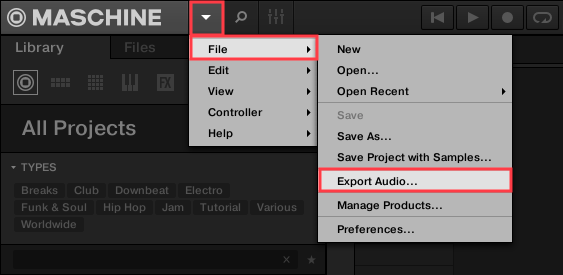
- In MASCHINE, go to File > Export Audio....
- If you wish to export the pattern as an audio loop, enable Loop Optimize in the Options section. If you wish to export the pattern as a one-shot audio clip (e.g. retaining the end reverb trail or echo), then leave the Loop Optimize box un-checked. Click the Close tab when finished.
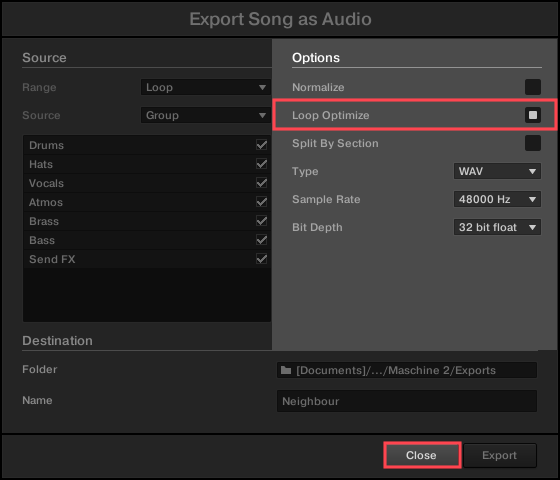
Note: For this example, please click Close and proceed to the next step (don't click the Export tab at this time).
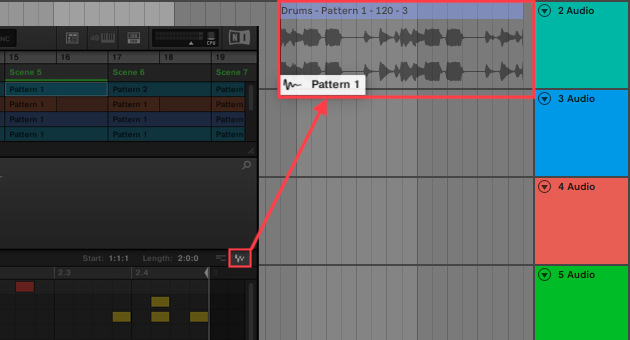
In the MASCHINE pattern editor, click and hold the mouse button over the audio drag icon. This will initialize the audio export of all events in the Group / Kit.
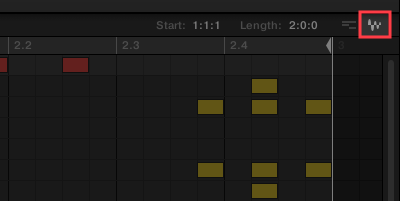
Note: To export the audio of a single Sound, switch the pattern editor to Keyboard view on the desired Sound before dragging it to export.
- Keep the mouse button held down on the audio drag icon until the Exporting Audio process is finished.
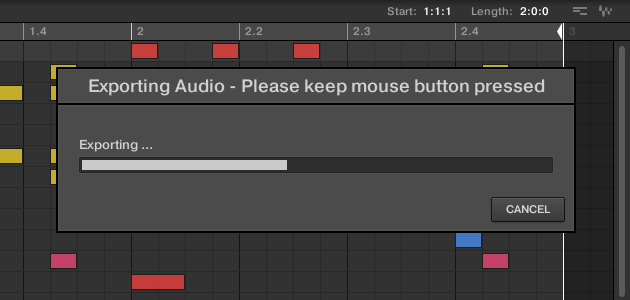
- Once the export process is complete, the audio file is ready. Drag the sound to an audio track in your DAW and release the mouse button to drop it there.
Was this article helpful?
That’s Great!
Thank you for your feedback
Sorry! We couldn't be helpful
Thank you for your feedback
Feedback sent
We appreciate your effort and will try to fix the article