Some Instruments Do Not Load from MASCHINE Desktop Projects in MASCHINE+
TABLE OF CONTENTS
Symptom
Some Instruments don't play back in MASCHINE+ in a project created with the Desktop MASCHINE Software (i.e. MASCHINE software on the computer).
Cause
In the Desktop (computer) version of MASCHINE, some NI presets now load using the VST3 plug-in format by default. If a project was created in MASCHINE Desktop and then transferred to the MASCHINE+ SD Card, these VST3 presets will not sound in MASCHINE+.
This is because MASCHINE+ currently uses only the VST2 plug-in format.
We are currently working on a solution. This issue only applies to these plug-ins used in MASCHINE:
- KONTAKT (PLAYER)
- MASSIVE
- PHASIS
- RAUM
Solutions
Only use VST2 Plug-ins
Please only use VST2 plug-ins if you want to transfer your MASCHINE desktop project to MASCHINE+. You can load them via MASCHINE's Plug-in Menu:
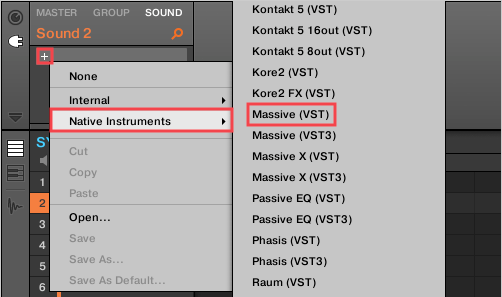
Note: The version labeled as VST ist the VST2 version.
Switching VST3 Plug-ins with VST2 Versions
If you experience this issue with an already created MASCHINE project, follow this guide to switch the VST3 plug-ins with their VST2 counterparts:
Saving Your Preset
- Load the original project back in the MASCHINE Desktop (software on your computer).
- Locate the Group containing the instrument, and click Sound, Group, or Master.
Note: Instruments are always at the Sound level, but Effects can be at the Master, Group, or Sound levels of the MASCHINE plug-in strip.
- On the Plug-In strip, click the drop menu of the affected plug-in and choose Save As.
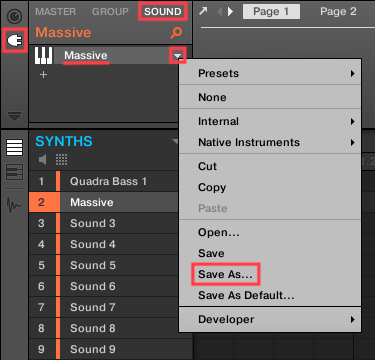
Note: In this example, we save a custom MASSIVE preset but KONTAKT, PHASIS, and RAUM custom presets are saved the same way.
- In the Save Preset window, keep the default User Content folder seen below. Name your preset here and click Save.
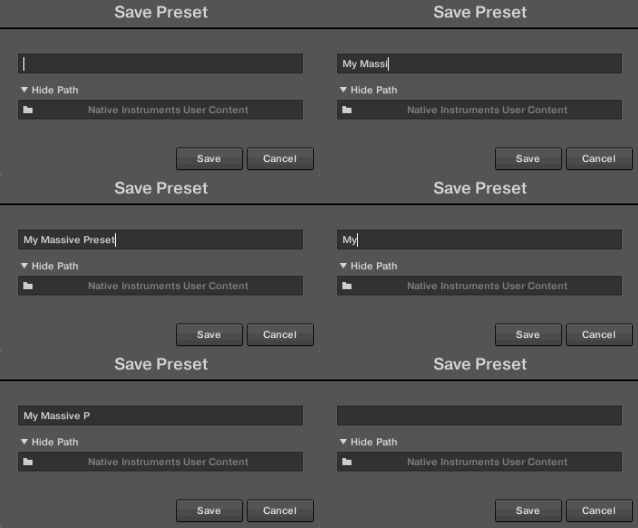
This saves your preset in the default User Content folder at this location on your computer:
macOS: Macintosh HD > Users > *Your User Name* > Documents > Native Instruments > User Content > *Product Name Folder*
Windows: C: > Users > *Your User Name* > Documents > Native Instruments > User Content > *Product Name Folder*
Switching the VST3 Plug-In with VST2
- Click the plug-in drop menu and choose None to remove the plug-in.
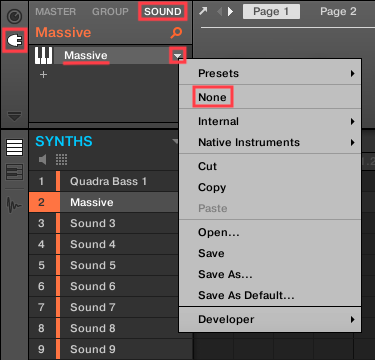
- Re-load the same plug-in, but choose the VST version instead of VST3.
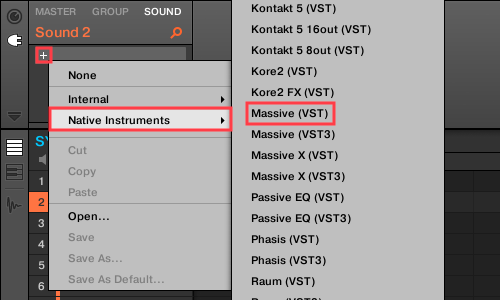
Note: The version labeled as VST is the VST 2 format.
Now the VST2 plug-in is loaded. You can verify this by clicking the NI Logo to see the About info screen.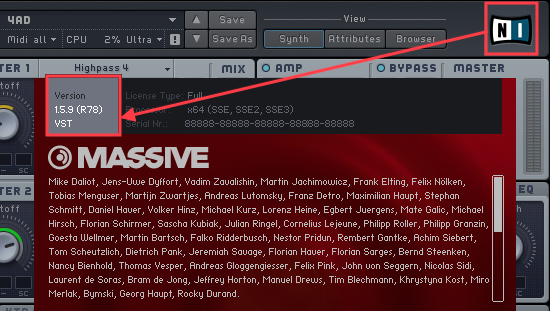
Note: Afterward, click the About info screen (or the X) to close it.
Reloading Your Preset in the VST2 Plug-In
The procedure to reload your custom preset will vary slightly, depending on which NI plug-in is being used. Please follow these directions, based on your plug-in.
PHASIS and RAUM
- Double-click the PHASIS or RAUM tab in MASCHINE to open the plug-in window.
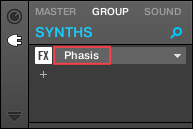
- Click the drop menu in the plug-in header. You will find your custom preset in the User Presets category. Click your preset name to load it.
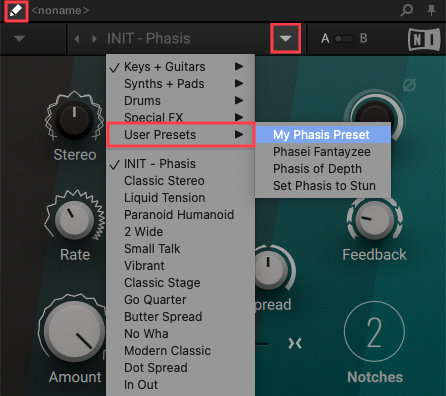
Note: Click the pencil symbol if the drop-menu does not appear at first on the plug-in GUI.
KONTAKT (PLAYER)
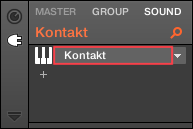
- Double-click the KONTAKT Instrument tab in MASCHINE to open the plug-in window.
- Using the MASCHINE Browser, click the Keyboard symbol (All Instruments) and the Person symbol to access your User Content.
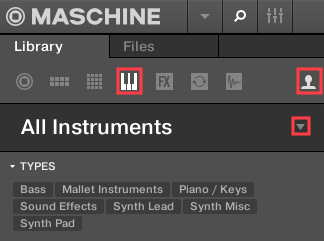
- Use the All Instruments menu to select the KONTAKT Library associated with your preset. In this example, RETRO MACHINES MK2 is chosen.
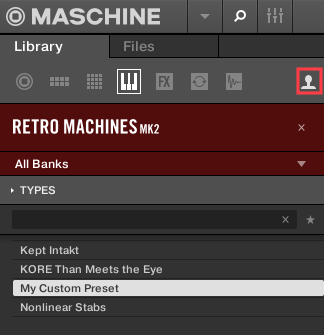
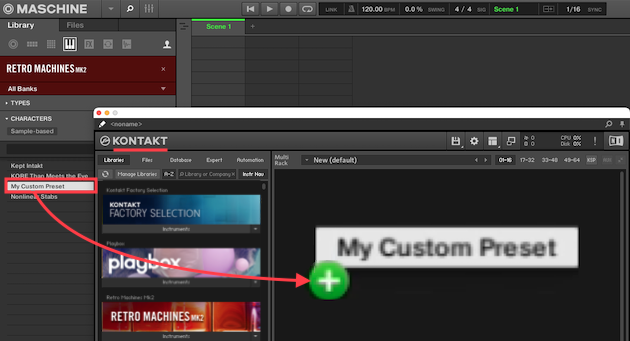
- Your custom preset should appear in the list. With the KONTAKT GUI open, drag and drop your preset onto the empty Rack area of KONTAKT.
Important: You must not double-click your custom preset here, because it will re-load the KONTAKT VST3 plug-in. Drag-and-drop into the KONTAKT GUI, as seen below.
MASSIVE
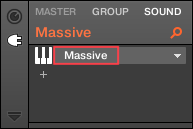
- Double-click the MASSIVE Instrument tab in MASCHINE to open the plug-in window.
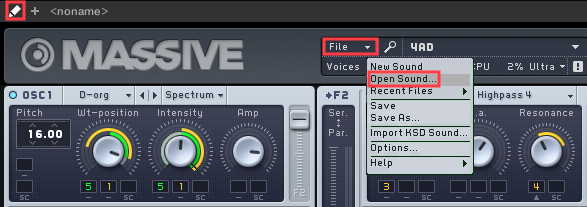
- Use the File tab on the MASSIVE GUI and select Open Sound.
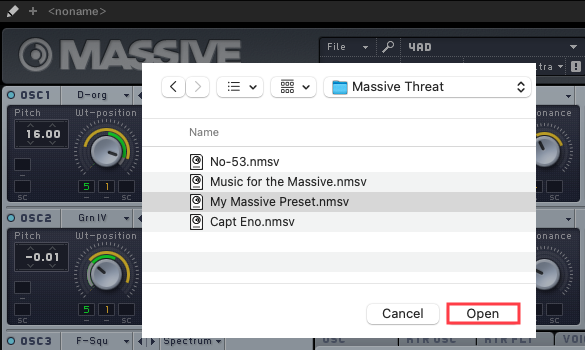
- Use the File window pop-up to navigate to this location on your computer:
macOS: Macintosh HD > Users > *Your User Name* > Documents > Native Instruments > User Content > Massive
Windows: C: > Users > *Your User Name* > Documents > Native Instruments > User Content > MassiveNote: The custom preset may be saved to a MASSIVE sub-folder within User Content. In such a case, the sub-folder is named after the MASSIVE Bank (e.g. Massive Threat below) that the factory preset originates from.
- Open your custom preset file (.nmsv) from the Massive User Content folder.
Re-saving and Transferring your Project back to MASCHINE+
- Re-save a new copy of the MASCHINE project on your computer.
Note: To retain the original, you can save a new version of your project by giving it a slightly different name (e.g. "Project Name - Edited").
- Transfer the new copy of your project back to the MASCHINE+ SD card.
- Open the project in MASCHINE+, and you will now hear the audio from all presets that you used.
Was this article helpful?
That’s Great!
Thank you for your feedback
Sorry! We couldn't be helpful
Thank you for your feedback
Feedback sent
We appreciate your effort and will try to fix the article