This article explains how to exchange files between the SD memory card of your MASCHINE+ and a computer. This can be useful if you wish to transfer a project from the software version of MASCHINE on your computer to the MASCHINE+, or vice versa.
Before we start, make sure that your MASCHINE+ is updated to the latest version by pressing the SETTINGS button and scrolling to the SYSTEM tab using the 4D knob. The MASCHINE+ will fetch the latest update if available.
1. Connecting MASCHINE+ to your computer
- Connect the MASCHINE+ directly to your computer using the provided USB cable.
- Use the 4-D encoder to select SYSTEM.
- To engage STORAGE mode, press on Button 3.
- Read the instructions on the right screen, then press OK by pressing Button 8.
- The MASCHINE+ will now appear as an external drive on your computer. You can now transfer files from your computer to your MASCHINE+, or vice versa.
1.1 Transferring files between your computer and MASCHINE+
- To add Projects to the MASCHINE+, drag and drop them to the following directory on the SD card:
Native Instruments > Maschine 2 > Projects - To add Samples to the MASCHINE+, drag and drop them to:
Native Instruments > Maschine 2 > Sounds - When you have finished transferring the selected files, eject the SD card drive from your computer.
- Press SETTINGS and then Button 8 (DISCONNECT) on your MASCHINE+ to exit STORAGE mode.
Note: Accessing Storage mode stops the Transport, disables access to all other modes, and pauses any files downloading in the Library while in use. You can continue using your MASCHINE+ only after you have disconnected from Storage mode.
2. Opening files added to your SD card
To open the files recently added to the SD card on MASCHINE+, follow the steps below:
- Press the BROWSER button.
- Press Button 4 (USER) to show the user content.
- Press SHIFT + Button 1 (RESCAN) to scan for new content.
- Press Button 1 or 2 to select the file type you want to load.
- Turn Knob 2 to select MASCHINE.
- Turn Knob 8 to select the name of the file you want to load.
- Press Button 8 (LOAD) to load the selected file.
3. Loading a MASCHINE+ project with MASCHINE on your computer
To transfer a project made with MASCHINE+ to your computer, follow the steps below:
- After connecting the MASCHINE+ in Storage mode (as per the instructions in point 1 above), navigate to the following folder on the SD card:
Native Instruments > Maschine 2 > Projects - Open another window and navigate to the Standard User Directory folder on your computer:
Mac: Macintosh HD > Users > *Username* > Documents > Native Instruments > Maschine 2 > Projects
Windows: C: > Users > *Username* > Documents > Native Instruments > Maschine 2 > Projects - Drag & drop the desired project from the SD card folder into the Standard User Directory folder.
Your projects are now available to load in MASCHINE 2.
3.1 If using a custom folder location to store your MASCHINE projects
Alternatively, if you are using a custom folder to store your MASCHINE projects on your computer, you can drag & drop your MASCHINE+ projects from the SD card to that location. Just make sure to add this folder in the MASCHINE 2 preferences:
- Launch MASCHINE 2.
- Open File > Preferences.
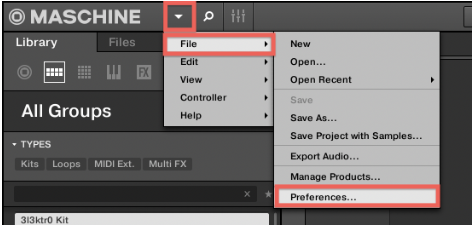
- Navigate to the Library tab, and click on the User button.
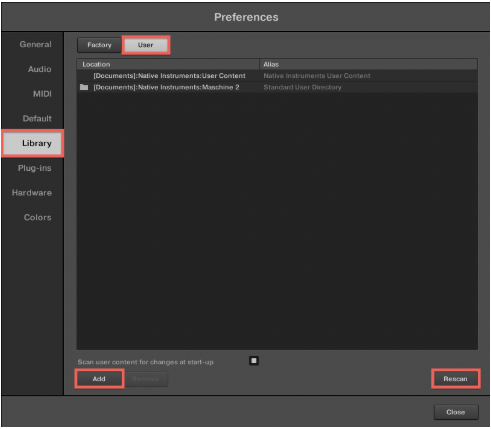
- Click Add to navigate to the folder containing the recently transferred projects to add it.
- Click on the Rescan button to refresh the MASCHINE 2 database.
Your projects are now available to load in MASCHINE 2.
Was this article helpful?
That’s Great!
Thank you for your feedback
Sorry! We couldn't be helpful
Thank you for your feedback
Feedback sent
We appreciate your effort and will try to fix the article