
In this article, we explain how to use a footswitch pedal with MASCHINE+, MASCHINE MK3 or MASCHINE JAM to capture loops while keeping your hands free. This is particularly useful when you are performing and wanting to "live-loop" on the spot during your performance, for example.
Note: For optimal functionality, make sure to use a momentary footswitch, as opposed to a latching one. If you are experiencing issues, also verify the polarity of your footswitch.
In order to use the footswitch for audio loop recording, follow the steps below:
- Plug your footswitch into the PEDAL input of the back of the MASCHINE+ or MASCHINE MK3.
Note: On the MASCHINE JAM, connect the footswitch into the FOOTSWITCH input.
- Choose an empty SOUND where the recorded sample/loop(s) will be placed at the end of this process (i.e. a pad in PAD mode).
- Go to the [SAMPLING] section on your MASCHINE+ or MASCHINE MK3 in order to pin the recording mode.
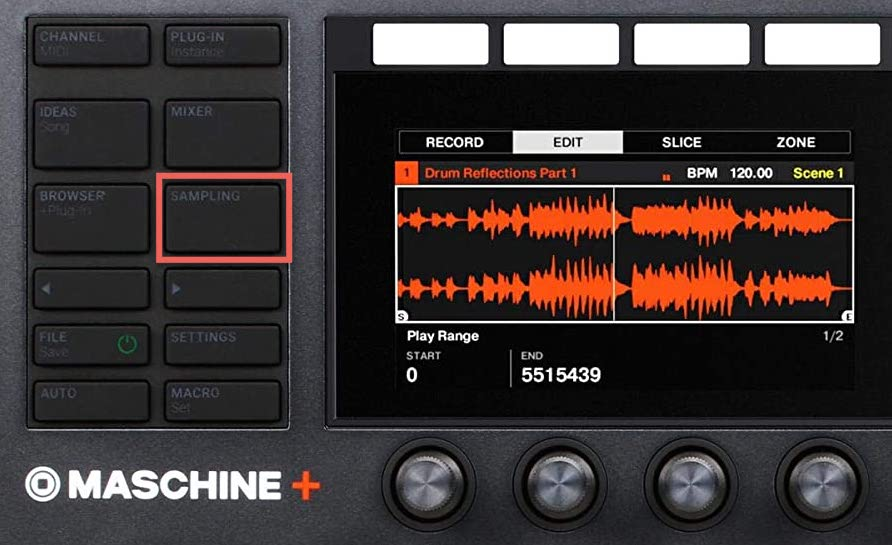 On the MASCHINE JAM, press [IN 1] and [SONG] to pin the Record mode.
 - Set the recording parameters, such as SOURCE (external or internal audio), and the specified INPUT (for example, the LINE inputs if set to external audio, or Group/Masteroutput if set to internal audio)
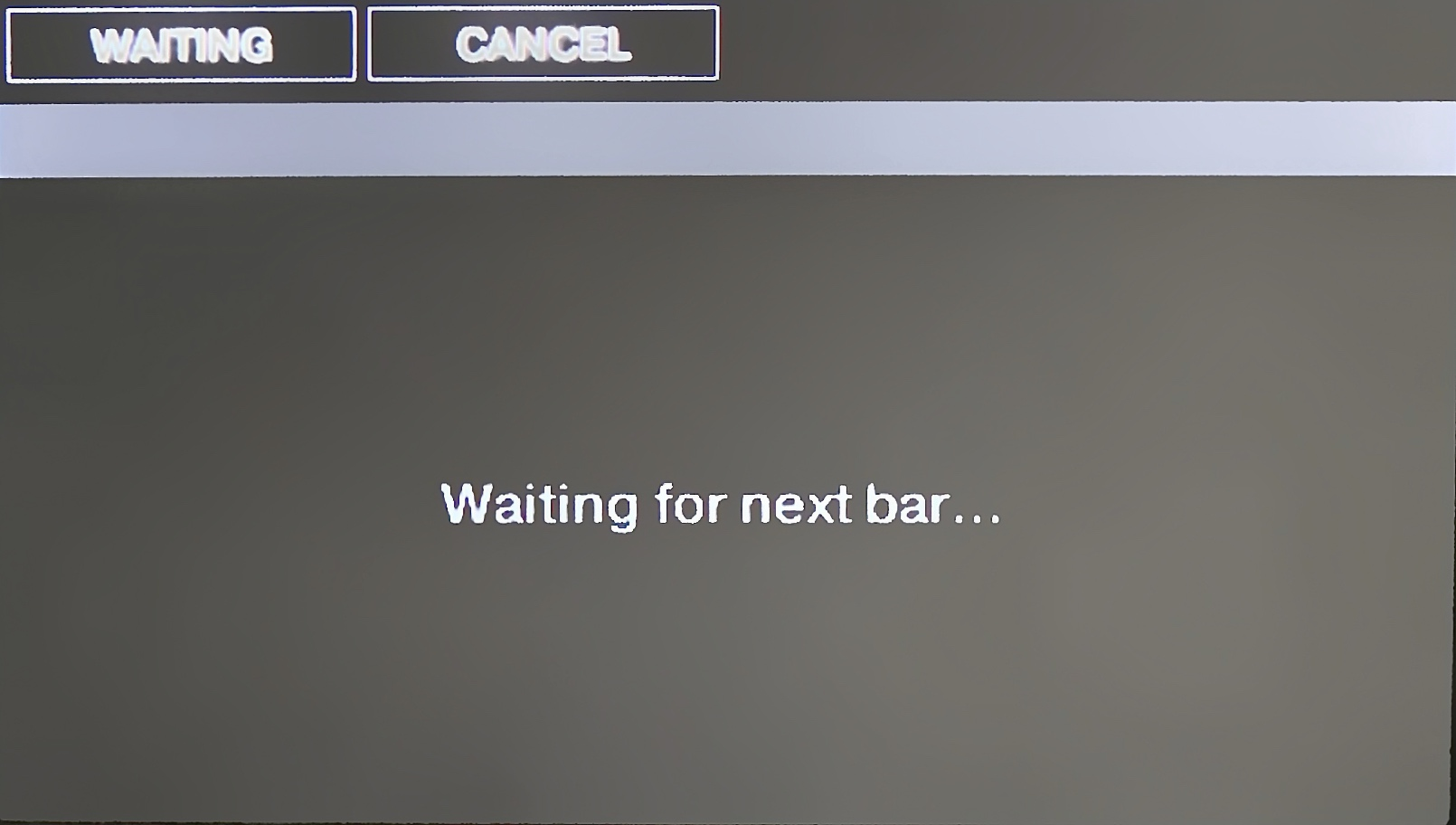
- Once the parameters have all been set, depress the footswitch. If your device isn't currently playing a sequence, you will see the sampler showing Waiting for next bar… and waiting for the sequence to be started via the [PLAY] button. Once the sync point is reached (i.e. the beginning of the next bar), the recording will start.
- The recording will stop automatically if you have set a pre-determined recording length.
If you choose FREE for the Length parameter, depressing the footswitch again will stop the recording on the next bar.
When the recording is done, it will be loaded according to the setting of the TARGET parameter. In this example, it will be placed as a SOUND on the PAD that you pressed at the beginning of these instructions.
If you trigger a new recording by mistake, the footswitch provides the following helpful functions:
- CANCEL: If a recording is standing by to start (i.e. awaiting the sync point), you can simply press the footswitch once again to cancel the recording. No new recordings or patterns will be made.
- ABORT: If a recording has started, “double-tap” the footswitch to abort the current recording. Any audio recorded will be discarded, no loops will be loaded, and no new pattern will be created.
- UNDO: If a recording finished before you could cancel it, then simply press and hold the footswitch to trigger Undo.
Was this article helpful?
That’s Great!
Thank you for your feedback
Sorry! We couldn't be helpful
Thank you for your feedback
Feedback sent
We appreciate your effort and will try to fix the article