Komplete Kontrol | Using KOMPLETE KONTROL S-Series Keyboards with MCU Controllers in Logic, Cubase and Nuendo
If you are using a MCU-based controller for Logic, Cubase or Nuendo, we recommend to not activate your KOMPLETE KONTROL S-Series Keyboard as a MCU device in your host application.
Note: MCU is a high-resolution communication protocol for control surfaces supported by Logic, Cubase and Nuendo, among others.
Automatic track focus, track switching and transport control might not work properly when using KOMPLETE KONTROL S-Series and other MCU devices simultaneously in Logic, Cubase, or Nuendo. Note that full KOMPLETE KONTROL plug-in control is not affected. This includes KOMPLETE Browser, Native Map, Light Guide and the perform features. Please also note that within a supported host the INSTANCE button will not work (read more here). If you deactivate your KOMPLETE KONTROL S-Series as MCU device, the only way to bring the focus on the instance of KOMPLETE KONTROL you want to control is to call up manually the KOMPLETE KONTROL plug-in and to press the little keyboard icon with a number corresponding to the number of keys on your S-Series controller:

If you have already activated your KOMPLETE KONTROL S-Series Keyboard as a MCU device in Logic, Cubase or Nuendo and are experiencing issues, follow the instructions below to deactivate it.
Deactivating the KOMPLETE KONTROL S-Series Keyboard as a MCU device in Logic
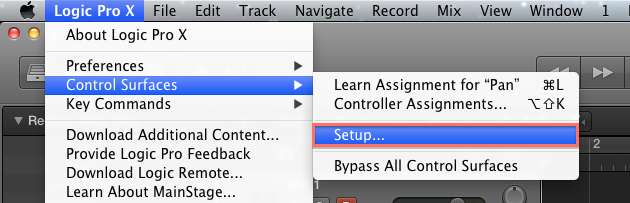
- In Logic, open the following menu bar entry: Logic Pro X > Control Surfaces > Setup...
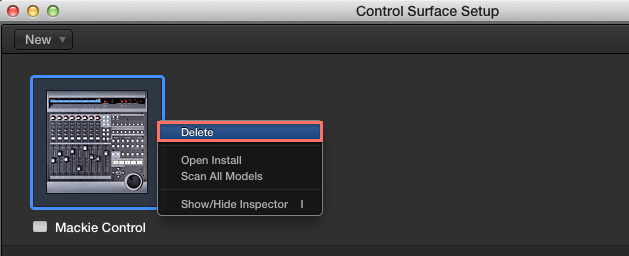
- In the Control Surface Setup, right-click on the Mackie Control device which was created for your KOMPLETE KONTROL S-Series keyboard and choose Delete from the context menu.
- Close the Control Surface Setup window.
Deactivating the KOMPLETE KONTROL S-Series Keyboard as a MCU device in Cubase / Nuendo
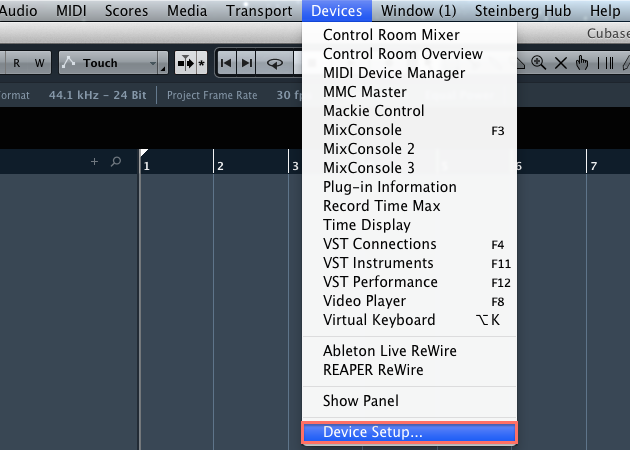
- In Cubase, open the following menu bar entry: Devices > Device Setup...
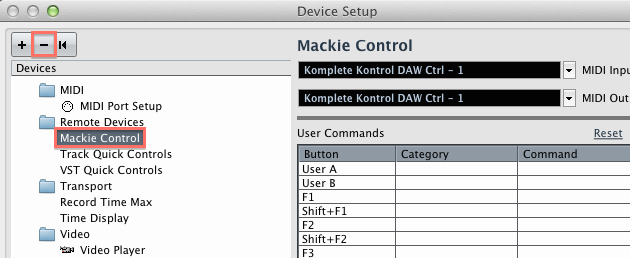
- In the Device Setup, select the Mackie Control device which you created for your KOMPLETE KONTROL S-Series keyboard and click on the '-' symbol in the top left corner to delete it.
- Close the Device Setup window by clicking OK.
Was this article helpful?
That’s Great!
Thank you for your feedback
Sorry! We couldn't be helpful
Thank you for your feedback
Feedback sent
We appreciate your effort and will try to fix the article