Cet article n'est pas disponible en French. Affichez-la en English
This guide explains how to load expansion presets in Prism and access your installed sound libraries using the REAKTOR browser. It also covers how to save expansion folders for quicker access.
TABLE OF CONTENTS
Loading a Prism Expansion Preset
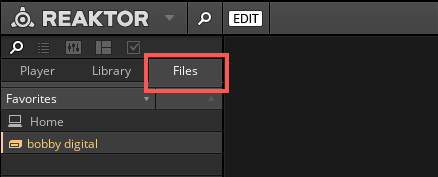
- In REAKTOR, select Files in the Browser.
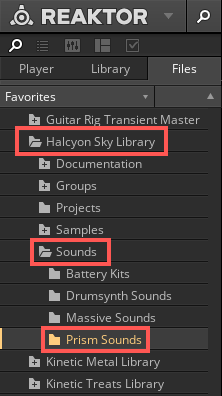
- Navigate to your Expansion folder (Halycon Sky Library in our example) and select Sounds > Prism Sounds. By default, the installation path is:
- Mac: Macintosh HD > Users > Shared > *Expansion Name*
- Windows: Users > Public > Public Documents > *Expansion Name*
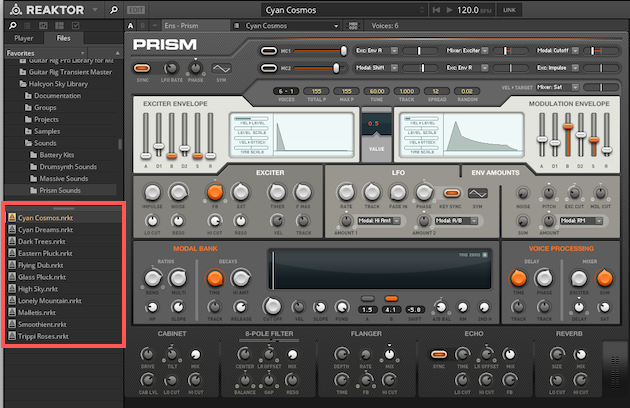
- The Presets are now displayed in the lower area of the Browser. Double-click any Preset to load it to Prism.
Set the Expansion Folder as Favorite
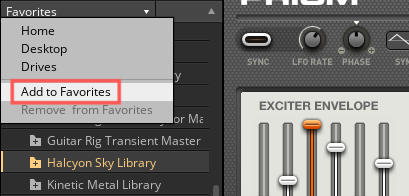
- Select the Expansion's folder (Halcyon Sky Library in our example), which contains the Expansion Presets for Prism, then click Favorites.
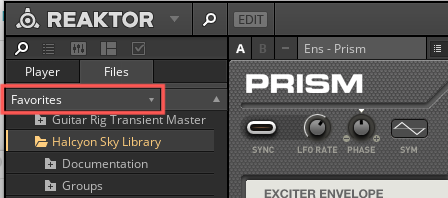
- Choose Add to Favorites in the Favorites drop-down menu.
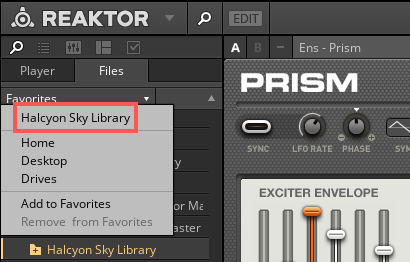
- The next time you open the Favorites menu, your Expansion folder (Halcyon Sky Library in our example) will be listed in the menu.
Was this article helpful?
That’s Great!
Thank you for your feedback
Sorry! We couldn't be helpful
Thank you for your feedback
Feedback sent
We appreciate your effort and will try to fix the article