Native Instruments | MacOS Dialog: “*App Name* would like to access the microphone."
When launching a Native Instruments application on macOS 10.14 (or higher), the following message is displayed:
*appname* would like to access the microphone
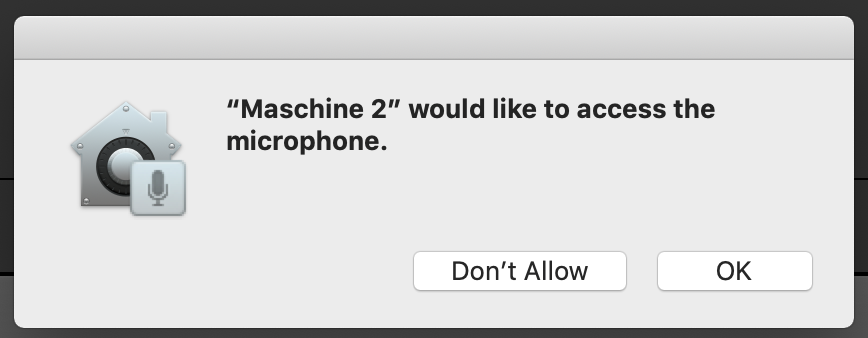
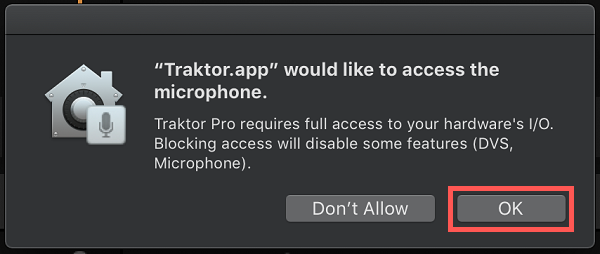
You can click OK in order to enable microphone access. If you click Don't Allow and prevent access, you may experience issues such as:
- No incoming signal going to the Input Decks
- No DVS support
- Audio performance issues
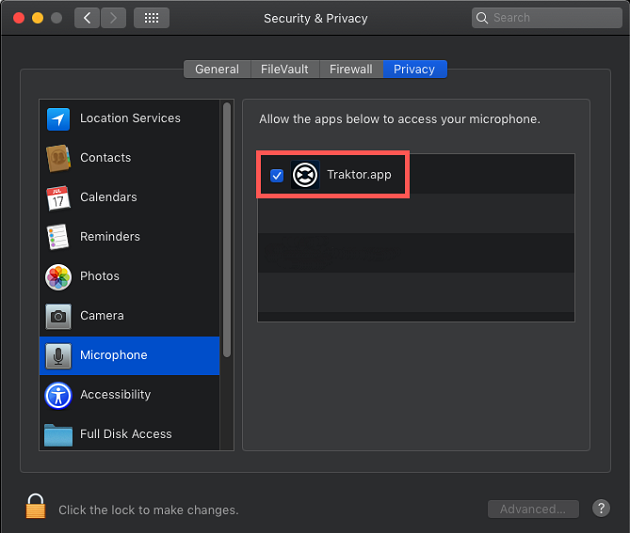
In case you inadvertently chose Don't Allow or ignored the prompt, you can also adjust your Mac settings to enable microphone permission:
- Go to System Preferences > Security & Privacy > Privacy > Microphone
- Click on the lock icon next to Click the lock to make changes and enter your computer log-in details.
- Enable the microphone setting for your app(s) by ticking the box next to *app.name*.app. In the below example, we are enabling the microphone access for Traktor.app.
Was this article helpful?
That’s Great!
Thank you for your feedback
Sorry! We couldn't be helpful
Thank you for your feedback
Feedback sent
We appreciate your effort and will try to fix the article