TABLE OF CONTENTS
- Register the MPC XL
- Install the MPC XL Driver
- Update the MPC XL Firmware
- Installing and Authorizing MPC 3
Register the MPC XL
- Click this link to access your inMusic Profile or set up an account if you haven't done so already.
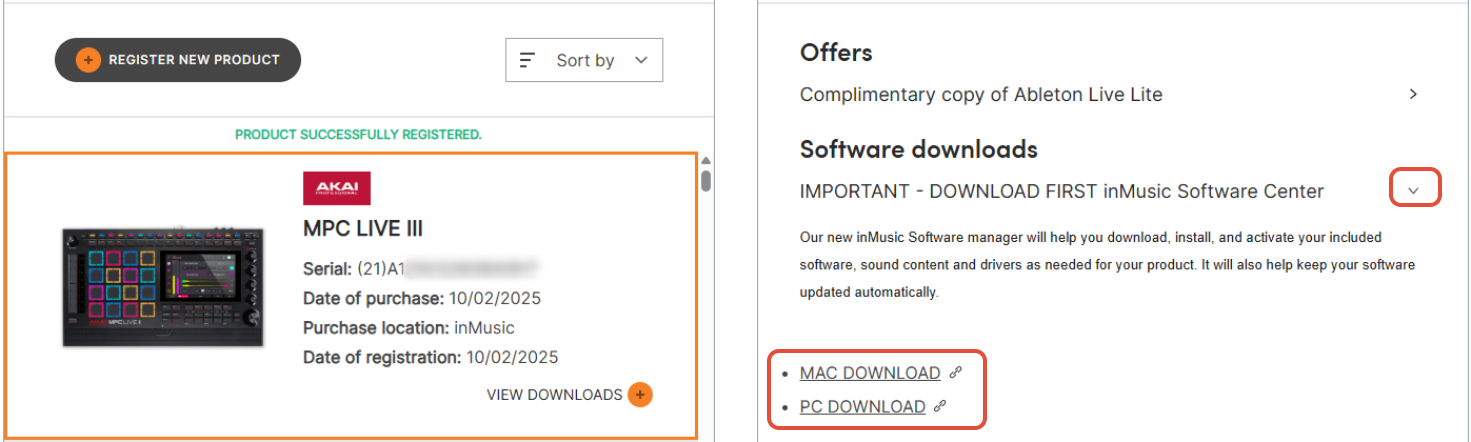
- Click Register New Product.
Enter the serial number, purchase date, and purchase location to complete registration. The serial number for your MPC XL will be located on a barcode on the bottom of the MPC. The serial number will begin with a (21), though this does not need to be entered during the registration process. - Once the MPC is registered, find your MPC XL in the My Registered Products list. Click View Downloads.
- In the Software Downloads Section, click the dropdown > and download the inMusic Software Center for your selected OS.
Install the MPC XL Driver
Important: The MPC XL requires a driver for use with both macOS and PC operating systems in order to function with the MPC Software.
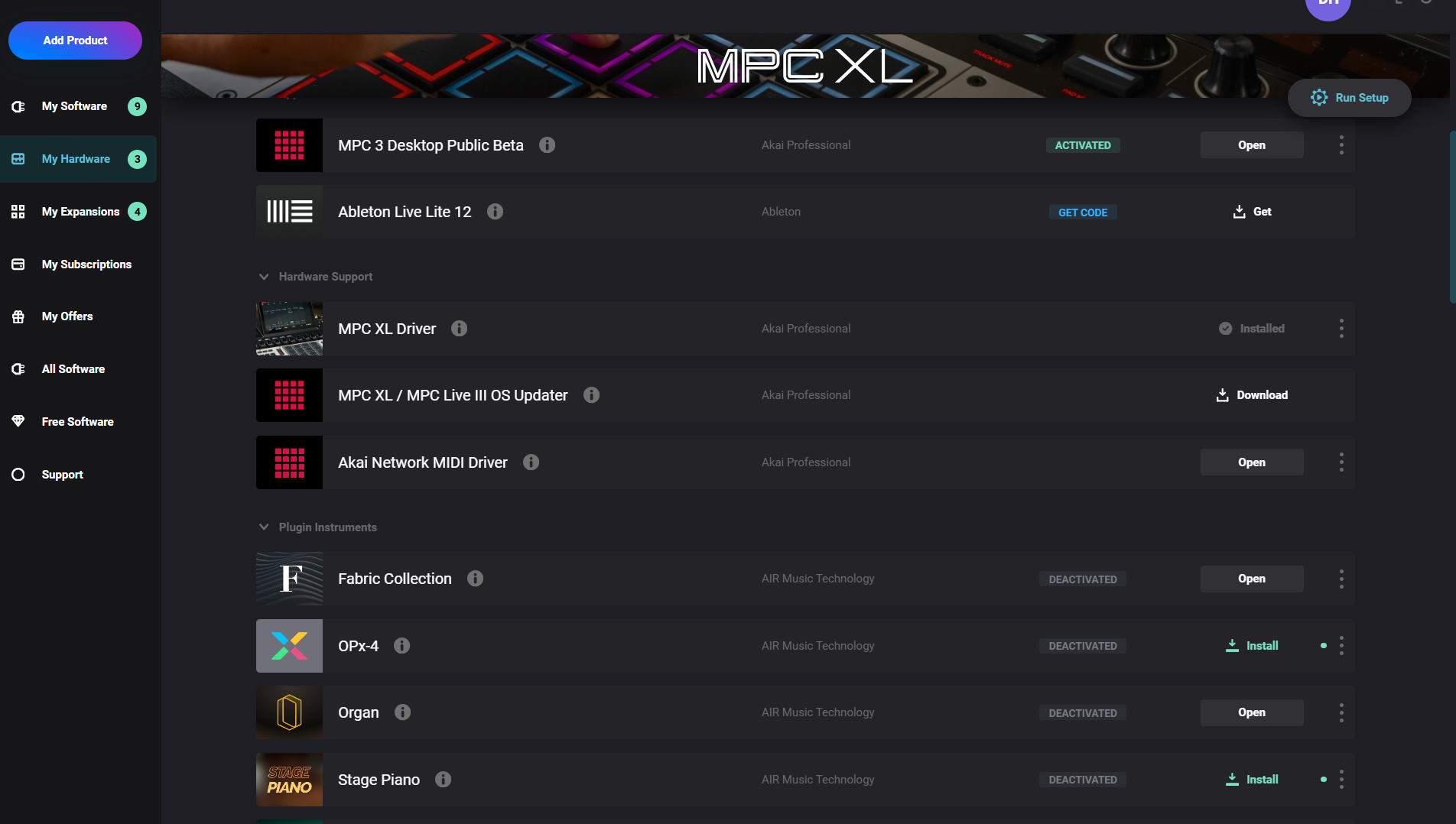
- Open the inMusic Software Center. This should be located in your Downloads folder, or wherever you typically find your downloaded items on your computer.
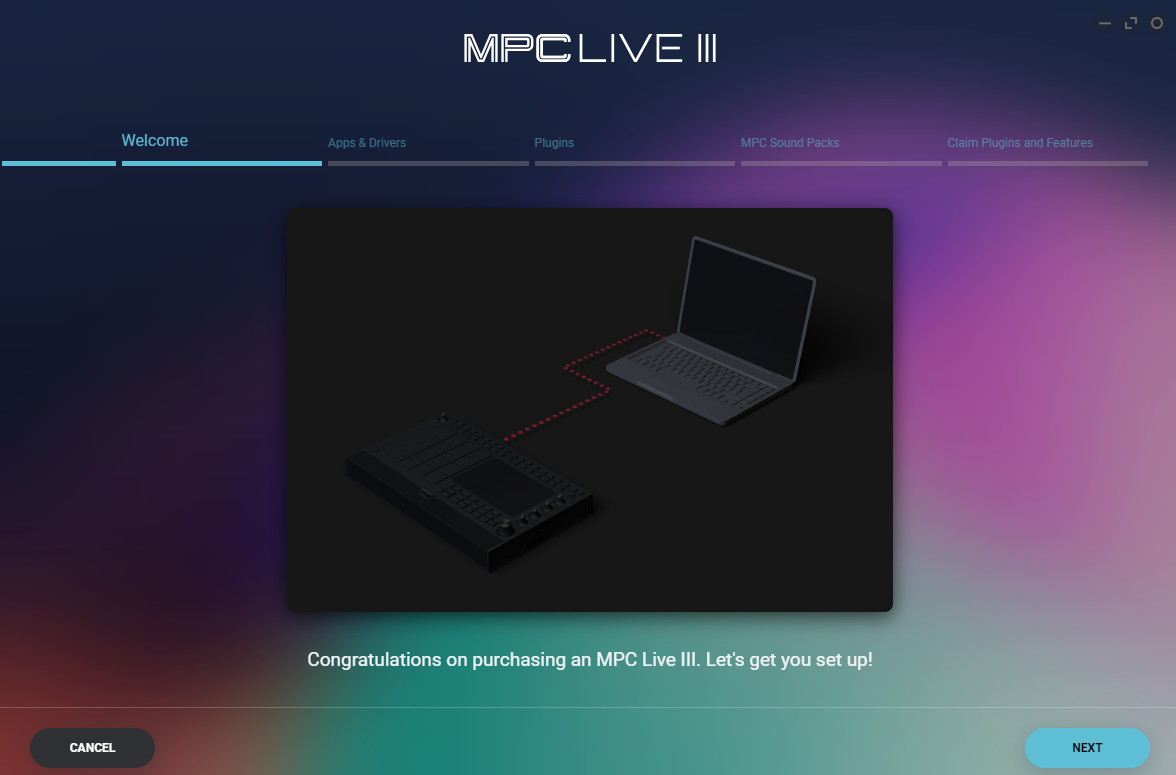
This will go through a brief installation before it opens. Be sure to follow any prompts on-screen to allow the software the proper permissions to operate. - With the MPC XL registered, you should receive a short setup wizard instructing you to connect your MPC XL after the program loads. Click next after connecting up your MPC XL.
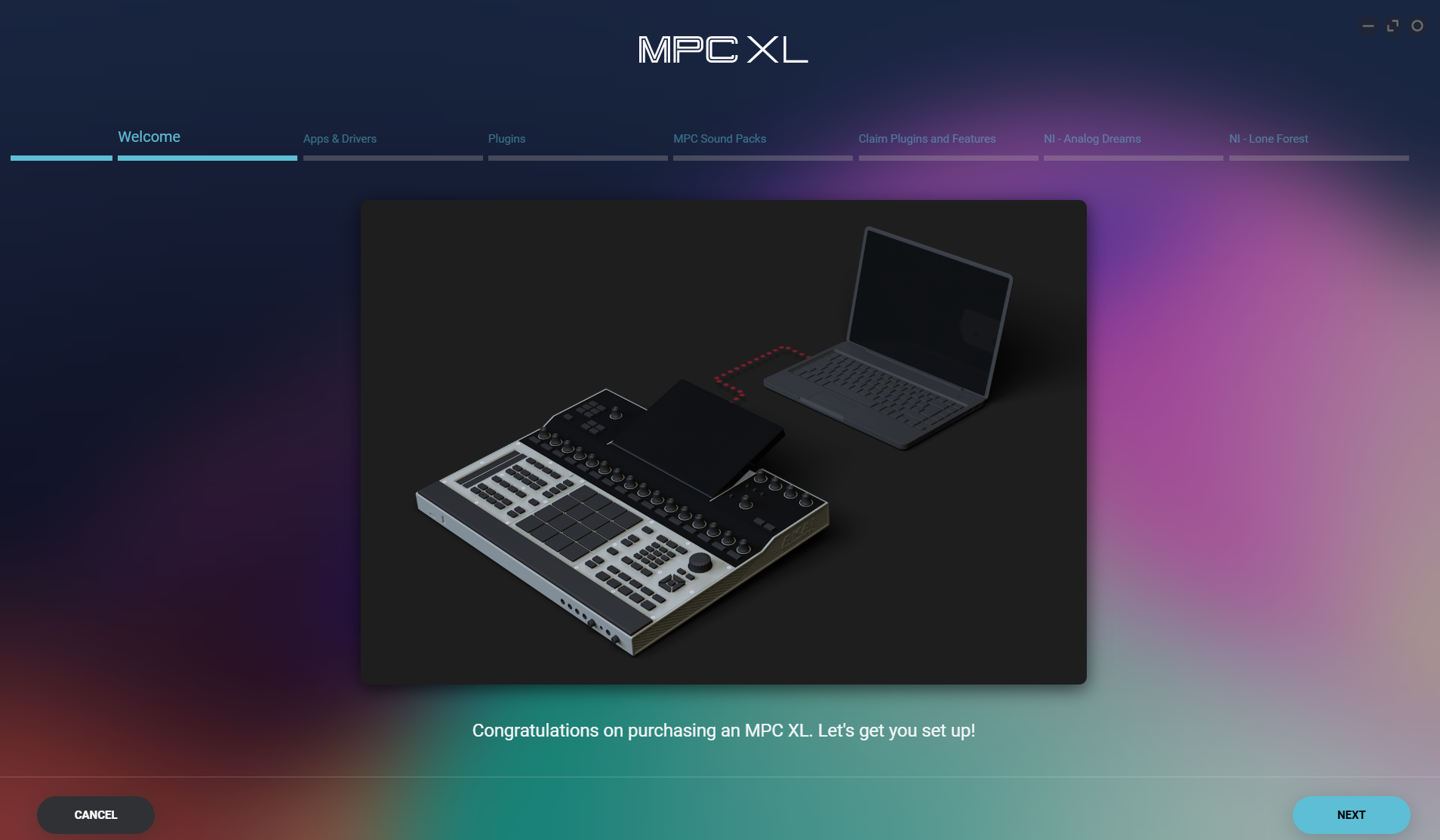
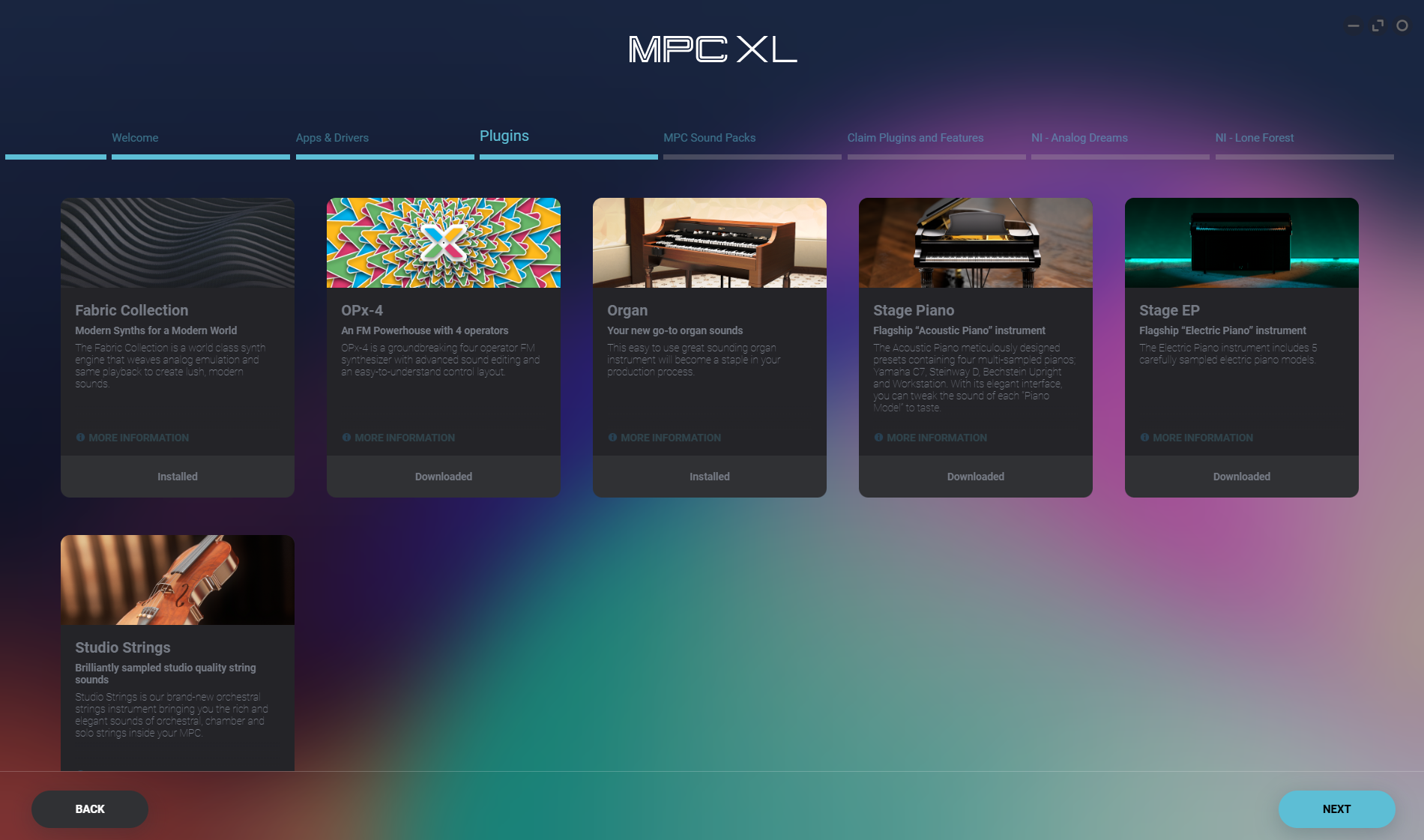
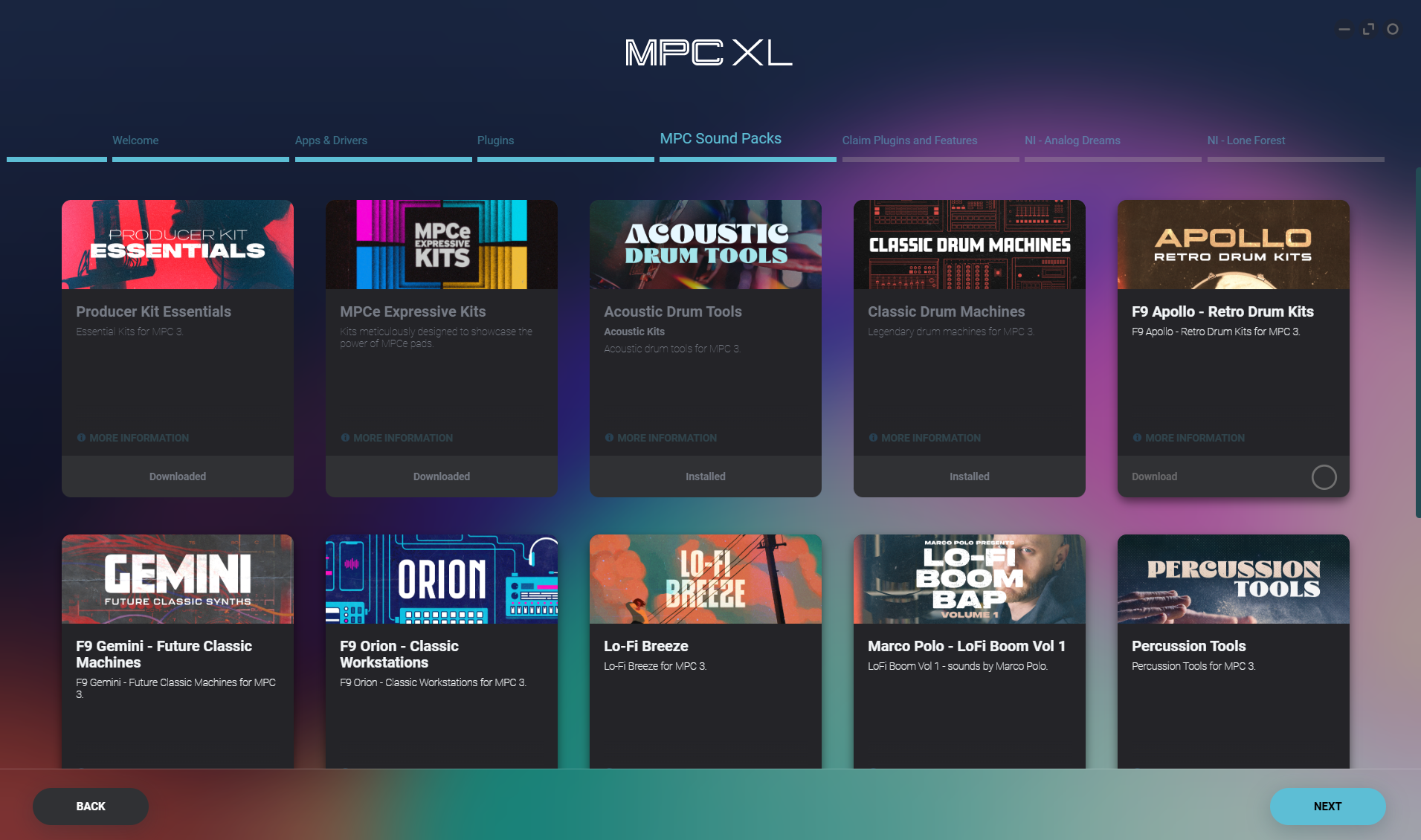
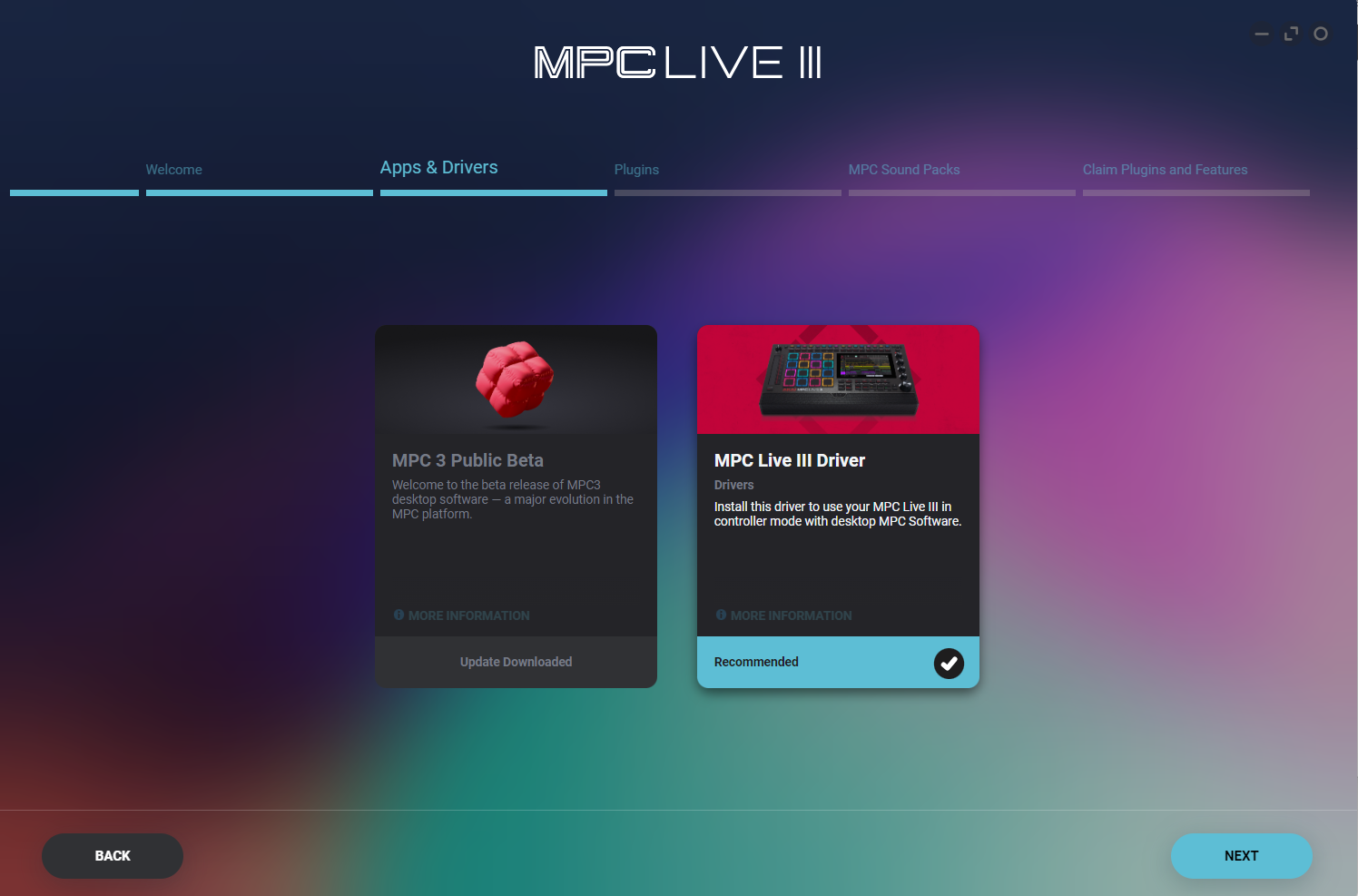
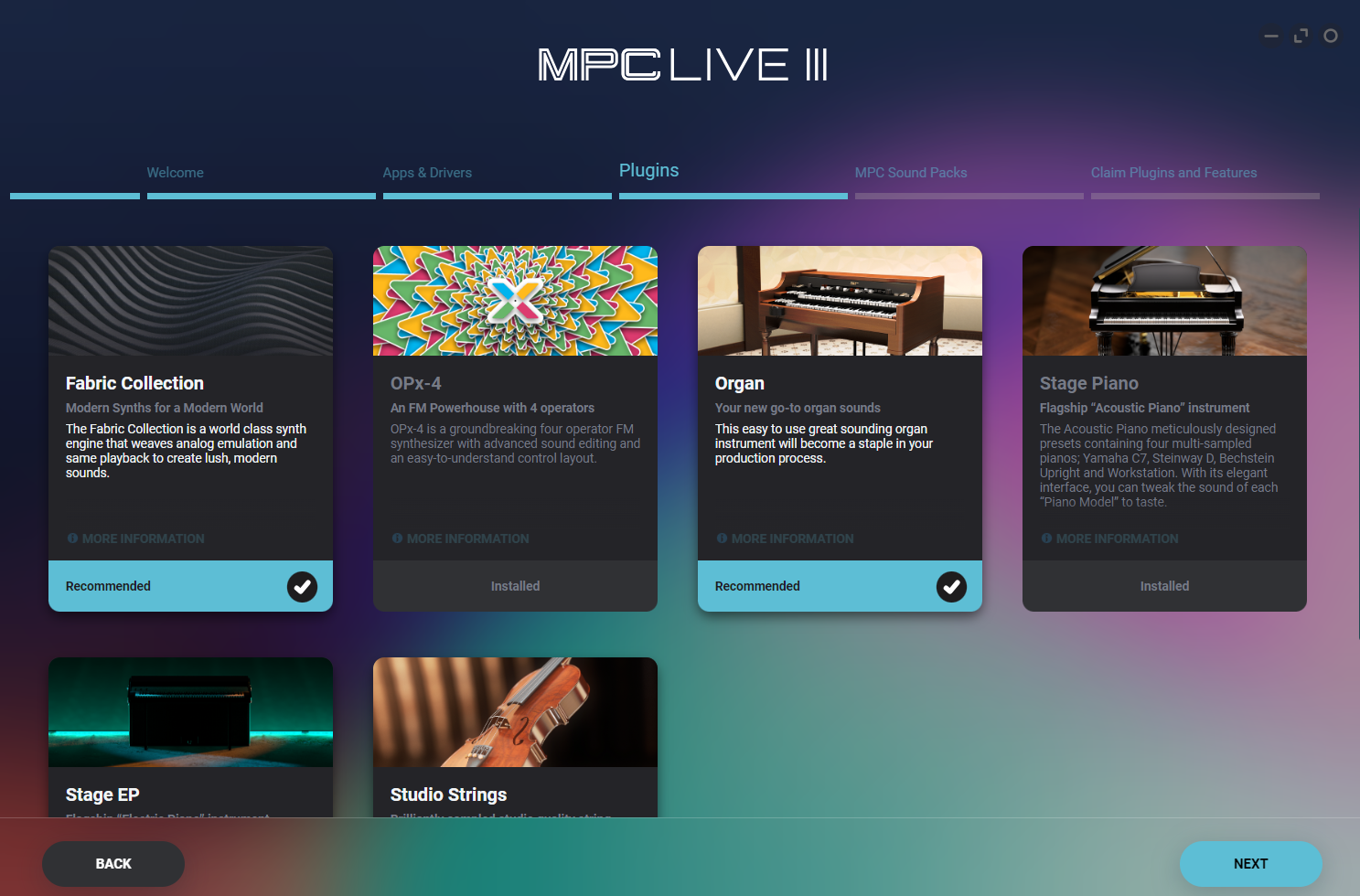
- On the next screens, you will see the MPC App and the MPC XL driver, in addition to pages for your plugins and sound packs.
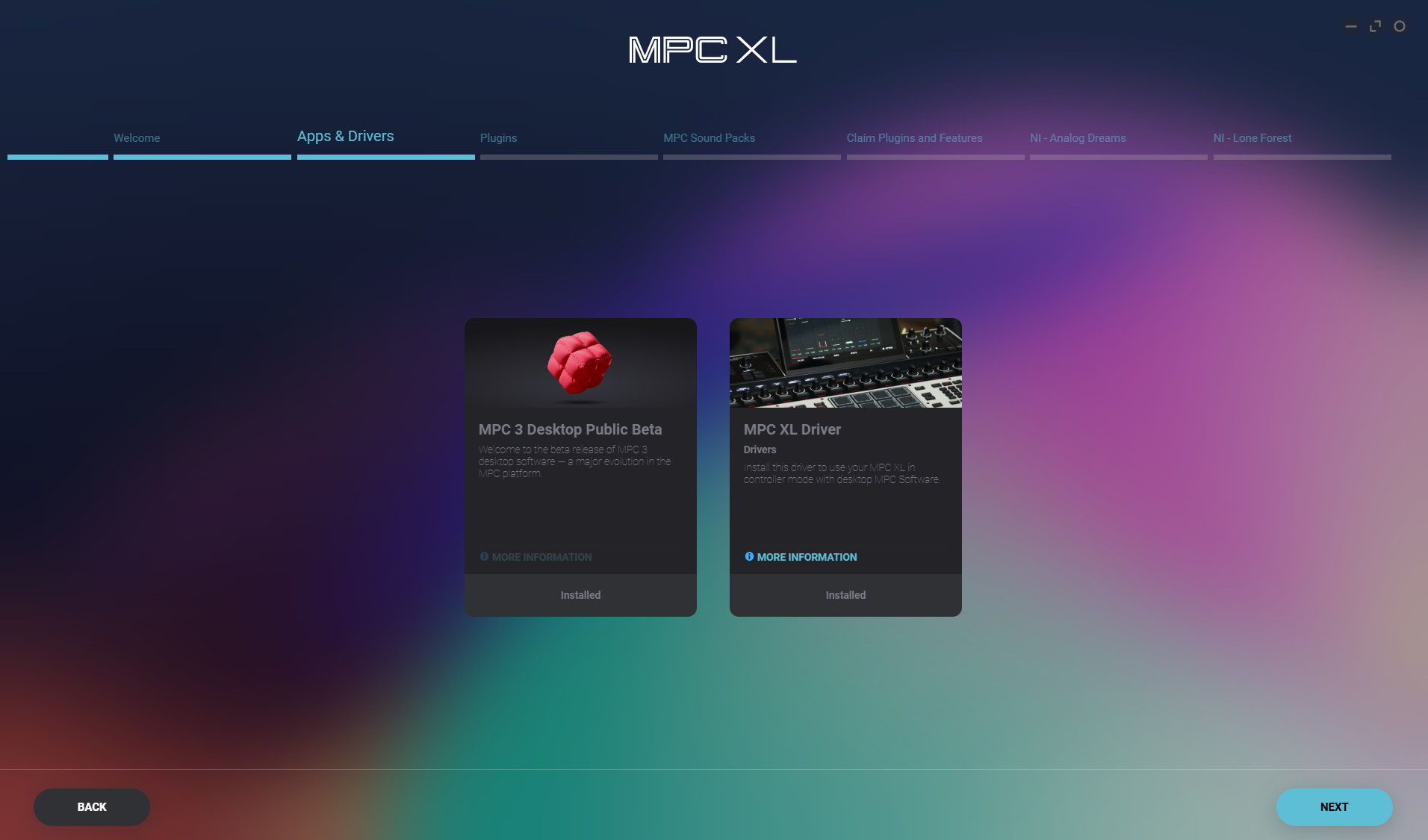
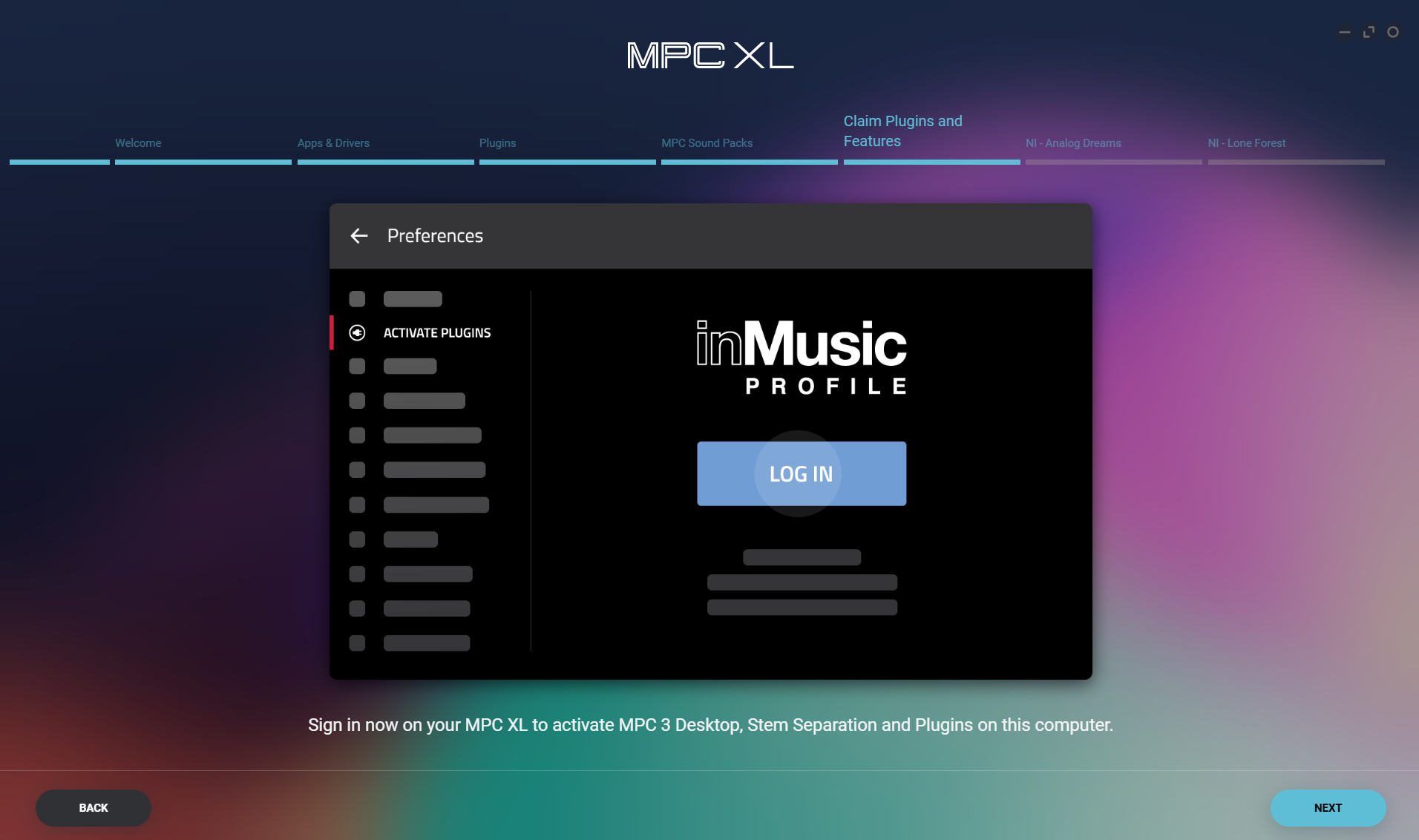
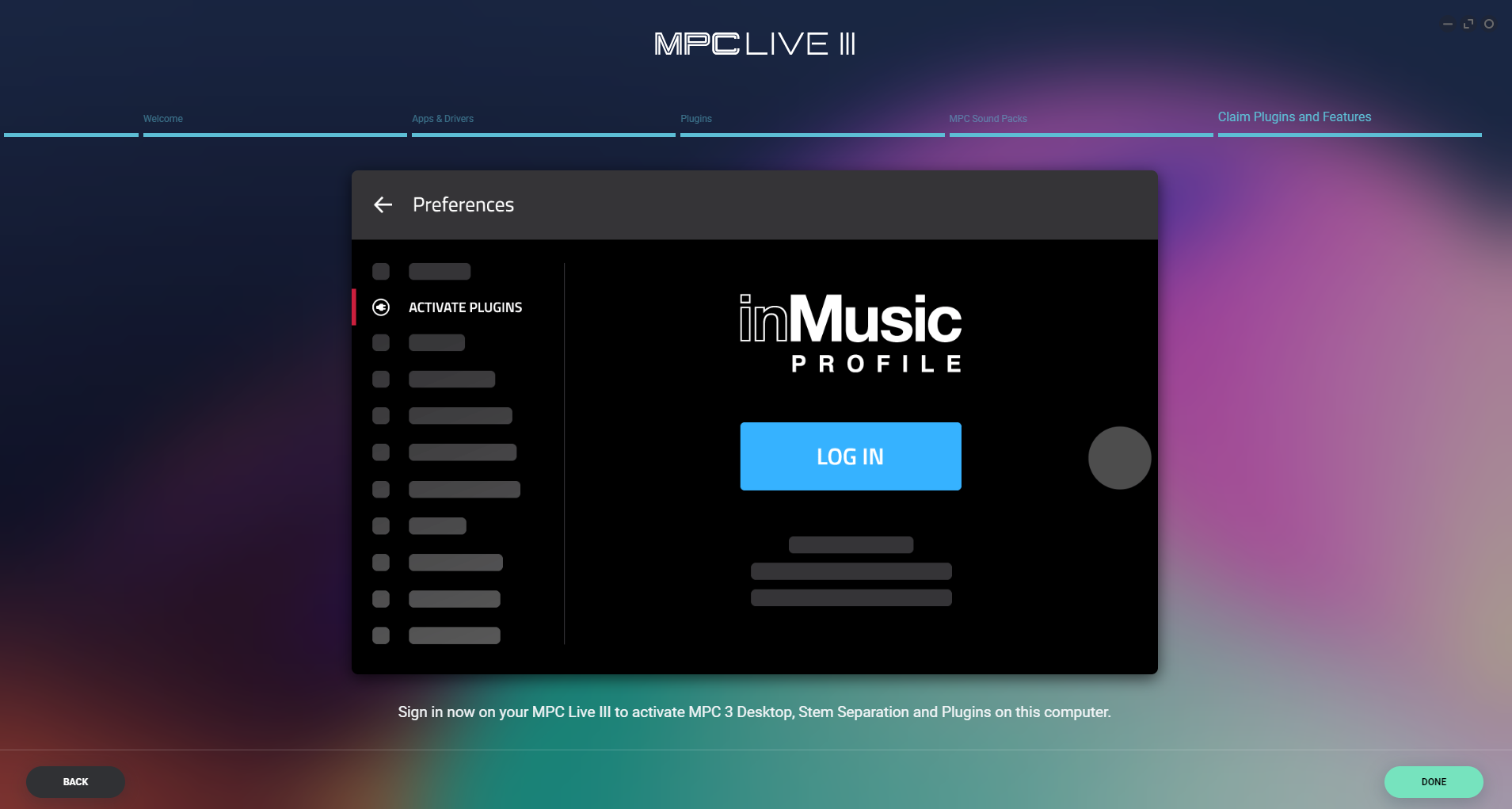
- Check these to install them. Any greyed out box will have already been installed. Continue to the end of the wizard and make sure to select all options again to also activate the software on your computer. When you have finished, the software will begin downloading.
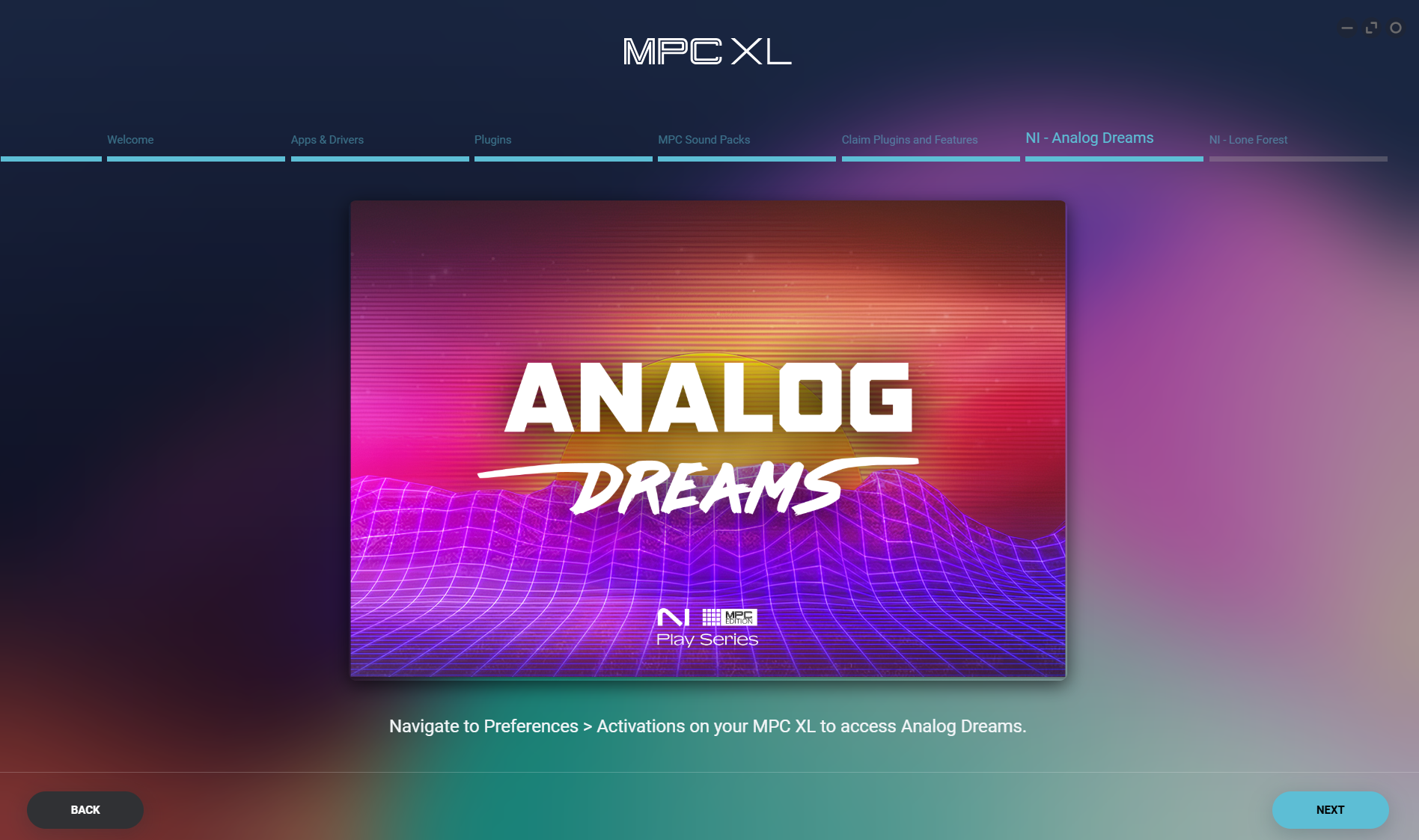
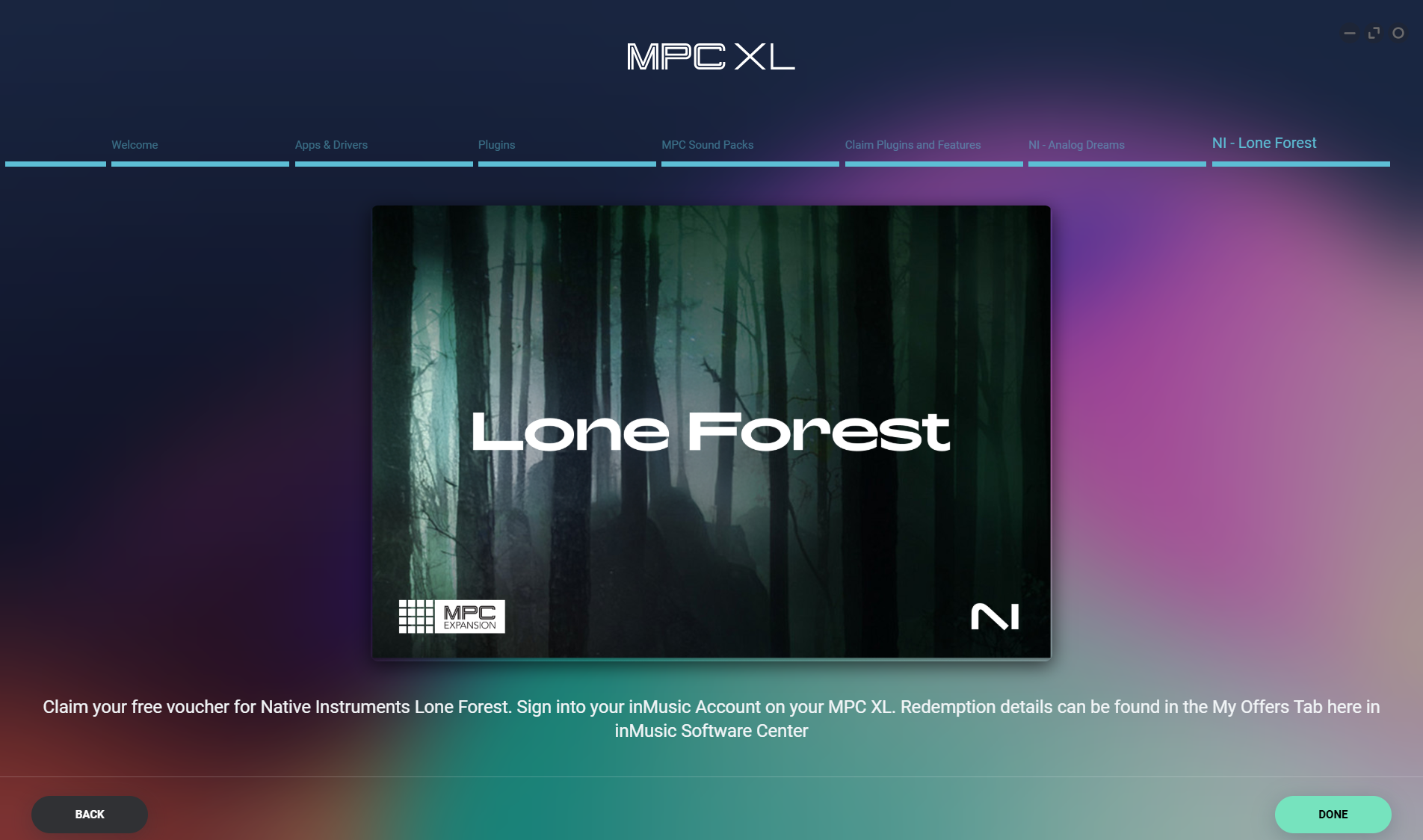
Please see this guide to redeem Lone Forest: MPC XL | How to redeem your free Native Instruments MPC Expansion? : Akai Professional - Once the download is complete, click Install and follow the prompts on-screen to complete the installation.
Update the MPC XL Firmware
Early adopters of the MPC XL will need to perform an update early on. This will add new features, new effects plugins, plugin GUIs, MIDI filters, and more. This update is not immediately necessary, but it is recommended for full standalone and software feature access.
While connected to the internet, the MPC XL will automatically prompt you about updates. We recommend you keep the MPC XL's firmware at the same version number as the MPC 3 Software on your computer for maximum compatibility.
Installing and Authorizing MPC 3
If for some reason you were not able to load the MPC 3 Software at the time of the initial setup, it can also be accessed through the My Software tab. For the latest bug fixes and to ensure compatibility with your MPC XL sure to install or update to the latest version MPC 2. The latest version of the software will be needed to authorize the included synth content.
- In the inMusic Software Center under Apps, find the MPC 3 Desktop Public Beta (at this time it may be listed as MPC 3 Public Beta). Click Download to begin the download.
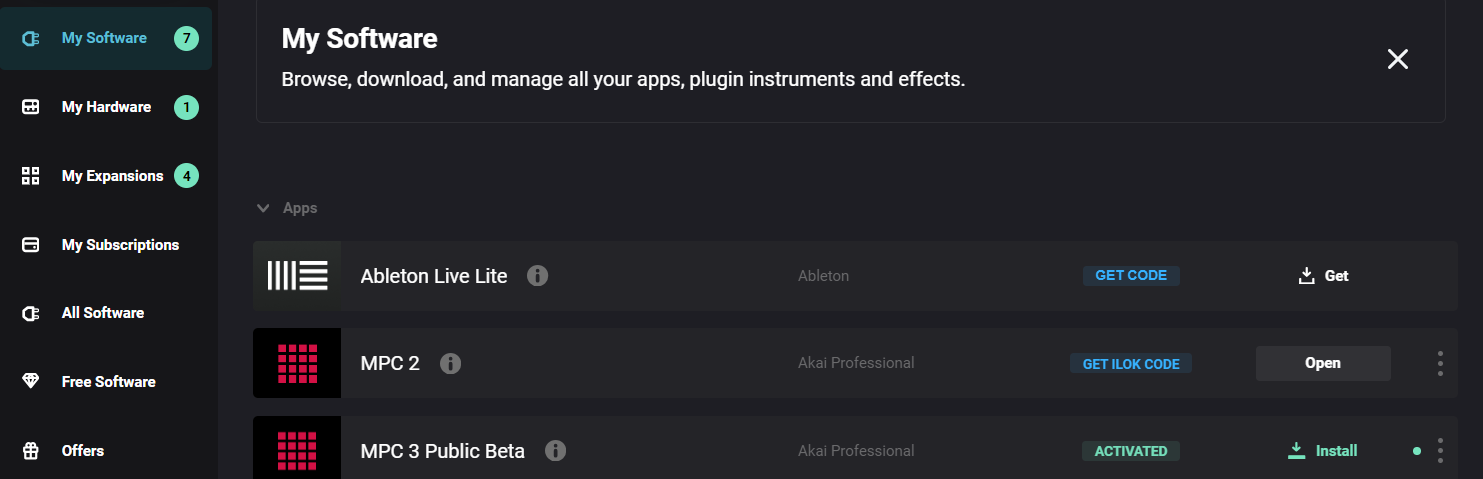
- Once the download has been completed, click Install to start the installation process.
- Follow the on-screen prompts to proceed through the installation. Also included will be the MPC Expansion builder for creating exportable expansions for your software and MPC.
Should you require assistance installing the expansions packs, refer to this article: MPC XL and Live III | Installing the Included Expansion Packs
Was this article helpful?
That’s Great!
Thank you for your feedback
Sorry! We couldn't be helpful
Thank you for your feedback
Feedback sent
We appreciate your effort and will try to fix the article