Native Access | How to Keep Native Access 1 & 2 Installed on an Apple Silicon M1 Computer
Native Access 2 is a new administration tool for product activation, installation, and updates for all your Native Instruments products.
Please be aware however that you may still need to use Native Access version 1, in case you experience issues with product activation on an Apple Silicon (M1) computer. Native Instruments is working to resolve these issues as soon as possible.
In this article, we explain how to install Native Access 2 while keeping the original Native Access software on your computer.
Moving the Original Native Access to a Folder
Having already installed Native Access 1, you must now move it to its own sub-folder. Follow these directions to learn how:
- Quit Native Access and all other NI software.
- Go to the following location on your computer:
Macintosh HD > Applications > Native Instruments - Create a new folder named Native Access 1.
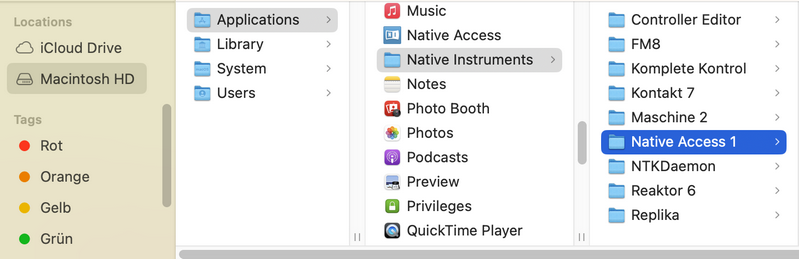
- Drag and drop the original Native Access app into the Native Access 1 folder.
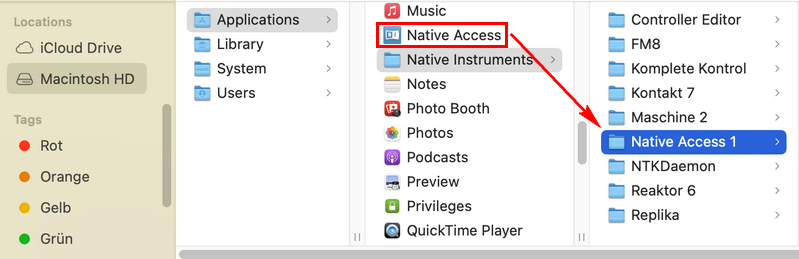
Installing the New Native Access 2 App
- Download Native Access 2 and place it in the Applications folder.
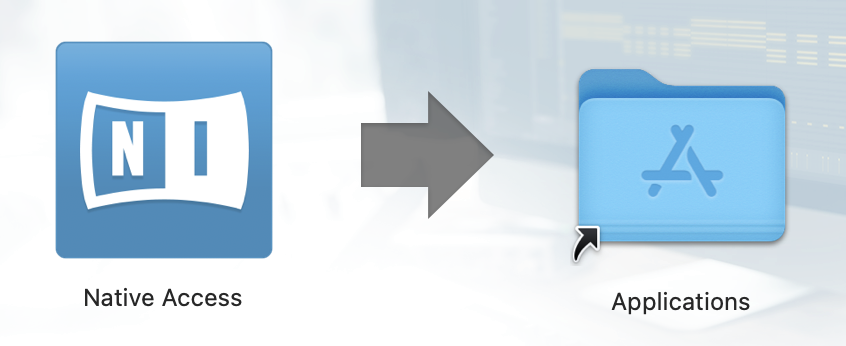
You are now able to open and use the new Native Access version 2 or the original version 1 as needed.
Native Access 1: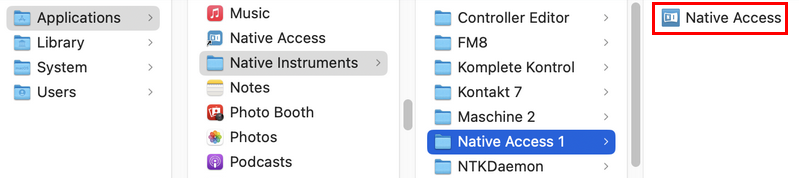
Native Access 2: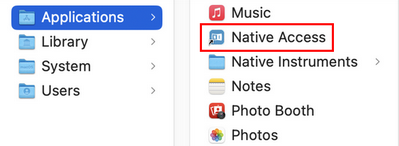
Note: You should not run both instances of Native Access at the same time.
Was this article helpful?
That’s Great!
Thank you for your feedback
Sorry! We couldn't be helpful
Thank you for your feedback
Feedback sent
We appreciate your effort and will try to fix the article