Native Access Error Message: "Activation failed...Internal error during activation"
If you see an “Activation failed… Internal error during activation” message in Native Access, it means the product activation process could not be completed.
TABLE OF CONTENTS
When trying to activate a product in Native Access, you receive the following error message:
Activation failed. Activating *Product name* failed: Failed processing the activation result: Internal error during activation

Mac
Check your NATIVE ID
It may be that you are logged in via Native Access with the incorrect account (Native ID). Ensure that you are logging in with the same email address you initially used to register your NI products.
You can check which products are registered to your account via this link:
https://www.native-instruments.com/my-account/my-products-serials-downloads/
Your activation fails because of corrupted or missing activation tokens
This can be solved by following the steps outlined here:
- Make sure Native Access is closed.
- Navigate to the following directory:
Macintosh HD > Users > Shared - Delete the "Native Instruments" folder.
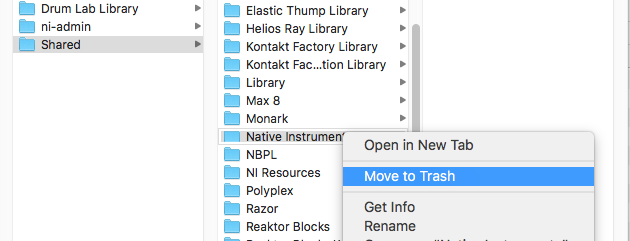
- Restart Native Access.
The activation should now work as expected.
If missing the Native Instruments folder
Please note that if you can't carry out the steps in chapter 2, you might be missing the “Native Instruments” folder at the above location.
- Navigate to:
Macintosh HD > Users > Shared - In this location please create a new folder and name it "Native Instruments".
- Within that "Native Instruments" folder, create a new folder called "Native Access".
- And finally, within the "Native Access" folder, create an additional folder named "ras3".
The folder structure should then look like this:
Macintosh HD > Users > Shared > Native Instruments > Native Access > ras3
- Now open Native Access to check if the products are now activated.
Windows
Check your NATIVE ID
It may be that you are logged in via Native Access with the incorrect account (Native ID). Ensure that you are logging in with the same email address you initially used to register your NI products.
You can check which products are registered to your account via this link:
https://www.native-instruments.com/my-account/my-products-serials-downloads/
Your activation fails because of corrupted or missing activation tokens
This can be solved by following the steps outlined here:
- Make sure Native Access is closed.
- Navigate to the following directory:
C: > Users > Public > Public DocumentsImportant note: Do NOT navigate to "C: > Users > *Your Username* > Documents"!
- Delete the folder Native Instruments.
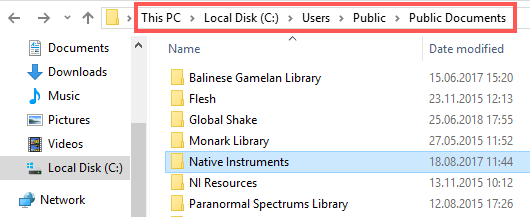
- Restart Native Access.
If missing the Native Instruments folder
Please note that if you can't carry out the steps in chapter 2, you might be missing the “Native Instruments” folder at the above location.
- Navigate to:
C: > Users > Public > Public Documents - In this location please create a new folder and name it "Native Instruments".
- Within that "Native Instruments" folder, create a new folder called "Native Access".
- And finally, within the "Native Access" folder, create an additional folder named "ras3".
The folder structure should then look like this:
C: > Users > Public > Public Documents > Native Instruments > Native Access > ras3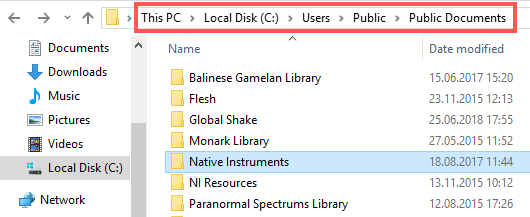
- Now open Native Access in administrator mode. This can be done by right-clicking the "Native Access.exe" and selecting "Run as administrator".
If unable to create the Native Instruments folder
If you receive an error that a folder with that name already exists when you attempt to create the "Native Instruments" folder as per chapter 2.1 above, follow these steps:
- Click on View > Options > Change folder and search options.

- In the View tab, enable the option Show hidden files, folders and drives.
- Uncheck the setting Hide protected operating system files.
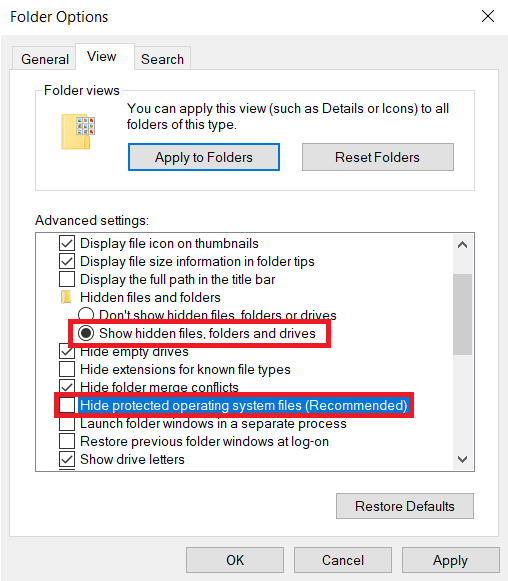
- Delete the now visible “Native Instruments” folder in Public > Public Documents.
The products should then activate correctly the next time you log back in to Native Access. If the issue persists, continue with the next step below.
Controlled Folder Access
In some cases, it is necessary to disable the Controlled Folder Access on Windows 10 computers.
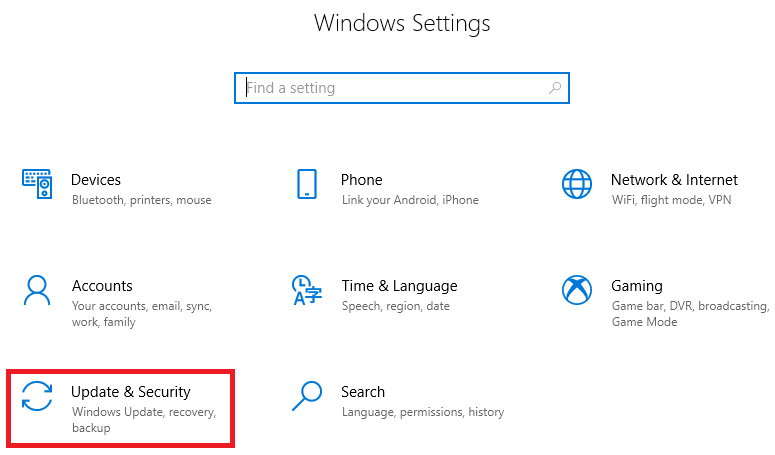
- Press the Windows key + 'I' in order to open the Windows Settings and choose the Update & security option:
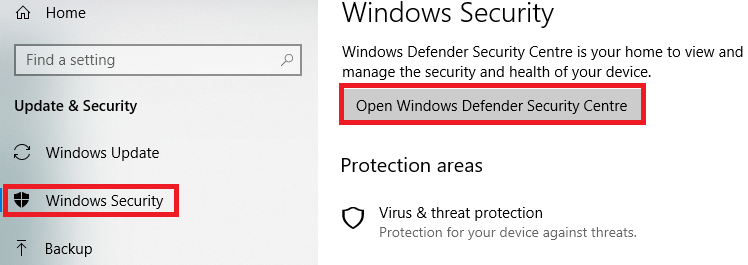
- Choose Windows Security > Open Windows Defender Security Centre
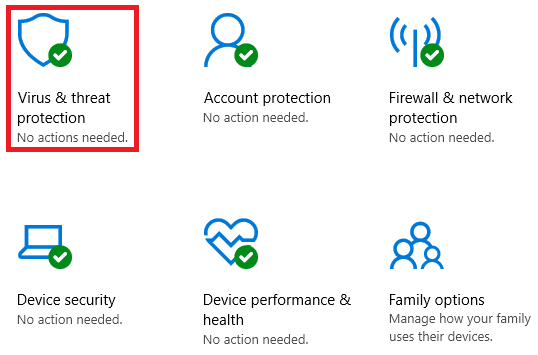
- Select Virus & threat protection, and then choose Virus & threat protection settings.
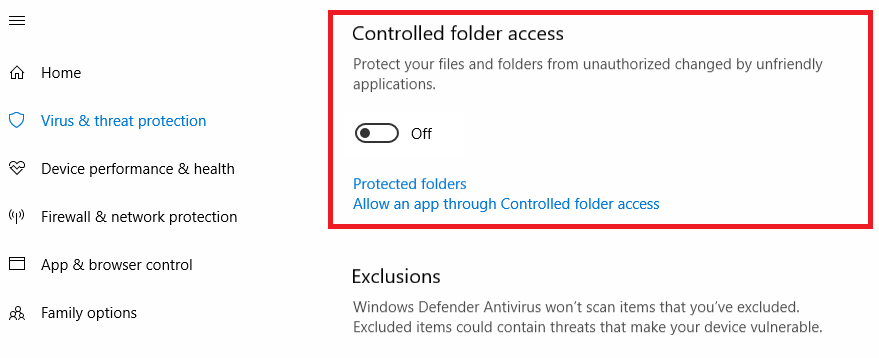
- Disable the option under Controlled folder access.
The activation should now work as expected.
Note: it's also possible to add the Native Access application to the allowed list of friendly apps. In this case, you would not have to disable the Controlled folder access option. This article from Microsoft explains how to do this.
Was this article helpful?
That’s Great!
Thank you for your feedback
Sorry! We couldn't be helpful
Thank you for your feedback
Feedback sent
We appreciate your effort and will try to fix the article