Native Access Error Message: "Error while mounting disk image"
If Native Access fails to install a product and shows an “Error while mounting disk image” message, this usually points to issues with mounting installer files or system permissions.
TABLE OF CONTENTS
Note: If you are using Native Access 2, please consult this article.
When attempting to install a product, Native Access displays the following error message:
Install failed
Installing *product name* failed: Error while mounting disk image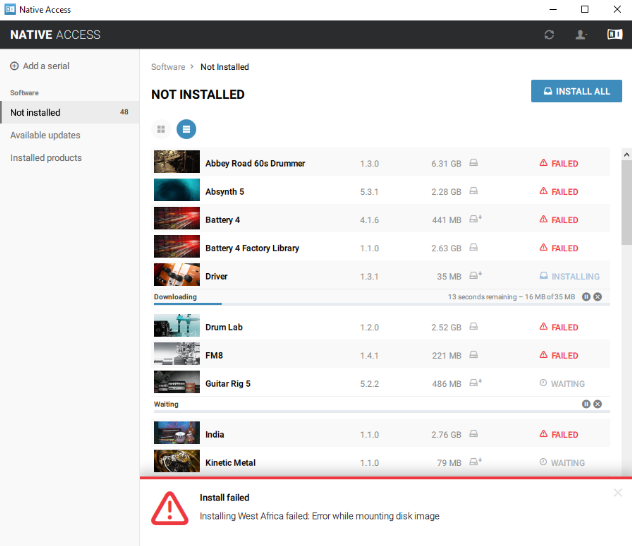
macOS
Enabling Full Disk Access
It may be necessary to grant Full Disk Access to Native Access in order for it to install your products correctly. More information on Full Disk Access can be found on the Apple website.
- Open your Mac's System Preferences and click Security & Privacy.
- Under the Privacy tab, choose Full Disk Access from the sidebar.
- Click the lock icon in the bottom left of the window and enter your macOS password.
- Ensure that Native Access appears in the list.
If it does not appear in this list, click the + icon and add the location of Native Access: Macintosh HD > Applications > Native Access. - Once completed, click the lock icon again.
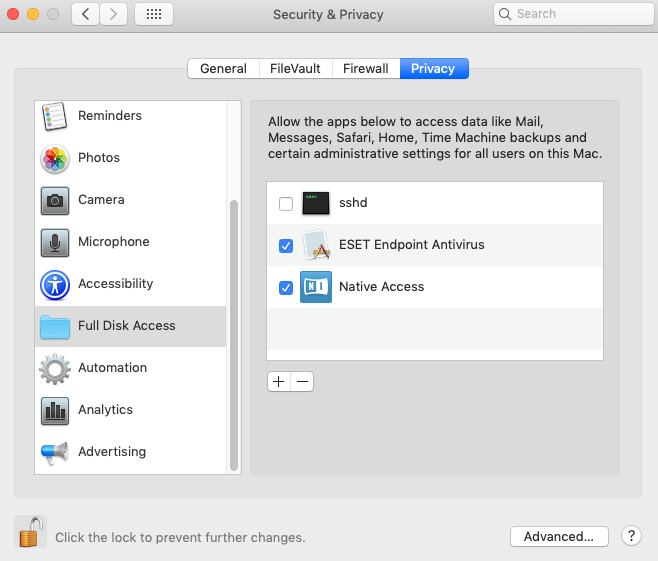
- Reboot your system.
- Launch Native Access and try installing the faulting product once again.
Updating macOS to the latest version
It may be necessary to update your operating system to its latest version. To do so, follow the steps below:
- Click the Apple icon at the top-left of your screen, and select System Preferences... > Software Updates.
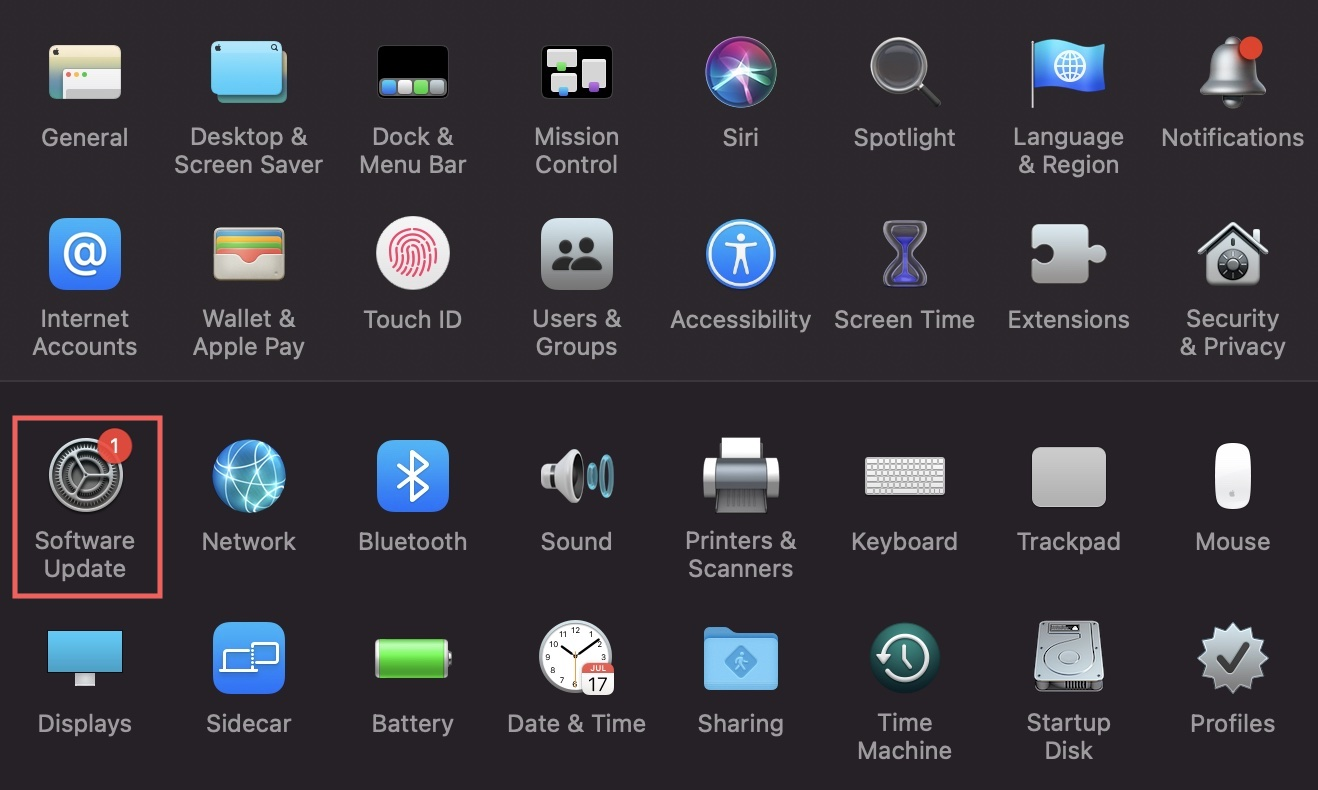
- Click the Update Now button.
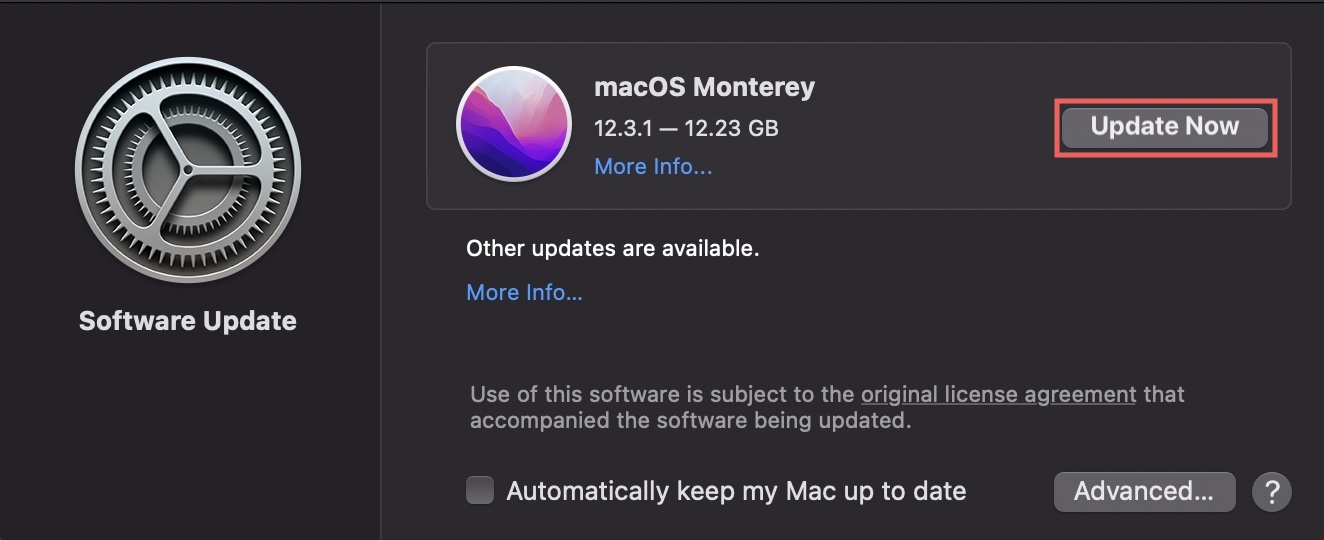
Note: This button can also show the text Upgrade Now. Please be aware that clicking this would upgrade your macOS to a more recent major version (e.g. upgrading macOS 11 Big Sur to macOS 12 Monterey). Please verify that all of your audio software is compatible with this new major macOS version before proceeding.
Windows
Note: The solutions below apply to failed installations from the KOMPLETE (ULTIMATE) hard drive. If you receive this error when installing from a download, please only check steps 1 and 3.
Windows Updates
Ensure that your Windows system is up to date. This article from Microsoft explains how to check for updates.
Installing the Product via Download Instead of Using the Hard Drive
- Close Native Access.
- If you are using the provided KOMPLETE (ULTIMATE) hard drive, safely eject it from your system.
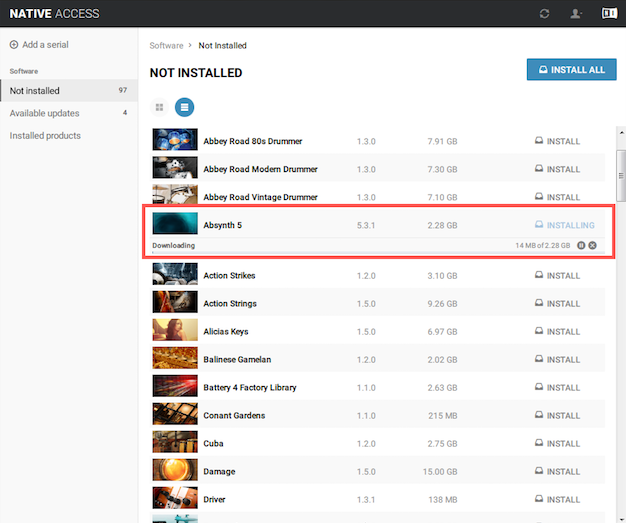
- Restart Native Access and go to the Not installed tab.
- Click on INSTALL to begin the installation of the corresponding KOMPLETE product via download. In the below example we are installing Absynth 5.
Repairing the Filter Settings of your DVD Drive
In some cases, the mounting process is blocked because the mounted DVD is not listed correctly on your computer. Please follow the resolution in this Microsoft article.
Note: The Microsoft article is addressing users of Windows Vista, but the resolution works for current Windows versions as well.
Installing the Product Manually from the ISO File
Note: The .iso filenames are encrypted so that the corresponding KOMPLETE product cannot be identified before mounting the file. This means you might have to repeat the following procedure to find the installer for a specific product.
- Make sure to set your Explorer options to display all hidden files and folders as explained in this article.
- In the Explorer, double-click the Komplete drive to open its contents.
- Open the data folder.
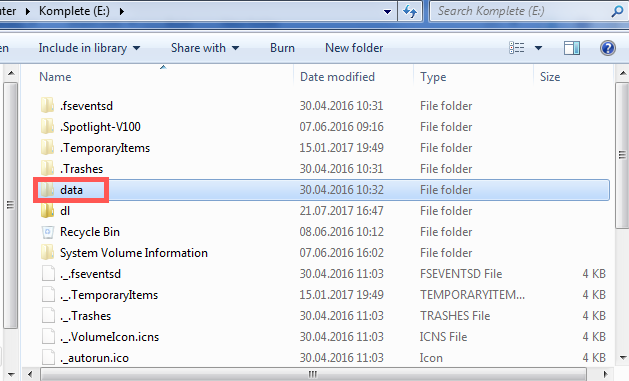
- The data folder contains .iso files. Each of these files stands for the installer of a KOMPLETE product. Right-click the ISO file and choose Open with > Windows Explorer.
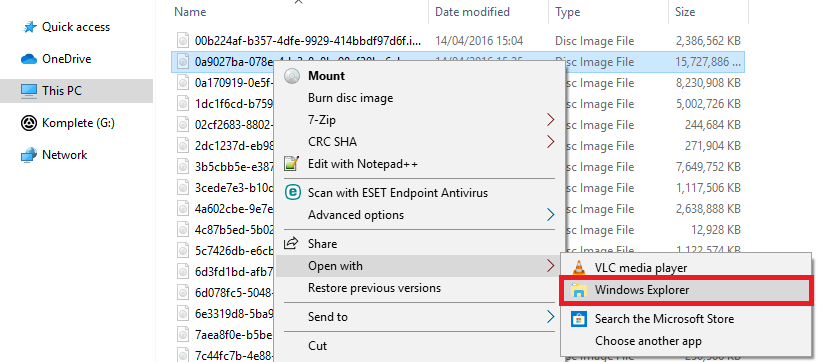
If the file shows the installers of the product you wish to install, continue with step 5, otherwise repeat the steps above with the next ISO file until you find the product you wish to install. - Copy the ISO file to your desktop. Again right-click the ISO-file and choose Open with > Windows Explorer. In the Explorer window, double-click the .exe file. In the example below we are running the Windows installer for Absynth 5. Follow the steps of the Install Wizard to successfully install the product.
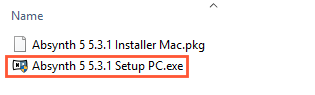
After installation, the product will show up in the Installed products tab of Native Access.
Was this article helpful?
That’s Great!
Thank you for your feedback
Sorry! We couldn't be helpful
Thank you for your feedback
Feedback sent
We appreciate your effort and will try to fix the article