If you see the error “Error while mounting disk image” in Native Access during installation, it typically indicates an issue accessing or mounting the installer package.
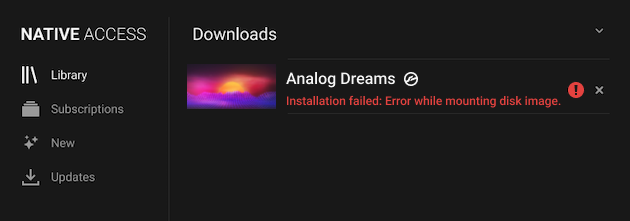
TABLE OF CONTENTS
macOS
It is sometimes necessary to give your NI software Full Disk Access. In this example, the installation utility called NTKDaemon does not have Full Disk Access and this blocks Native Access from opening the product installer.
Follow these steps to give Full Disk Access to the NTKDaemon utility.
- Quit Native Access and any other opened audio software.
- Open your Mac's System Preferences and click Security & Privacy.
- Under the Privacy tab, choose Full Disk Access from the sidebar.
- Click the lock icon at the bottom left of the window and enter your macOS password.
- Scroll the list of apps to find the NTKDaemon.
If the NTKDaemon is not listed, click the + symbol to add it from this folder:
Macintosh HD > Library > Application Support > Native Instruments > NTK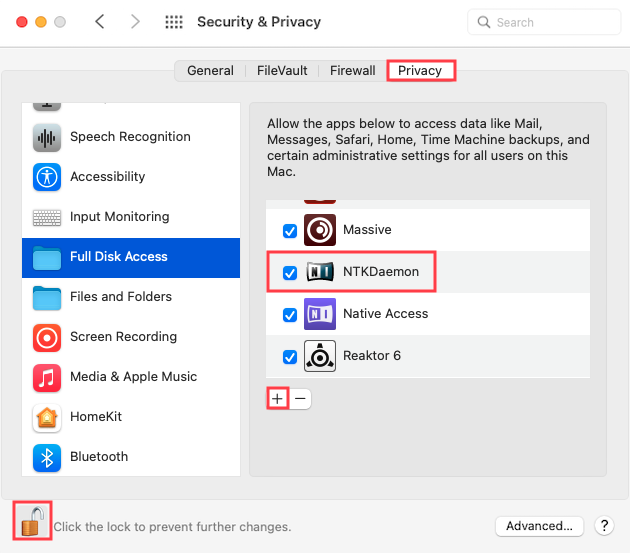
- Once completed, click the lock icon again.
- Restart your computer.
- Once restarted, launch Native Access 2 to retry your NI product installation.
Windows
Native Access uses virtual disc image files (a.k.a. "ISO files") to carry out product installations. While these are not physical "DVD discs", this process still involves Native Access and the computer's disc mounting system (i.e. virtual DVD drive).
Sometimes the disc mounting system is not set properly and blocks Native Access from opening the product installer. Follow the sections below, for solutions to resolve the problem.
Repairing the Filter Settings of your DVD Drive
In this section, we explain how to edit the computer's System Registry to repair the disc mounting filter settings on your computer.
Note: For more details, please check this article directly from Microsoft.
Click the Start button at the bottom left of your screen.
Type regedit in the search box, and click regedit in the search results that appear.
If you are prompted for an administrator password or confirmation, type your password or click Continue.
Locate and then click the following registry subkey:
HKEY_LOCAL_MACHINE > SYSTEM > CurrentControlSet > Control > Class >
{4d36e965-e325-11ce-bfc1-08002be10318}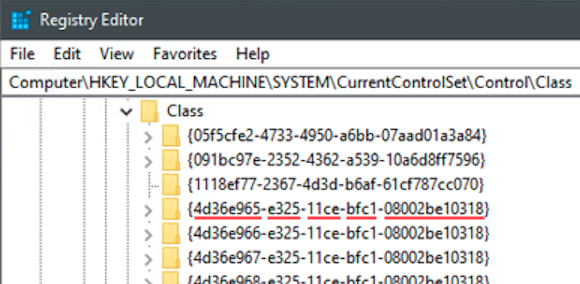
Note: There could be multiple registry subkey entries with similar names. Make sure that you have located the exact registry entry named above.
- Click to select the registry entry, then look to the right-side pane to verify that the Default value is DVD/CD-ROM, and the Class value is CDROM.
- On the right-side pane, right-click the UpperFilters and LowerFilters entries (if available) and select Delete. Click Yes to confirm both.
- Exit the Registry Editor, and restart your computer.
- Once restarted, launch Native Access 2 to retry your NI product installation.
If the issue has not been resolved, please continue to the next section below.
Resetting the Disc Mounting System to Windows Explorer
Third-party disc mounting utilities can block Native Access from opening the product installer. In this section, we explain how to reassign Windows Explorer as the default utility for opening disc image (.iso) files.
- Check your Downloads folder for the NI product installer file that Native Access could not open. In this example, the product installer disc image file is Analog_Dreams.iso.
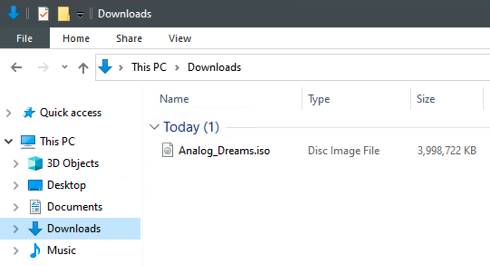
- Right-click on a disc image / ISO file and select Open with > Windows Explorer. If you cannot select Windows Explorer, click More apps > Look for another app, and select explorer.exe from this location:
This PC > C: > Windows - Once Windows Explorer is selected, tick the checkbox labeled:
Always use this app to open .iso files - Click OK.
- Launch Native Access 2 once again to retry your NI product installation.
Was this article helpful?
That’s Great!
Thank you for your feedback
Sorry! We couldn't be helpful
Thank you for your feedback
Feedback sent
We appreciate your effort and will try to fix the article