In this article, we explain how to download and install a Kontakt Library using Native Access. These instructions are available as a text article and a tutorial video (Native Access 1 only) below.
Note: If you want to set up a third-party Kontakt Library, please see this article instead.
TABLE OF CONTENTS
- Setting up NI Kontakt Libraries You've Already Downloaded
- Setting up NI Kontakt Libraries Purchased from the NI Website
- Native Access 2
- Native Access
- Video Tutorial
Setting up NI Kontakt Libraries You've Already Downloaded
If you've already downloaded NI Kontakt libraries (with licenses), you can add them in Native Access as explained in this article.
Setting up NI Kontakt Libraries Purchased from the NI Website
Please select your version of Native Access:
Native Access 2
- Start Native Access and go to Preferences > File Management to set your Content Location as explained in this article.
- After your purchase, go to Library > Available and click the Install tab next to your product.
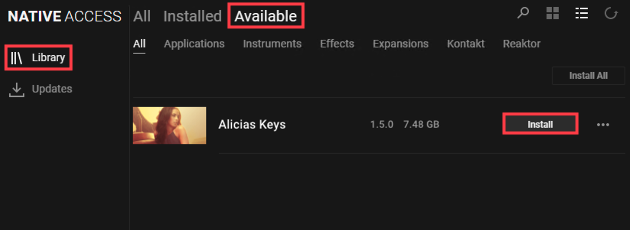
Note: If the Kontakt (Player) software also appears in the Native Access Library > Available section, please install it.
- Once the installation is finished, you can close Native Access.
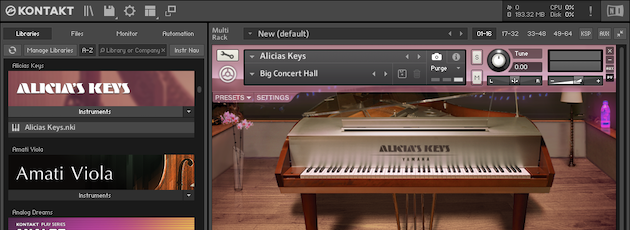
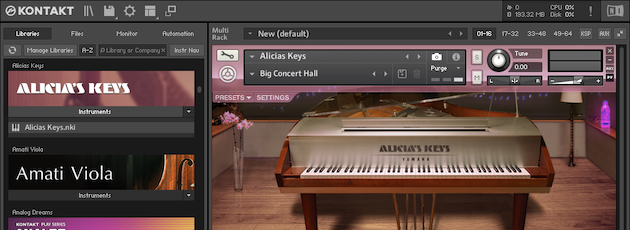
- Your Library is now ready to be loaded in Kontakt . Please see this article to learn more about loading Kontakt libraries.
Native Access
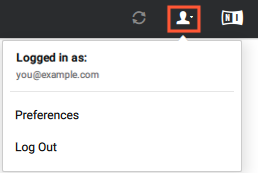
- Start Native Access and click the user icon to select Preferences.
- Click File Locations to set your Content Location as explained in this article.
- After your purchase, click Not Installed and click the INSTALL tab next to your product.
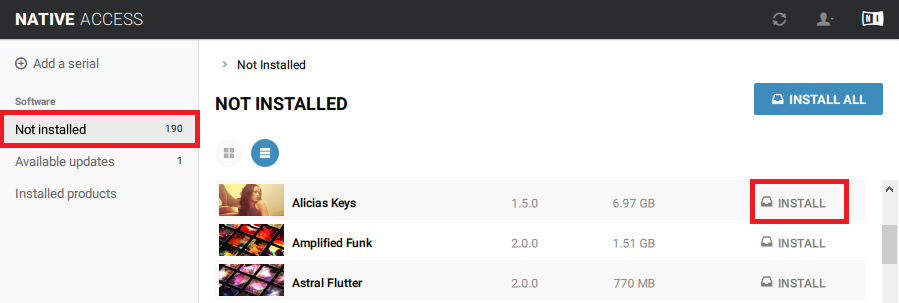
Note: If the Kontakt (Player) software also appears in the Native Access Not Installed section, please install it.
- Once the installation is finished, you can close Native Access.
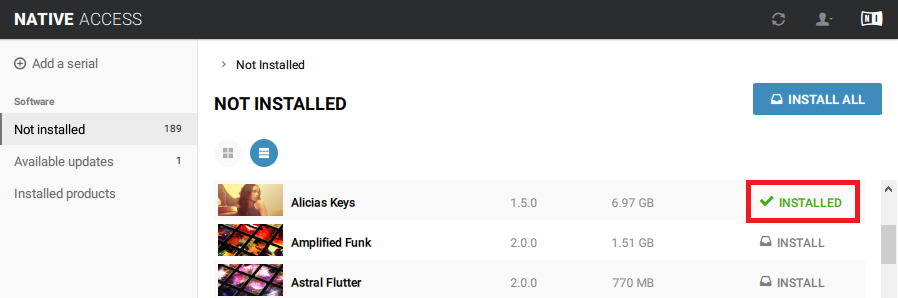
- Your Library is now ready to be loaded in Kontakt .
Video Tutorial
In this video, we show you how to set up a Native Instruments Kontakt Library in Native Access 1.
Was this article helpful?
That’s Great!
Thank you for your feedback
Sorry! We couldn't be helpful
Thank you for your feedback
Feedback sent
We appreciate your effort and will try to fix the article