How To Share KONTAKT Libraries Between Two Computers Using An External Hard Drive
This article presents the best practice if you want to share KONTAKT Libraries between several computers using an external hard drive. This guide uses two separate computers as an example, but this also applies to multiple systems.
KONTAKT libraries are the largest part of the KOMPLETE bundle in terms of disk space requirements. For this reason, we recommend installing the KONTAKT Libraries to an external drive while the rest of the content (e.g. BATTERY and REAKTOR) is installed on your main system drive.
TABLE OF CONTENTS
Native Access 2
Installation on the First Computer
1. Start Native Access and install the products one by one to your internal system drive except for the KONTAKT Libraries.
2. Once the installation is complete, open the Native Access Preferences.
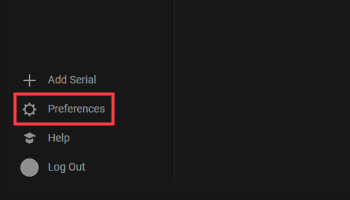
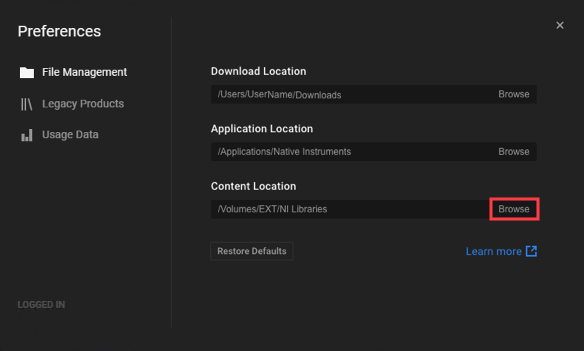
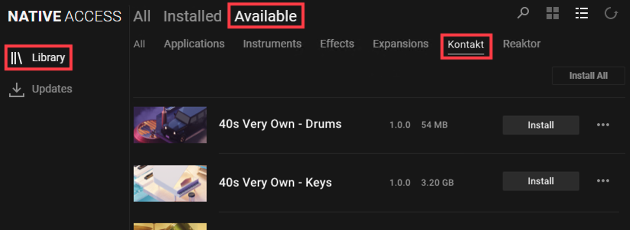
4. Go to the Native Access Library > Available > Kontakt section and click the option to Install the KONTAKT libraries. Alternatively, you can click Install All near the top right.
Installation on the Second Computer
1. Start Native Access and use the Preferences to set the Content Location to the external hard drive where your KONTAKT Libraries were installed.
2. Go to the Native Access Library > Available section and click the option to install the KONTAKT software.
3. Once the KONTAKT software is installed, scroll to the first available KONTAKT library and select Locate from the three dots menu.
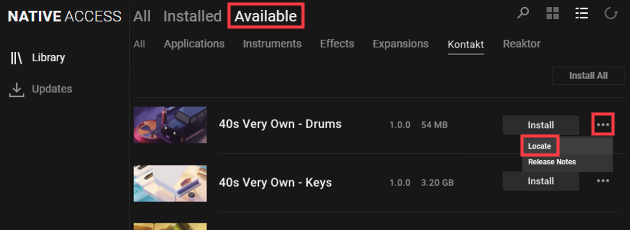
4. Click the folder symbol and navigate to the KONTAKT library folder to Confirm it.
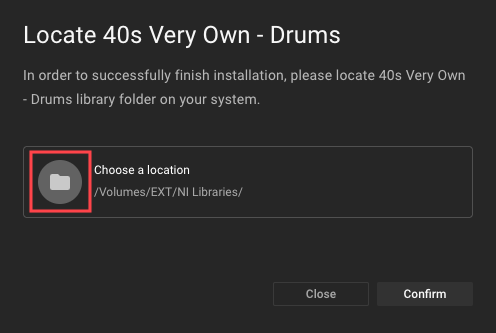
5. Repeat these steps to add the remaining KONTAKT libraries from your external hard drive.
Now both computers will recognize the KONTAKT Libraries installed on the external hard drive.
Important note for Windows users: Make sure the external drive always gets the same letter assigned by Windows. Otherwise, the KONTAKT libraries will not be found during use.
Native Access 1
Installation on the First Computer
1. Start Native Access and install the products one by one to your internal system drive except for the KONTAKT Libraries.
2. Once the installation is complete, open the Native Access Preferences.
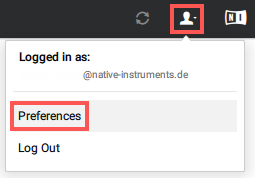
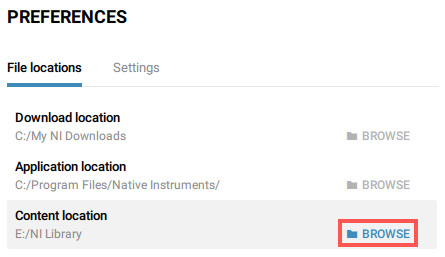
4. Go to the Native Access Not Installed page and click the option to install the KONTAKT libraries. Alternatively, you can click INSTALL ALL near the top right.
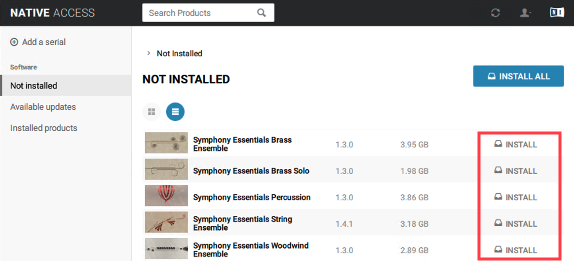
5. Allow the installations to complete before proceeding to the next steps.
Installation on the Second Computer
1. Start Native Access and use the Preferences to set the Content location to the external hard drive where your KONTAKT libraries were installed.
2. Go to the Native Access Not Installed page and click the option to install the KONTAKT software.
3. Once the KONTAKT software is installed, hover your mouse over the first available KONTAKT library. A magnifying glass appears next to the INSTALL button.
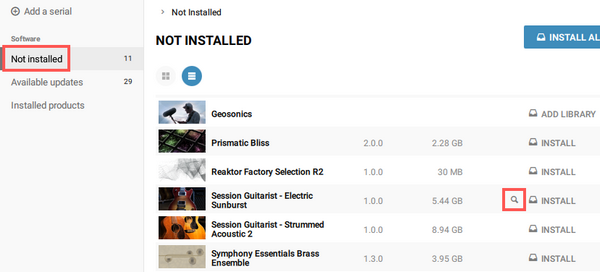
4. Click the magnifying glass for the library you want to activate.

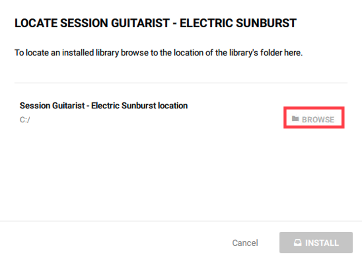
5. Click BROWSE and navigate to the KONTAKT library folder to confirm it.
6. Repeat these steps to add the remaining KONTAKT libraries from your external hard drive.
Now both computers will recognize the KONTAKT Libraries installed on the external hard drive.
Important note for Windows users: Make sure the external drive always gets the same letter assigned by Windows. Otherwise, the KONTAKT libraries will not be found during use.
Was this article helpful?
That’s Great!
Thank you for your feedback
Sorry! We couldn't be helpful
Thank you for your feedback
Feedback sent
We appreciate your effort and will try to fix the article