You can install your Native Instruments products on a new computer using Native Access. Your licenses will remain available as long as you follow the allowed installation limits.
TABLE OF CONTENTS
Legal Notes
The end-user license agreement (EULA) for Native Instruments products allows the simultaneous installation on two computers (three computers for all versions of MASCHINE and KOMPLETE), as long as only one installation is used at any given time.
If you have already installed your product on the permitted number of systems and you want to install it on another computer, you must uninstall the product on one of the previous computers. A product on a defective computer is considered uninstalled.
Important Note: Native Instruments reserves the right to disable any account or serial number if it has reason to believe that the end-user license agreement (EULA) is violated.
Installing Native Instruments Products on a New Computer
Please select your version of Native Access:
Native Access 2
- First, make sure that your products have been uninstalled from your previous computer(s) if they have already been installed on the permitted number of systems.
Note: If your computer is no longer working and you cannot uninstall the NI products, proceed with the activation on the new computer. You still maintain the number of activations granted by the License Agreement.
- Install Native Access on your new computer and log in to your NI account.
- Set your Native Access download and installation paths.
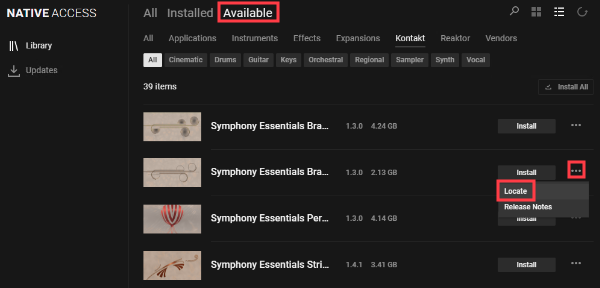
- Install your products from the Available tab. If you have KONTAKT libraries on an external drive, you can Locate them using the three dots menu next to the Install tab.
Native Access 1
- First, make sure that your products have been uninstalled from your previous computer(s) if they have already been installed on the permitted number of systems.
Note: If your computer is no longer working and you cannot uninstall the NI products, proceed with the activation on the new computer. You still maintain the number of activations granted by the License Agreement.
- Install Native Access on your new computer and log in to your NI account.
- Set your Native Access download and installation path.
- Install your products from the Not Installed tab. If you have KONTAKT libraries on an external drive, you can locate them using the magnifying glass icon next to the INSTALL tab.
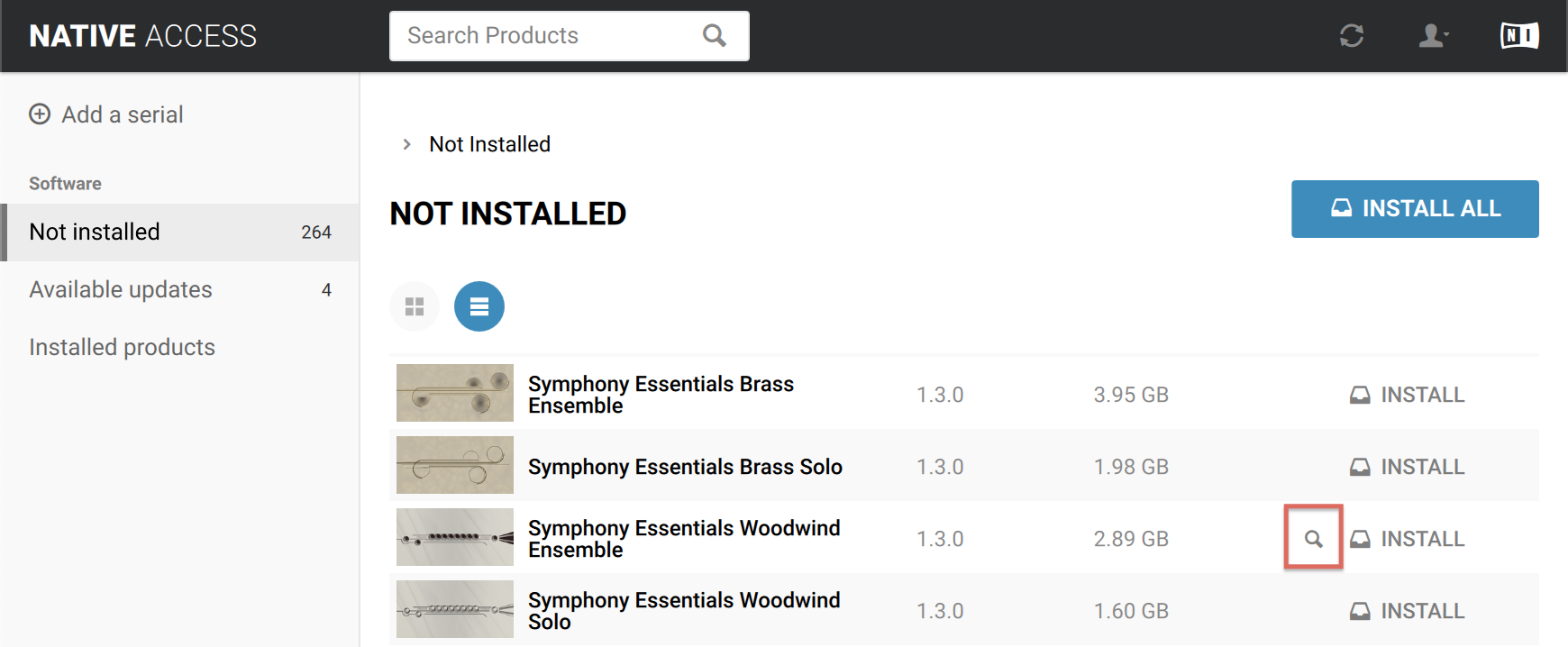
Note: The magnifying glass icon appears when you hover your mouse cursor over the product name as seen in the screenshot.
Was this article helpful?
That’s Great!
Thank you for your feedback
Sorry! We couldn't be helpful
Thank you for your feedback
Feedback sent
We appreciate your effort and will try to fix the article