If you’re experiencing issues with Beatport in Traktor Pro—such as errors, crashes, or tracks not loading—this is typically related to connectivity, account access, or software state.
TABLE OF CONTENTS
macOS
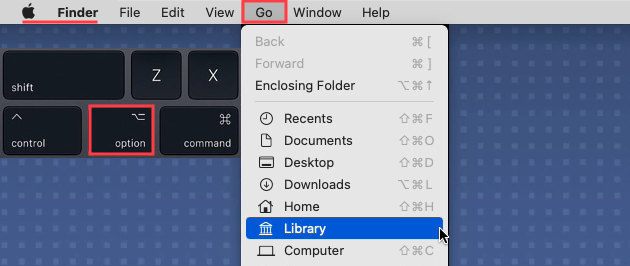
- Click 'Go' in the Finder menu bar, and hold down the 'Option' (Alt) key.
- Click the Library entry that now appears in the Finder > Go menu.
- Navigate to:
Users > *Username* > Library > Application Support > Native Instruments > Traktor > Streaming - Locate the Beatport folder and create a backup copy, e.g. on your desktop.
- Delete the Beatport folder.
- Open the Trash app and empty trash.
- Restart your computer.
- Launch Traktor Pro and log in to Beatport.
Windows
- Click on the Windows start button on the bottom left of your screen.
- Type "%localappdata%" and click on the option which appears:
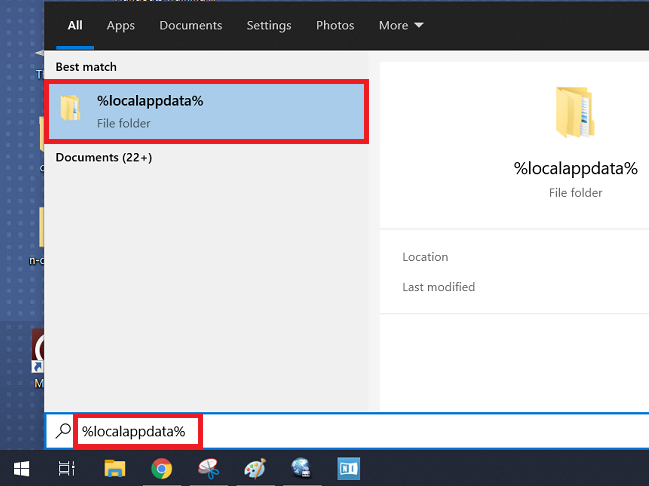
- This will open C: > Users > *Username* > AppData > Local
- From Local, navigate to: Native instruments > Traktor > Streaming
- Locate the Beatport folder and create a backup copy, e.g. on your desktop.
- Delete the Beatport folder.
- Restart your computer.
- Launch Traktor Pro and log in to Beatport.
Was this article helpful?
That’s Great!
Thank you for your feedback
Sorry! We couldn't be helpful
Thank you for your feedback
Feedback sent
We appreciate your effort and will try to fix the article