This article explains how to change the behaviour of individual buttons and knobs on the CDJ-3000 and other compatible CDJ and XDJ controllers, whilst preserving the factory default settings for all other controls on the device.
This customization of a controller's factory mappings is called 'Overmapping'.
This overview shows the differences between MIDI Mapping and Overmapping:
| MIDI MAPPING | OVERMAPPING | |
| Compatible devices: | MIDI devices | HID mapped devices |
Maps TRAKTOR functions to: | MIDI CCs and MIDI notes | Cleartext HW control names as printed on device |
Can learn assignment by manipulating HW control: | Yes | Yes |
Has complete table to select assignment via context menu: | Yes | Yes |
Workflow: | Create device mapping from scratch | Modification of default factory mapping |
Stackable in modules: | Yes | Yes |
Sharable as TSI file: | Yes | Yes |
Device identification: | e.g. via MIDI channel | Each device has its own channel by design |
| Modifiers for SHIFT layers: | Yes | Yes |
Overmapping Examples
Example #1:
Here we show how to change the behaviour of the QUANTIZE button from enabling SNAP mode to enabling QUANT mode:
1. Go to TRAKTOR Preferences > Controller Manager and select Pioneer DJ CDJ-3000 as the Device.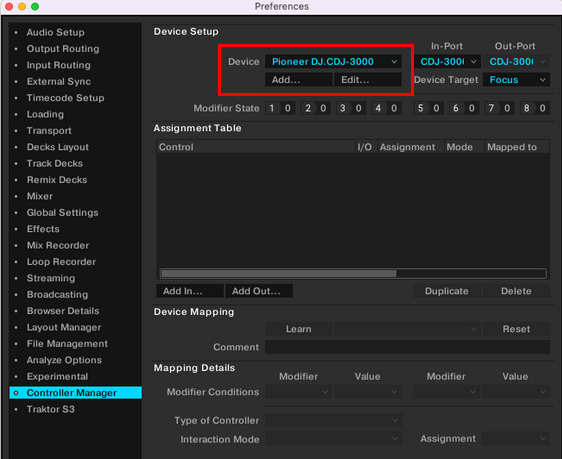
2. Click Add In... and select Global > Quant On.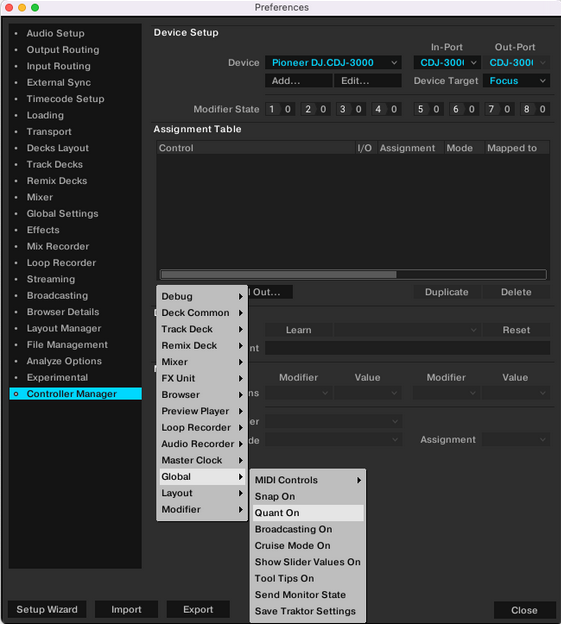
3. Under Device Mapping, activate the Learn button, push the QUANT button on your controller and deactivate Learn again.
4. Apply the following settings:
- Interaction Mode: Toggle
- Override Factory Map: Activated
Note: Leave the Override Factory Map option unchecked if you want to control both SNAP and QUANT at the same time with a single button press.
5. In order to activate LED feedback, select Add Out... > Quant On.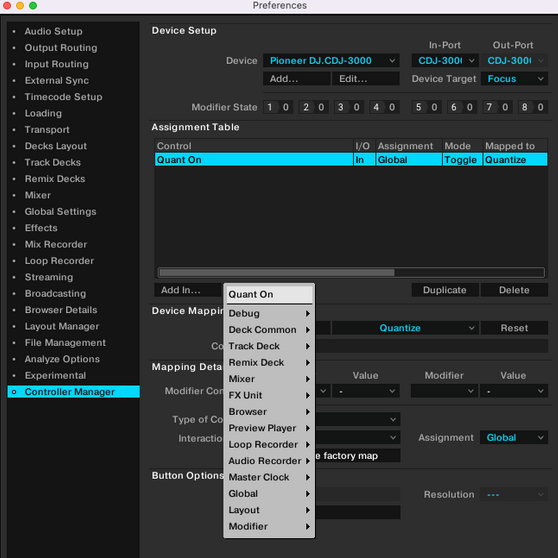
6. Now select Pioneer DJ CDJ-3000 #2 as a device and repeat the above steps for your second CDJ.
The QUANT button on the CDJ-3000 will now control TRAKTOR’s QUANT mode and not the SNAP mode.
Example #2:
Here we show how to replace the default Absolute Tempo Fader mode with the Relative Tempo Fader mode available in TRAKTOR. This way, when disengaging SYNC the tempo of the track remains unchanged and can seamlessly be pitched with the fader.
1. Go to TRAKTOR Preferences > Controller Manager and select Pioneer DJ CDJ-3000 as the Device.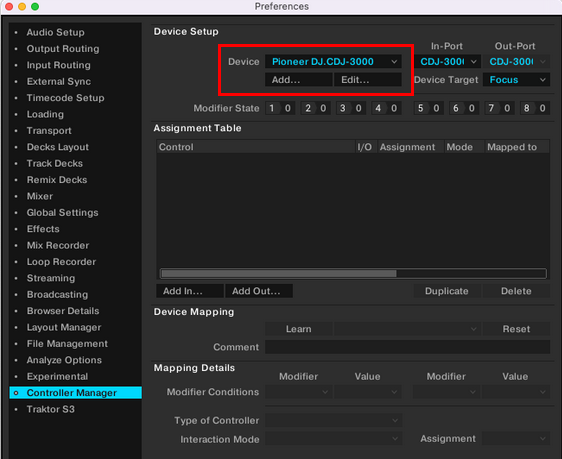
2. Click Add In... and select Deck Common > Tempo Adjust.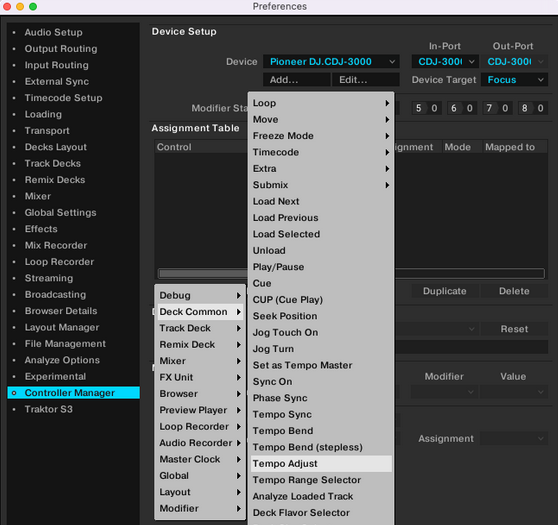
3. Under Device Mapping, activate the Learn button, move the HW Tempo Fader on your controller and deactivate Learn again.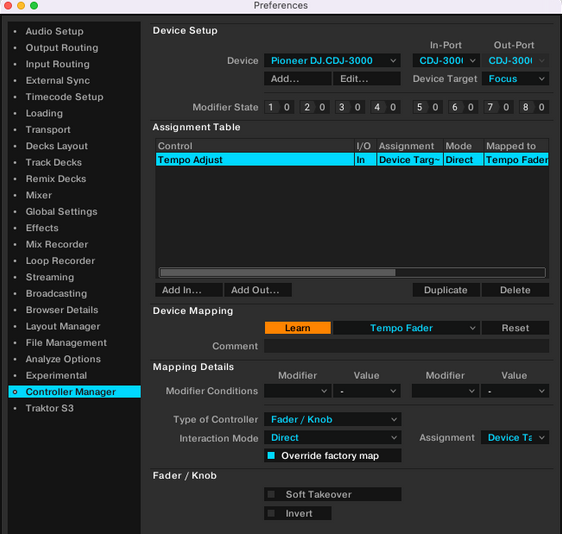
4. Apply the following additional settings:
- Interaction Mode: Relative
- Assignment: Deck A
- Override Factory Map: Activated
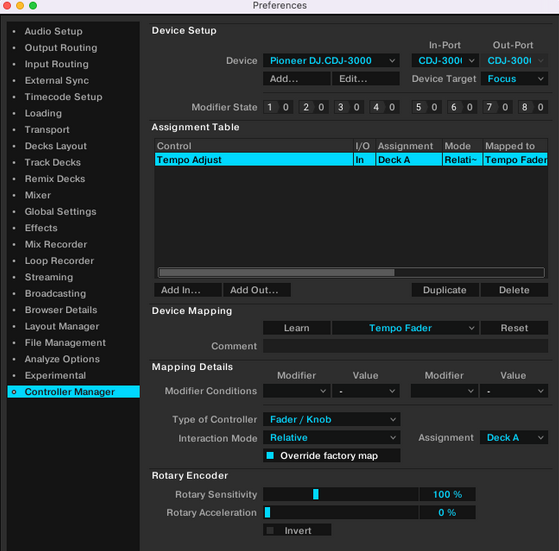
5. Now select Pioneer DJ CDJ-3000 #2 as a device and repeat the above steps for your second CDJ. This time, please make sure to select Assignment > Deck B in step 4.
The setup is done. We have replaced the default Absolute Tempo Fader mode with the Relative Tempo Fader mode available in TRAKTOR.
Was this article helpful?
That’s Great!
Thank you for your feedback
Sorry! We couldn't be helpful
Thank you for your feedback
Feedback sent
We appreciate your effort and will try to fix the article