With Ableton Link, TRAKTOR can be synchronized with other DJs or performers via a local network (LAN or Wi-Fi) connection
.
Connecting applications via Ableton Link gives TRAKTOR users the ability to synchronize multiple applications running on different systems or on the same computer to a common timeline and change the tempo globally from any of the applications linked together.
Ableton Link is integrated into these applications; therefore, no additional installation is required.
This article explains the use of TRAKTOR with Ableton Link.
TABLE OF CONTENTS
- Connecting to a Network:
- Joining / Leaving Ableton Link with TRAKTOR:
- Syncing TRAKTOR to the Link Timeline:
- Additional Note:
Connecting to a Network:
Applications that support Ableton Link can automatically join an Ableton Link session. For this, simply make sure that the computer running TRAKTOR is currently connected to a local network via Wi-Fi or LAN. We recommend connecting to the local network (router) via an Ethernet (LAN) cable using a dedicated network switch whenever possible. If multiple Mac computers are being linked, we recommend connecting the computers via a Thunderbolt cable.
Joining / Leaving Ableton Link with TRAKTOR:
- Open TRAKTOR.
- Press the LINK button located in TRAKTOR Global Section.
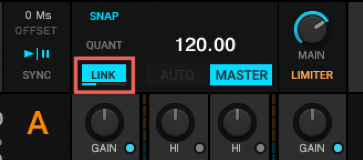
Note: if the Global Section is not visible, it can be activated in the TRAKTOR Preferences > Global Settings pane as shown below.
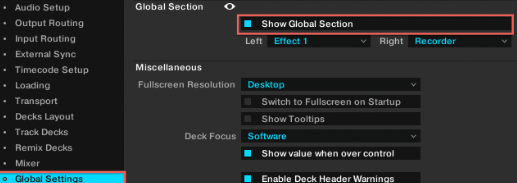
TRAKTOR will either join an existing Ableton Link session or begin a new session.
To leave the Ableton Link network, click LINK again to switch it off.
Syncing TRAKTOR to the Link Timeline:
Most applications supporting Ableton Link have a unique timeline that is automatically synced as long as Link is enabled. In TRAKTOR, enabling Link synchronizes its Global Clock to the common Link timeline and makes it the sync reference for the decks.
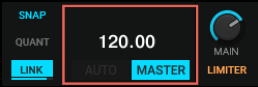
From within TRAKTOR, the session’s tempo can be changed via the Global Clock control.
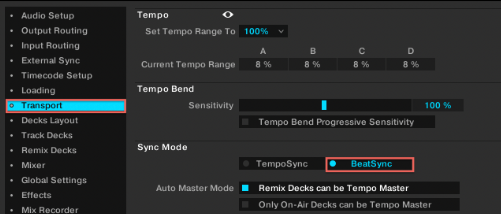
How the decks synchronize to the common timeline is defined by the Sync Mode, selectable in Preferences > Transport > Sync Mode pane.
BeatSync Mode
Whenever possible, use BeatSync Mode instead of TempoSync Mode as BeatSync ensures that the TRAKTOR Decks are always matched to the common Link timeline.
TempoSync Mode
If you rely on manual tempo adjustment as opposed to automatic tempo syncing via the SYNC button, set the SyncMode to TempoSync. In TempoSync, drifts in tempo/phase may occur. To quickly correct this, press the SYNC button twice on the Deck that's currently playing.
Additionally, note the following advice in order to keep tempo/phase drifts to a bare minimum:
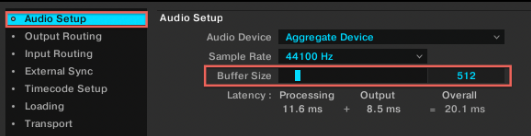
- Increase the Buffer Size for your audio driver to avoid buffer underruns. If you normally set your buffer to 256 samples, set it to 512. This can be done in the TRAKTOR Preferences > Audio Setup pane, as shown below.
- Avoid large and sudden tempo changes.
- We strongly recommend using a wired instead of a wireless connection.
Matching the Downbeat
As TRAKTOR will not always sync automatically to the downbeat or first bar (beat 1 of 4), you may have to do this manually. Keep an eye on the bar phase meter blue bar below the LINK button. Its progress shows the current bar phase of the Link timeline. Release the downbeat of your track when the bar has reached its zero-point (the bar is 'empty').
Resetting the Phase
Occasionally, due to tempo offsets or when you resume playback after having stopped, your sync to Ableton Link may be out of phase in relation to all other peers in the network. In order to quickly reset the phase, you may engage TRAKTOR's Reset Downbeat function which is available as a mapping command from TRAKTOR's Controller Manager under Add In... > Master Clock > Ableton Link > Reset Downbeat. This command is also mapped to the key combination 'Ctrl + Alt + Space' on your computer keyboard.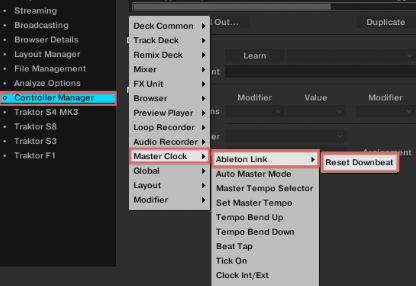
Note: Resetting the downbeat may cause a skip backward in the Ableton Link timeline by a beat or two.
Additional Note:
Making a TRAKTOR deck the main Clock Source
In order to make a TRAKTOR Deck the main clock source, Link must be deactivated by clicking on the LINK button in the Global Section. Changing the tempo on the Link server via TRAKTOR can only be done by changing the global Clock in the Global Section at the top of the main TRAKTOR window.Was this article helpful?
That’s Great!
Thank you for your feedback
Sorry! We couldn't be helpful
Thank you for your feedback
Feedback sent
We appreciate your effort and will try to fix the article