This article describes how to run MASCHINE 2 in sync with TRAKTOR PRO 2. Please select your device from the list below and follow the instructions to get started:
TABLE OF CONTENTS
Enabling the MIDI Clock in TRAKTOR
1. Go to TRAKTOR Preferences > MIDI Clock.
2. Enable the option Send MIDI Clock.

Setting up the Virtual Ports in TRAKTOR
Setting up the Virtual Ports in OS X
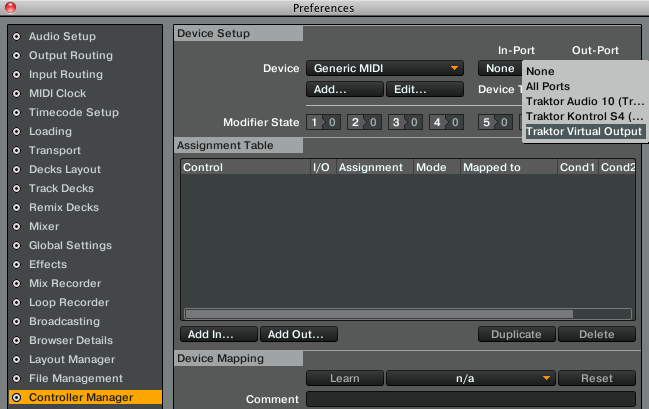
1. Go to Preferences > Controller Manager, click on Add... below the Device list and choose a new Generic MIDI device.
2. Select None for the In-Port and Traktor Virtual Output for the Out-Port. When you are done, close the Preferences.
Setting up the Virtual Ports in Windows
On Windows systems, there are no available virtual MIDI ports so you need to install a 3rd party tool. We recommend to use the free virtual MIDI device LoopBe1 which can be downloaded here.
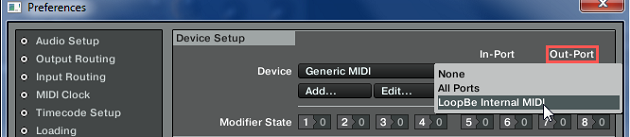
1. Go to Preferences > Controller Manager, click on Add... below the Device list and choose a new Generic MIDI device.
2. Select None for the In-Port and LoopBe Internal MIDI for the Out-Port. When you are done, close the Preferences.
Setting up the Master Clock in TRAKTOR
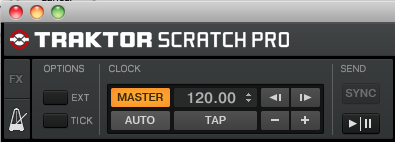
1. Within the Global Section of the main TRAKTOR window, click on the metronome symbol to view the Master Clock panel.
2. In the Master Clock panel, deactivate AUTO and activate MASTER. This will make TRAKTOR's internal clock become the Clock Master.
Enabling the MIDI Clock Sync in MASCHINE 2
1. Start MASCHINE 2 in stand-alone mode.
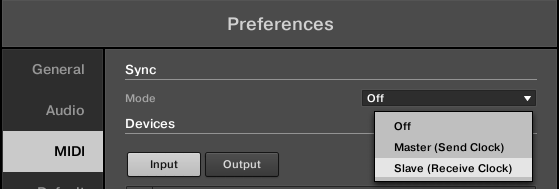
2. Open the Preferences.
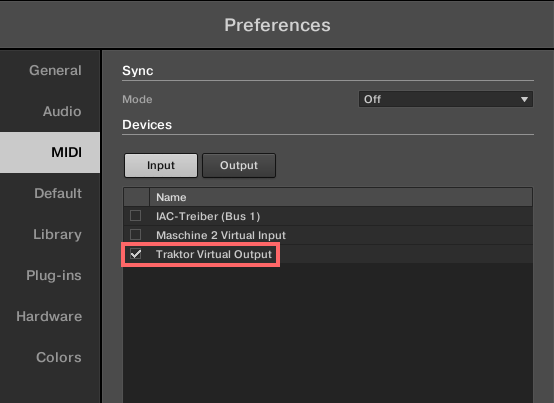
3. Go to the MIDI menu and select the Inputs tab.
4. Mac: Tick the checkbox next to Traktor Virtual Output.
Win: Tick the checkbox next to Loop Be Internal MIDI.
5. Set the Mode under Sync to Slave (Receive Clock).
6. Close the Preferences.
Starting the MIDI Clock Playback
1. Load or create a Pattern in MASCHINE.
2. Switch to TRAKTOR and click the Play/Pause button in the SEND section of the Master Clock panel to start the MIDI clock.
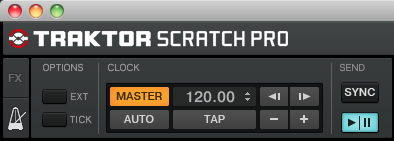
MASCHINE will now start playing in sync with the TRAKTOR Master Clock. When TRAKTOR is running as Clock Master, you can adjust the tempo globally for both applications in TRAKTOR's Master Clock panel. You may also activate SYNC in your TRAKTOR Decks to sync them to TRAKTOR's Master Clock.
Note: The Sending Offset parameter in TRAKTOR as well as the Clock Offset parameter in MASCHINE can help compensate slight errors that may occur during MIDI Clock sync. Read more about these parameters and how to use them in the TRAKTOR 2 / MASCHINE 2 user manuals.
Was this article helpful?
That’s Great!
Thank you for your feedback
Sorry! We couldn't be helpful
Thank you for your feedback
Feedback sent
We appreciate your effort and will try to fix the article