This article explains how to export your own TRAKTOR Remix Set as complete TRAKTOR Pak.
In addition to the Remix Set settings and info, a TRAKTOR Pak includes all audio clips used in the set. This is useful for Backups, but also for sharing your Remix Sets with other people or using them on another computer.
Even if you have already created a Remix Set and stored it in your TRAKTOR Track Collection, you will still need to export a TRAKTOR PAK in order to fully backup all relevant data or conveniently transfer it to another computer. This ensures that your Remix Set will import without any missing samples or loops.
Exporting a Remix Set as TRAKTOR Pak
Follow the below steps in order to export a Remix Set from the Track Collection it as a TRAKTOR Pak.
Note: For more information on how to save a Remix Set, go to the chapter 15.8.5 Saving A Remix Set in the Traktor 2 Manual.
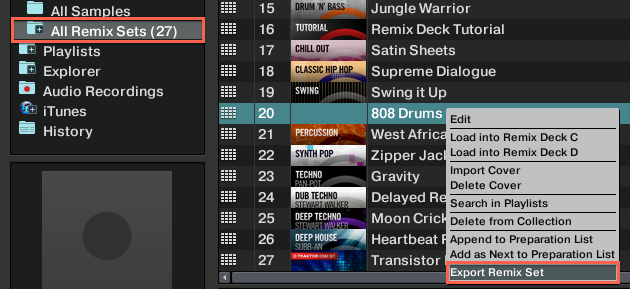
- Select the All Remix Sets tab in the TRAKTOR browser tree.
- Locate your Remix Set in the browser list.
- Right-click the name of your Remix Set to open the context menu and select Export Remix Set.
- Browse to a folder or drive of your choice, type in a file name for your TRAKTOR PAK and click Save in order to export it.
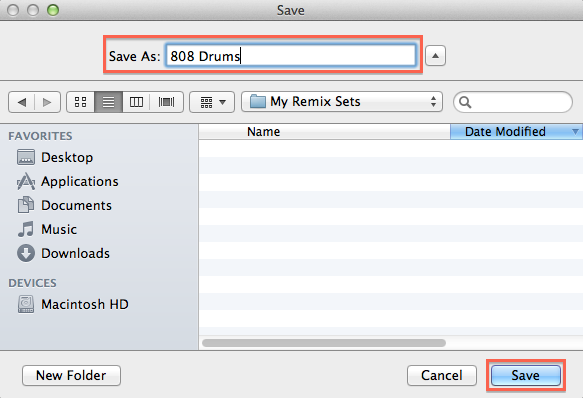
- In the selected folder or drive you will now find a file with the extension .trak, for example "808 Drums.trak". This is your TRAKTOR PAK.
You can now transfer the TRAKTOR PAK to another computer, create a backup on an external drive, or share it on the internet.
Importing TRAKTOR Paks
To import shared or backed up TRAKTOR Paks to the TRAKTOR Track Collection, you can use one of two methods described below.
Method 1
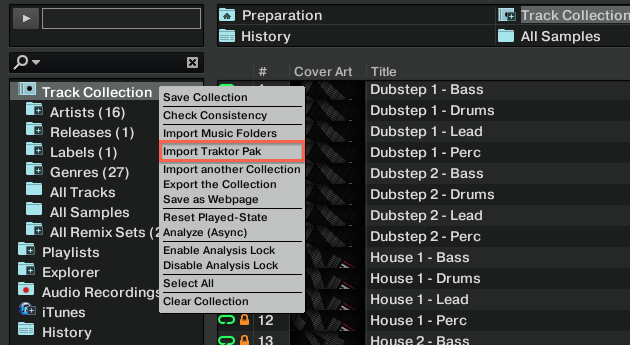
- Right-click on Track Collection at the top of the TRAKTOR browser tree to open the context menu and select Import Traktor Pak.
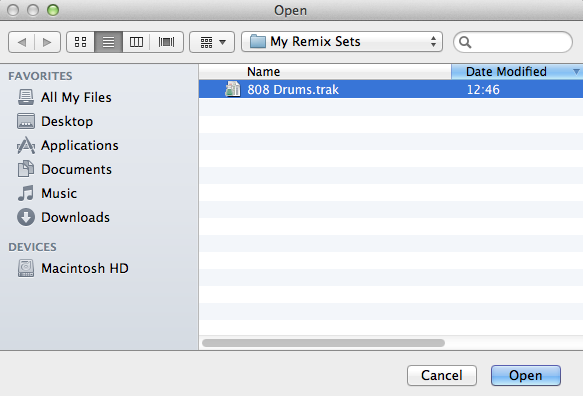
- Locate the TRAKTOR PAK, select it and click Open to start the import.
Method 2
You can also locate your TRAKTOR Paks in the Mac Finder or Windows Explorer and add them to TRAKTOR via drag and drop. Just drag the files onto the Track Collection and release the mouse button to start the import. 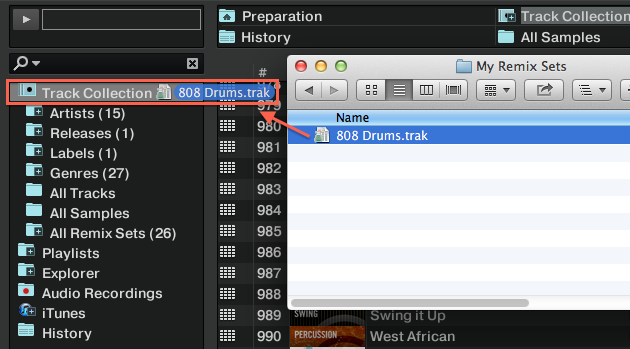
Was this article helpful?
That’s Great!
Thank you for your feedback
Sorry! We couldn't be helpful
Thank you for your feedback
Feedback sent
We appreciate your effort and will try to fix the article