Maschine Error Message: "Error. *NI Product* could not be loaded" (Windows)
Symptom
When trying to load a preset from the Maschine Browser, you get the following error message mentioning a particular Native Instruments product:
Error: *NI Product* could not be loaded.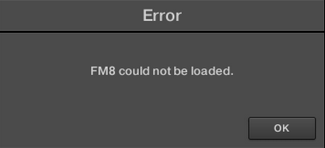
Cause
This happens when Maschine is unable to locate the NI plug-in associated with a preset. This can be caused by the following reasons:
- Kontakt or Reaktor have not yet been installed.
- Your NI plug-ins have been moved after the initial installation or have been deleted.
- Your NI plug-in location is missing in Maschine.
- Your hard drive has been renamed.
Solutions
Please try the solutions recommended below:
Verify that Kontakt and Reaktor are Installed
Many NI instruments require the Kontakt or Reaktor Players to function. Follow these steps to make sure they're installed.
- Open Native Access.
- Click the Library > Installed > Applications tab and check if Kontakt and Reaktor are installed.
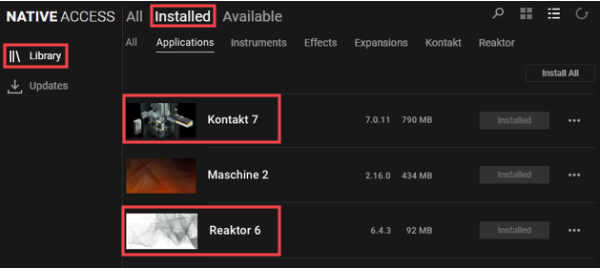
Note: If Kontakt or Reaktor are not Installed, click the Available tab in Native Access to install them.
Using the Native Access Repair Function
If you notice an exclamation tab by your product, use the Repair tab as explained in this video.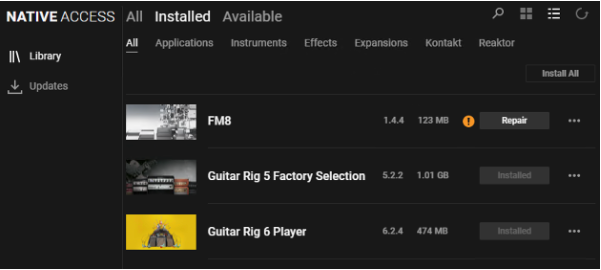
Plug-in Locations in Maschine and Native Access
Make sure Maschine is accessing the folder where your plug-ins have been installed. You can use Native Access to find the VST plug-in folder, in order to set the correct location in Maschine Preferences.
- Open Native Access and go to Library > Installed to find your product in the list.
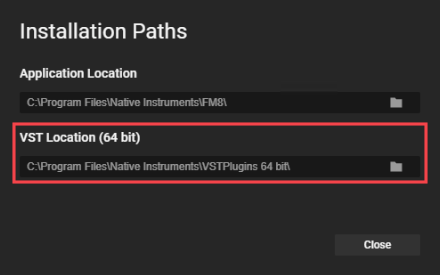
- Click the three dots on the right side and choose Installation Paths.
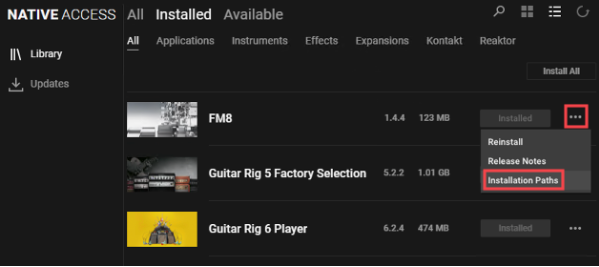
- Below VST Location (64 bit), you can see the folder where your plug-in was installed.
- Start Maschine and go to Preferences > Plug-ins > Locations.
- If the VST folder path is not listed, click Add and navigate to your plug-in folder location.
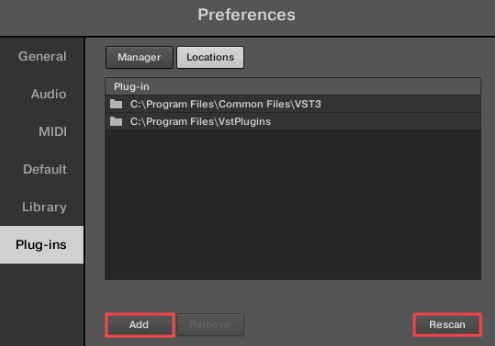
- Click Rescan to allow Maschine to find your plug-ins.
Reset the Maschine Plug-in Database
Follow these steps to manually rebuild the Maschine plug-in database. This will cause Maschine to scan your default plug-in folder locations.
- Close Maschine and press Win + R on your keyboard to open the Run dialog.
- Type in %localappdata% and click OK.
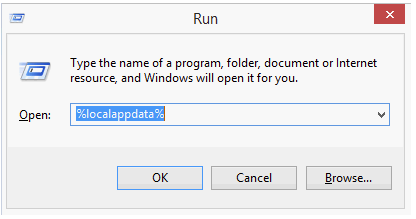
This will open the Appdata > Local folder. - Navigate to the Native Instruments folder and delete the Maschine 2 / 3 folder you find here.
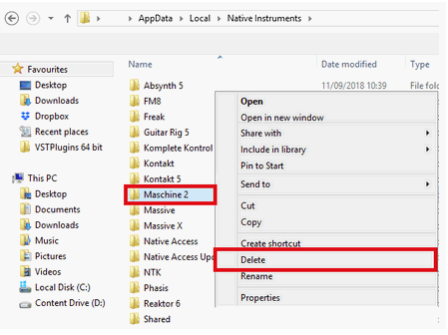
- Restart Maschine and allow its database to be reinitialized.
Note: If using custom VST plug-in folders, you can add them back to the Maschine Preferences by repeating the steps from the previous chapter.
You should now be able to load your plug-ins in Maschine.
Was this article helpful?
That’s Great!
Thank you for your feedback
Sorry! We couldn't be helpful
Thank you for your feedback
Feedback sent
We appreciate your effort and will try to fix the article