Symptom
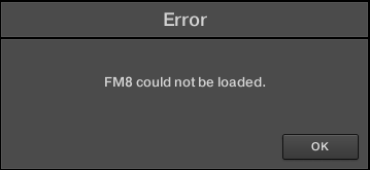
When trying to load a preset from the MASCHINE 2 Browser, you receive the following error message mentioning a particular Native Instruments product:
Error: *NI Product* could not be loaded.
Cause
The presets that appear in the All Instruments section of the MASCHINE Browser require a plug-in (e.g. FM8, MASSIVE, REAKTOR, etc.) to be loaded, which generates the sound of the preset.
The above error message indicates that the plug-in required to load this NI preset is not found in its expected location.
Solutions
1. Reinstall the NI Product
NI products are re-installed using Native Access. Please select your version:
Native Access
- Quit MASCHINE (or your DAW) and start Native Access.
- Click Library > Installed and scroll to the NI product named in your error message. Select Reinstall from the three dots menu next to the product name to start the download.
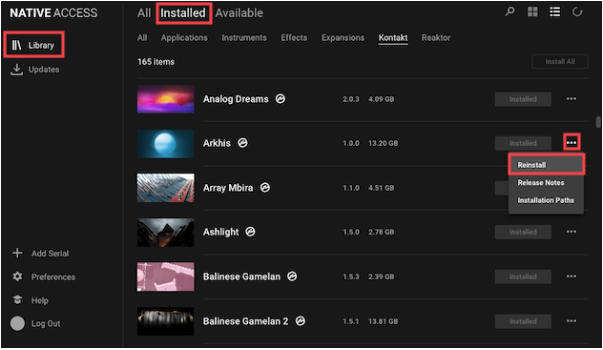
- Many NI instruments require the KONTAKT / REAKTOR (Player) software. Please make sure that both are installed in All > Installed > Applications
- Close Native Access once the product has been reinstalled.
- Restart MASCHINE and try loading the preset again.
Native Access Legacy
- Quit MASCHINE (or your DAW) and start Native Access.
- Click the Installed products tab and scroll to the NI product named in your error message. Hover your mouse over FULL VERSION and click REINSTALL when it appears.

- Many NI instruments require the KONTAKT / REAKTOR (Player) software. Please make sure that both are installed
- Close Native Access once the product is finished being reinstalled.
- Restart MASCHINE and load the preset again.
If you still receive the same error message after the reinstall, please proceed below.
2. Reset the MASCHINE Database
- Make sure MASCHINE is not running.
- Navigate to the following folder:
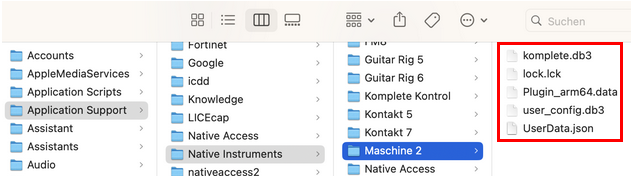
Macintosh HD > Users > *Your User Name* > Library > Application Support > Native Instruments > Maschine 2Note: the User Library folder is hidden. To access it, click on Go in the menu bar and press the Alt key. You'll now find the Library entry in the menu.
- Delete the files in that folder:
- Start MASCHINE in standalone mode. You find the standalone application here:
Macintosh HD > Applications > Native Instruments > Maschine 2
A splash screen will indicate that it is scanning your libraries and plug-ins. Once complete, the database will have been newly initialized.
Was this article helpful?
That’s Great!
Thank you for your feedback
Sorry! We couldn't be helpful
Thank you for your feedback
Feedback sent
We appreciate your effort and will try to fix the article