This article explains how to use the MASCHINE+ as a classic MASCHINE controller with a computer. This can be useful if you want to use your MASCHINE+ with the MASCHINE desktop software or with a DAW.
Switching to Controller Mode:
- Ensure that your MASCHINE+ is not connected to your computer.
- Power your MASCHINE+ on.
- Once it has initiated, connect your MASCHINE+ to your computer with a USB cable.
- Press the SETTINGS button on your controller.
- Go to the System tab.
- Press Button 4 (CONTROLLER).
Now when you start the Maschine 2 software on your computer, your MASCHINE+ will function as a classic MASCHINE controller.
Note: If you are not already using the Maschine+ in standalone mode, it is sufficient to connect it to the computer with a USB cable (without the power cable plugged in). If you want the display to be brighter or not drain the computer's battery (e.g. of a laptop), you can plug in the power cable afterwards.
Using MASCHINE+ as an Audio Interface with a Computer:
MASCHINE+ can also be used as an audio interface for the MASCHINE software on your computer.
Windows:
- Ensure that the MASCHINE+ driver has been installed. You can find it here.
- After connecting MASCHINE+ to your computer in controller mode as per the steps above, start the MASCHINE 2 Software.
- Navigate to File > Preferences... and click on the Audio tab.
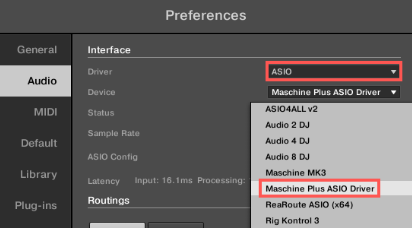
- Choose ASIO as the Driver and Maschine Plus ASIO Driver as the Device.
Mac:
- After connecting MASCHINE+ to your computer in controller mode as per the steps above, start the MASCHINE 2 Software.
- Navigate to File > Preferences... and click on the Audio tab.
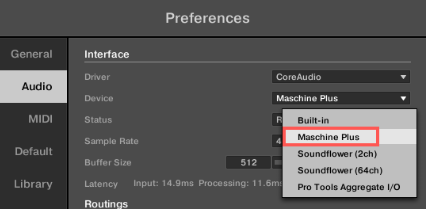
- Choose CoreAudio as the Driver and MaschinePlus as the Device.
Switching back to MASCHINE+ Standalone Mode:
To switch your MASCHINE+ back to its default standalone mode, follow these steps:
- Start the MASCHINE Software (if it's not running already).
- Press the SETTINGS button on your controller.
- Go to the System tab.
- Press Button 4 (STANDALONE).
Note: If you do not have access to a computer to switch your MASCHINE+ back to standalone mode, you can press and hold the FILE (Save) button for 10 seconds. This will switch the device back to standalone mode.
Now your MASCHINE+ is working in standalone mode again.
Was this article helpful?
That’s Great!
Thank you for your feedback
Sorry! We couldn't be helpful
Thank you for your feedback
Feedback sent
We appreciate your effort and will try to fix the article