TABLE OF CONTENTS
Video
In this video, we explain how to create a sidechain effect in MASCHINE. Sidechain compression can create extra movement between elements in your project (e.g. sustained basslines or pad chords and a kick drum).
You can also follow this written guide below, for step-by-step instructions:
Overview
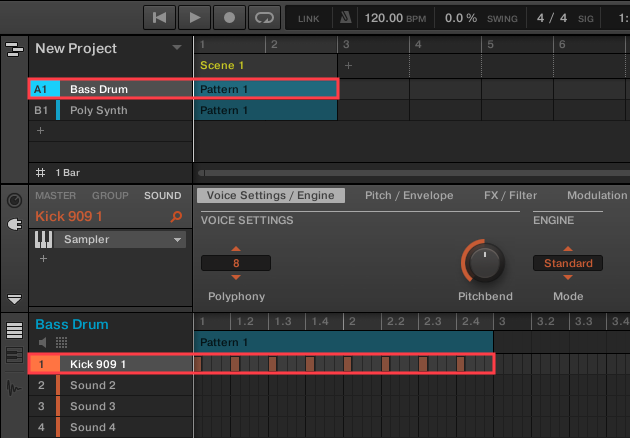
In this example, we have loaded a Bass Drum (Kick 909 1) in the first Sound slot of Group A1. Here, the Kick is playing at each quarter note for 2 bars:
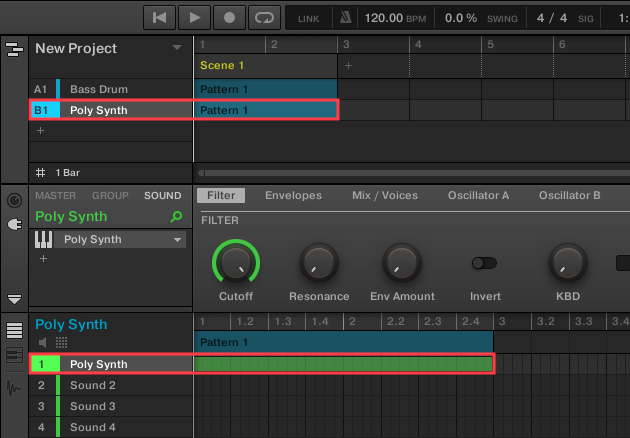
Next, we have loaded Poly Synth into the first Sound slot of Group B1. Here, Poly Synth is playing one sustained note for 2 bars.
Setting up the Sidechain Compressor
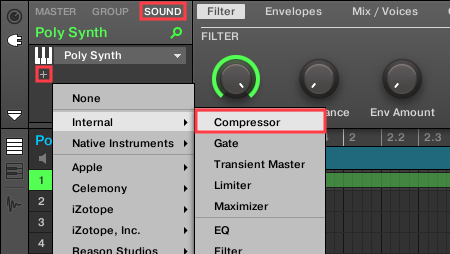
- At the Sound level, click the plus (+) symbol under the Poly Synth and select Internal > Compressor from the plug-in list.
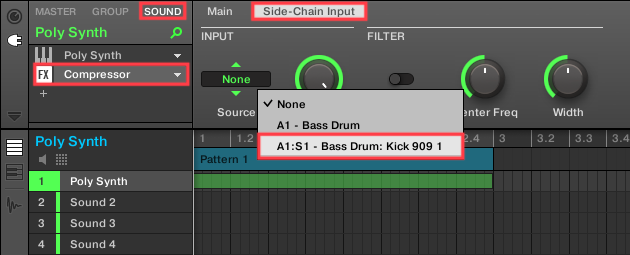
- Highlight the Compressor then click the Side-Chain Input tab and choose the Bass Drum (e.g. Kick 909 1) as the INPUT / Source.
- Press PLAY to start the MASCHINE sequencer.
- On the Main page of the Compressor, adjust the settings such as Threshold, Amount, Attack, and Release, to fine-tune the sidechain effect to your liking.
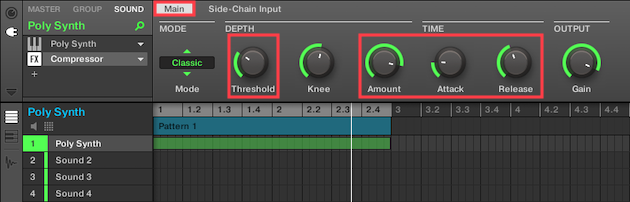
You will now hear the volume of Poly Synth being attenuated by the output signal from the Bass Drum.
You can also apply sidechain compression using other internal MASCHINE effects, such as the Gate, Limiter, Maximizer, and Filter.
Lastly, you can also use your other Dynamics plug-ins as long as they're equipped with a sidechain input.
Was this article helpful?
That’s Great!
Thank you for your feedback
Sorry! We couldn't be helpful
Thank you for your feedback
Feedback sent
We appreciate your effort and will try to fix the article