My Komplete Kontrol Keyboard is Not Automatically Recognized by Logic Pro
This article explains what to do if your Komplete Kontrol keyboard is not automatically recognized by Logic Pro.

TABLE OF CONTENTS
- Install the latest Komplete Kontrol and Logic Pro versions
- Enable Automatic Installation of Control Surfaces in Logic Pro
- Adjusting the macOS Firewall Settings
Install the latest Komplete Kontrol and Logic Pro versions
Automatic detection of Komplete Kontrol keyboards in Logic Pro requires:
- For S-Series MK1 keyboards, Komplete Kontrol 1.6.1 and Logic Pro version 10.2.0 or higher are required.
- For S-Series MK2 keyboards, Komplete Kontrol 1.9.0 and Logic Pro 10.3.1 or higher are required.
- For S-Series MK3 keyboards, Komplete Kontrol 3.0.0 and Logic Pro 11 or higher are required.
- For A-Series keyboards, Komplete Kontrol 2.0.4 and Logic Pro 10.3.1 or higher are required.
- For M32 keyboards, Komplete Kontrol 2.1.1 and Logic Pro 10.3.1 or higher are required.
Enable Automatic Installation of Control Surfaces in Logic Pro
Automatic detection also requires the Automatic Installation of Control Surfaces to be activated in Logic Pro.
Follow these steps to activate Automatic Installation:
- Open Logic Pro.
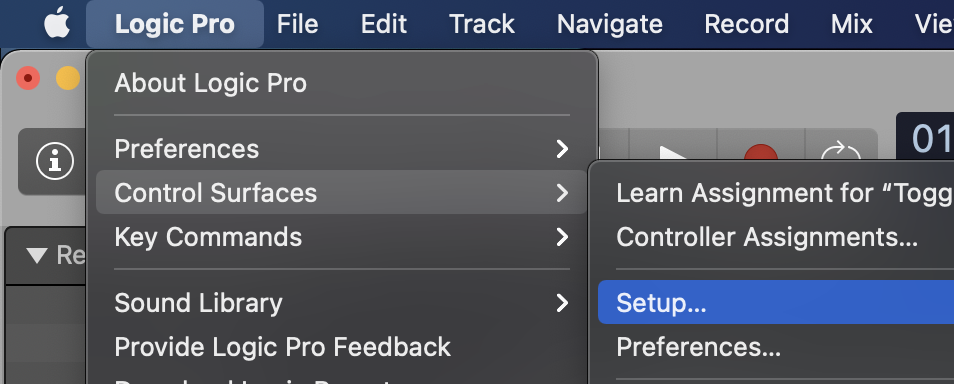
- Go to Logic Pro > Control Surfaces > Setup.
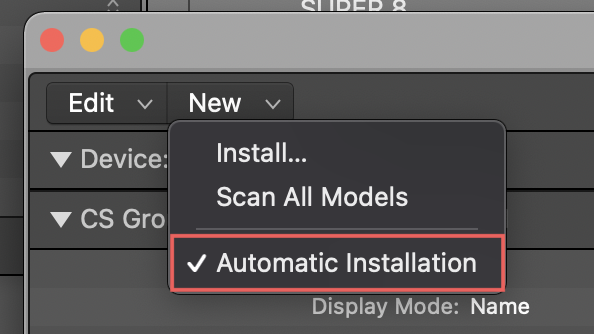
- Click on the New menu and tick Automatic Installation.
Adjusting the macOS Firewall Settings
Some macOS Security Settings can prevent the Komplete Kontrol keyboards to connect to Logic Pro. To avoid issues with the connectivity of your NI controller, follow these steps to add firewall exceptions for the NI Hardware Agents:
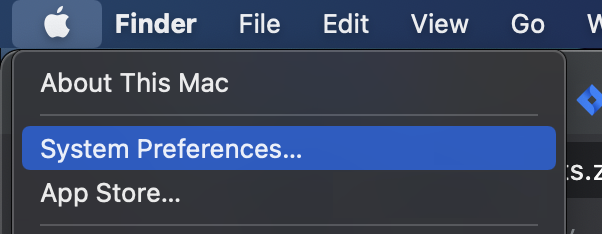
- Choose System Preferences from the Apple menu.
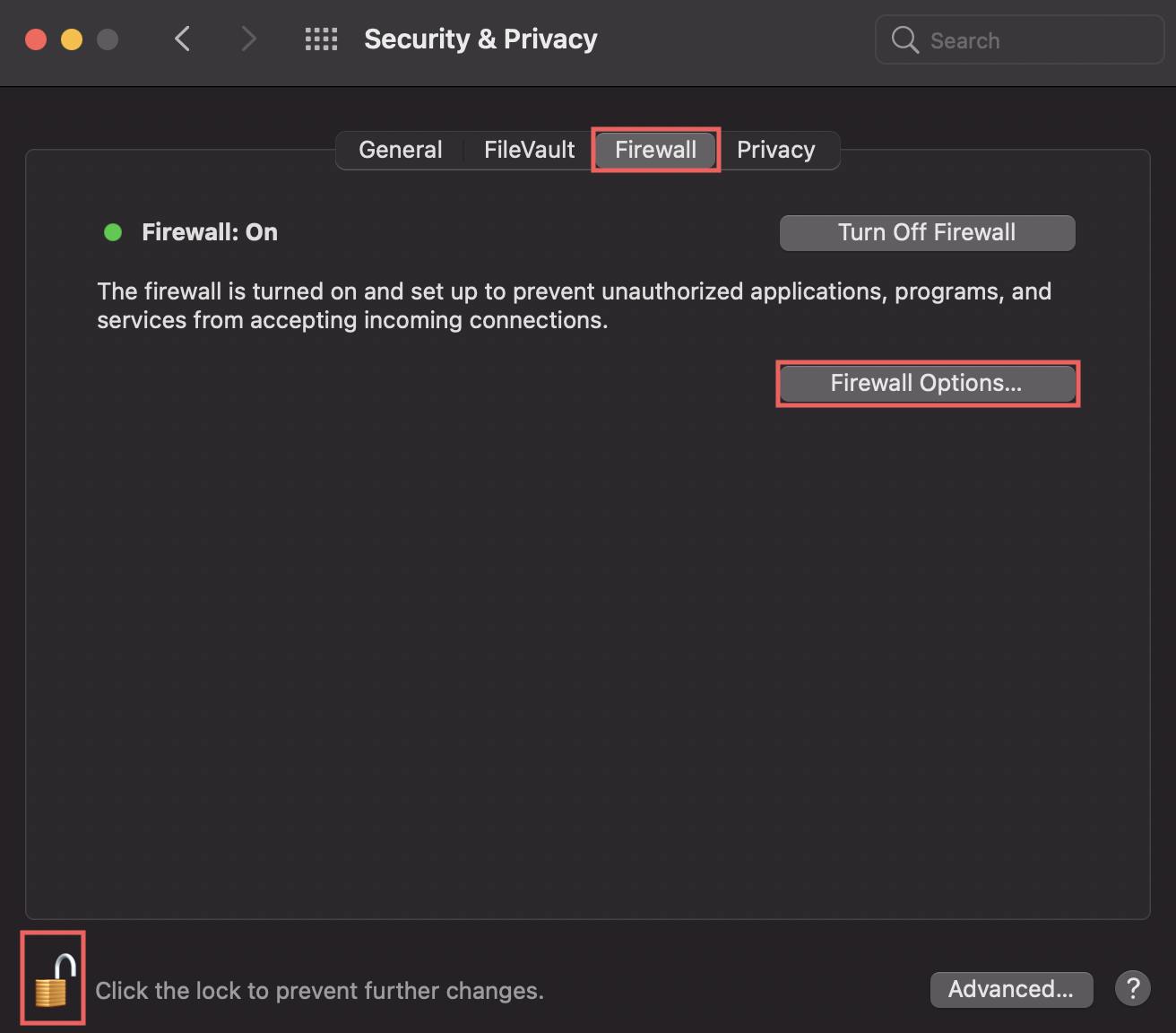
- Choose Security and Privacy.

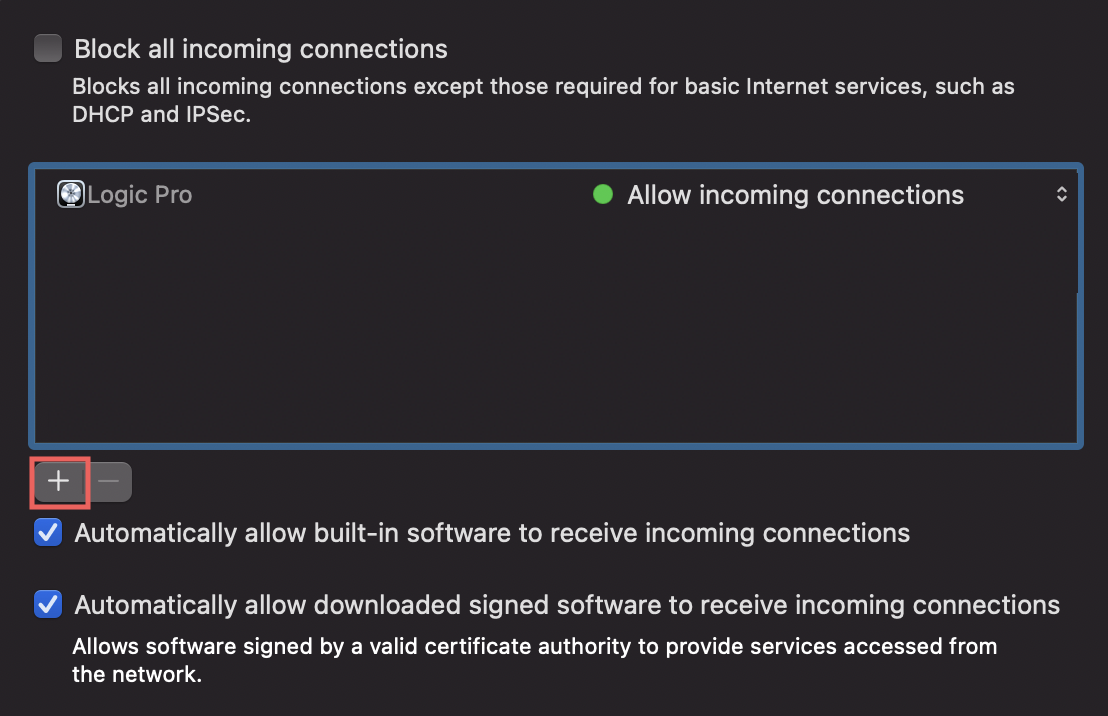
- Go to the Firewall tab and click on the lock icon at the bottom of the window. Type your admin password when prompted to, then click the Firewall Options... button.
- Click the '+' symbol.
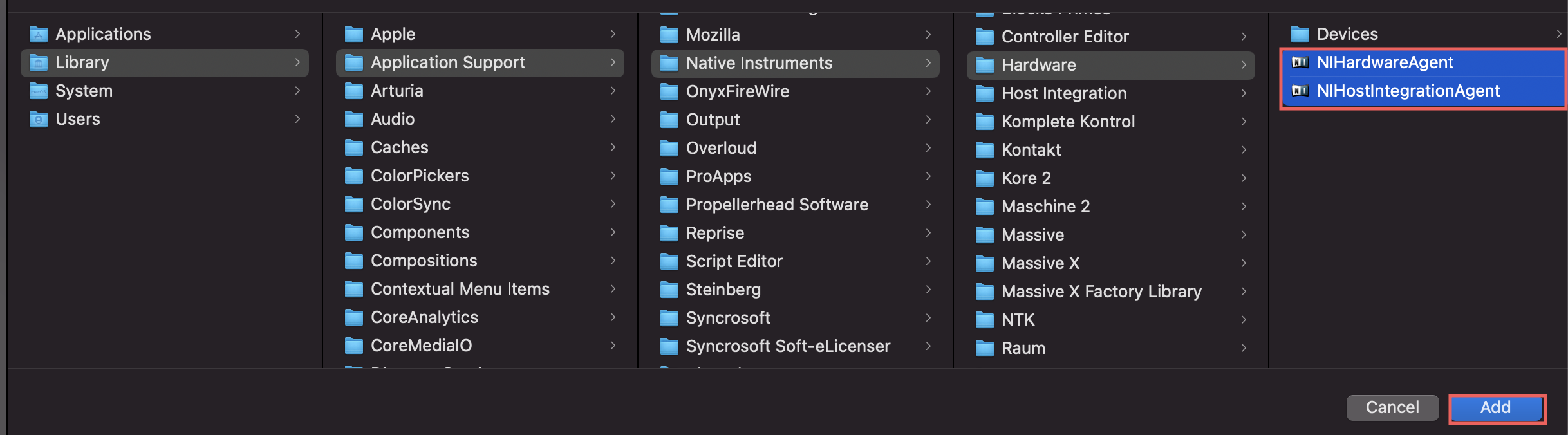
- Navigate to:
Macintosh HD > Library > Application Support > Native Instruments > Hardware. - Hold the 'Shift' key on your keyboard and select both NIHardwareAgent and NIHostIntegrationAgent. Then, click Add.
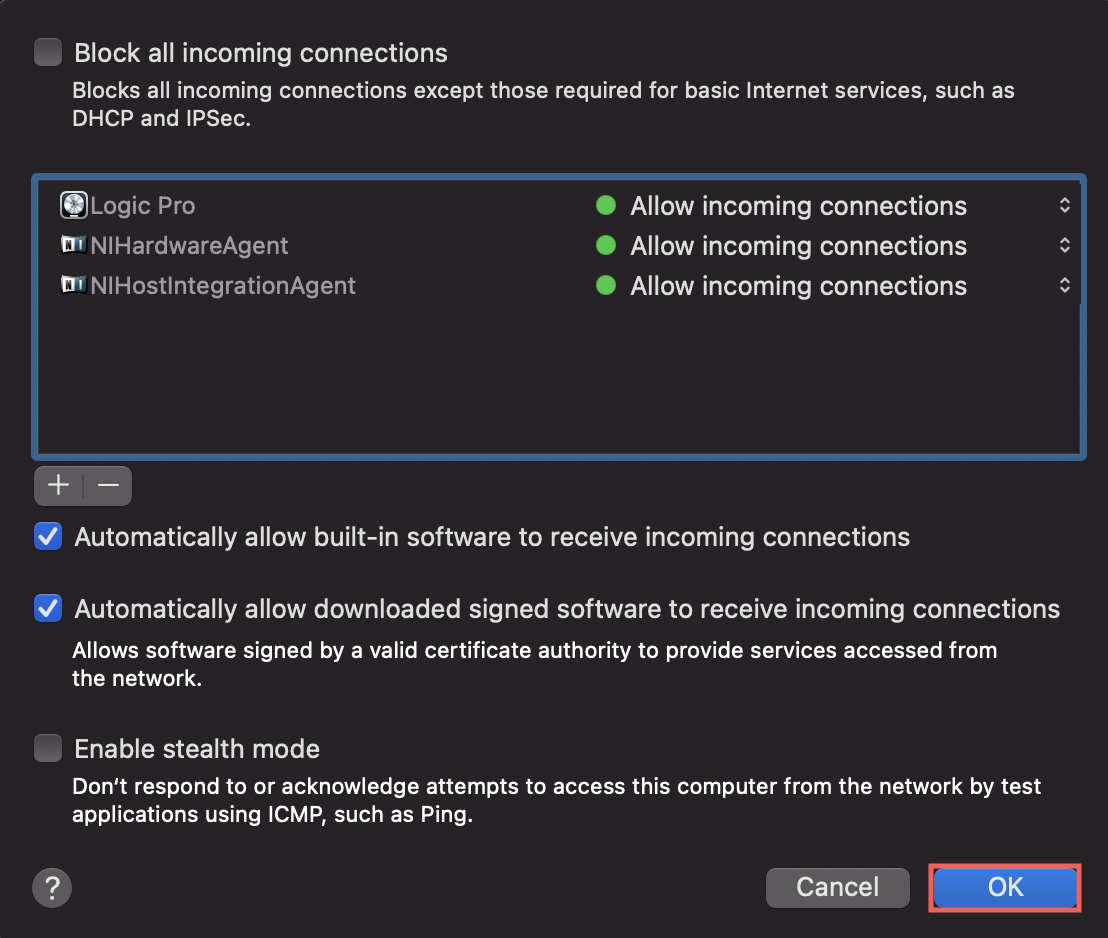
- Click OK to confirm.
- You can now close the System Preferences and launch Logic Pro.
Was this article helpful?
That’s Great!
Thank you for your feedback
Sorry! We couldn't be helpful
Thank you for your feedback
Feedback sent
We appreciate your effort and will try to fix the article