TABLE OF CONTENTS
- The Header
- Play View Modes
- Additional functions in Classic View
- Side Pane visibility
- Info Pane
- Zoom settings
- Displaying the Virtual Keyboard and Instrument headers
- Setting a Default View
With the release of Kontakt 8.8, there are a number of changes to the user interface and quality of life improvements in Kontakt. Please find more info below:
The Header
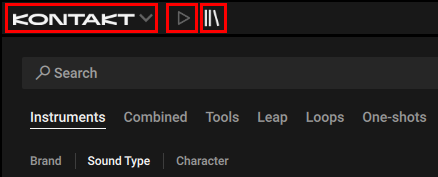
Kontakt 8's header has been reworked around these three entry points:
- Kontakt logo: Load and save files, create new Instruments, configure options, and connect to Kontrol MK3, etc.
- Play View: Access the Instruments and Tools rack to play and customize your loaded Instruments and Tools.
- Library: Open the Library Browser to access your libraries, Instruments and presets.
Play View Modes
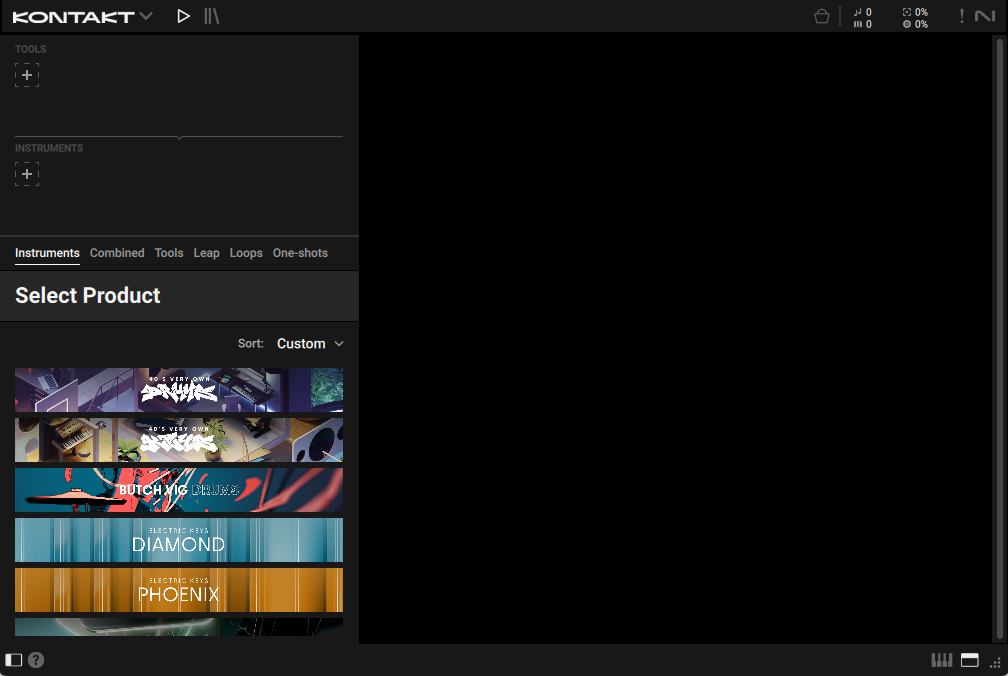
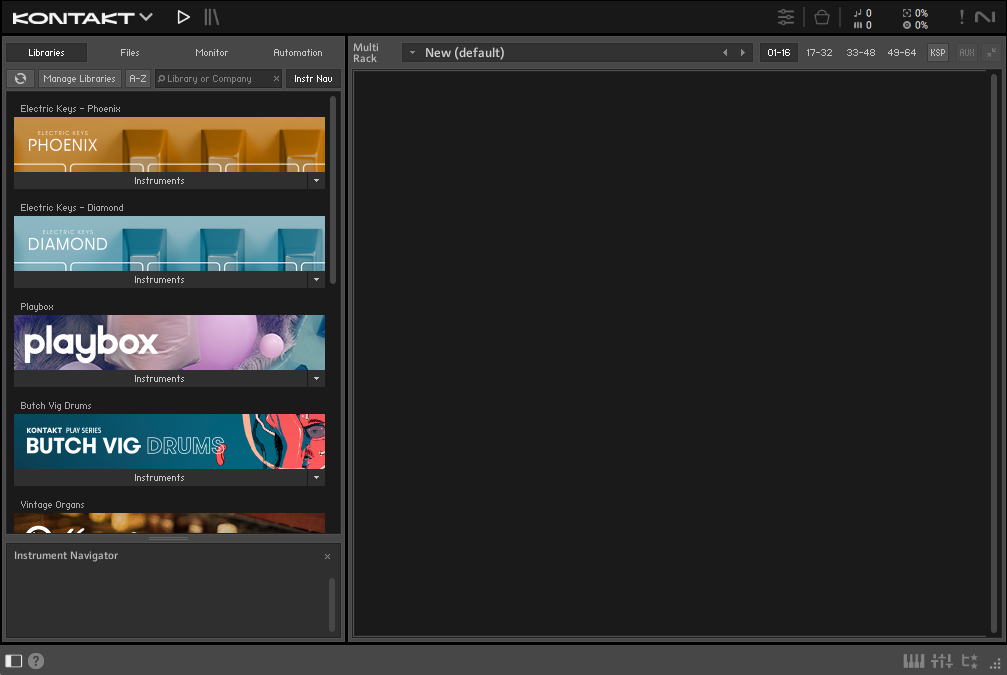
Once you have activated the Play View by clicking the Play button, you can toggle between Default and Classic View.
This is the Default View:
This is the Classic View:
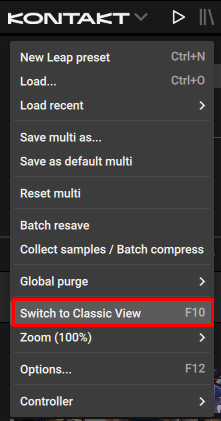
You can toggle the views with the F10 button on your computer keyboard or from the Kontakt Main Menu, by clicking on the Kontakt Logo or the caret right next to it:
Additional functions in Classic View
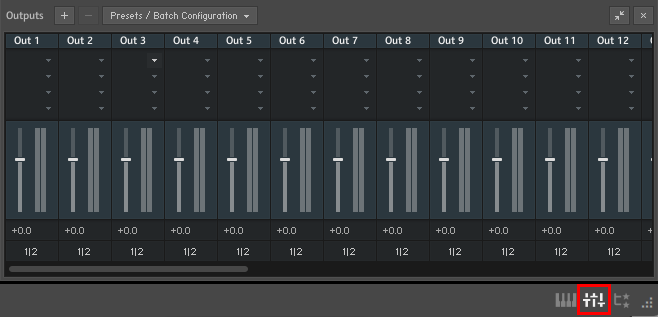
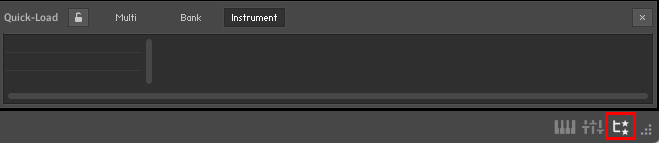
The following 3 functions (Outputs, Quick-Load, Master Editor) are only available in Classic View:
- This button in the bottom right opens the Outputs section:
- The button next to it opens the Quick-Load Catalog:
- This button in the header opens the Master Editor panel:

Side Pane visibility
You can toggle the visibility of the Side Pane in both, the Classic and Default View, via this button in the bottom left:
Info Pane
The Info pane displays a help text when you hover the mouse cursor over a user interface element, like buttons or other controls. You can activate and deactivate it with the "?" button in the bottom left: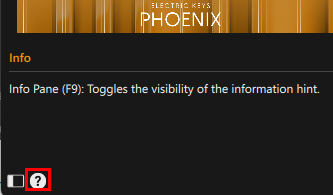
Note that, although the info texts have different appearances in Default and Classic View, the button to toggle it looks the same.
Zoom settings
Sets the zoom of the Kontakt window and allows switching between three performance modes for the user interface: Best quality, Balanced, and Best performance. You can find the setting in the Kontakt Main Menu:
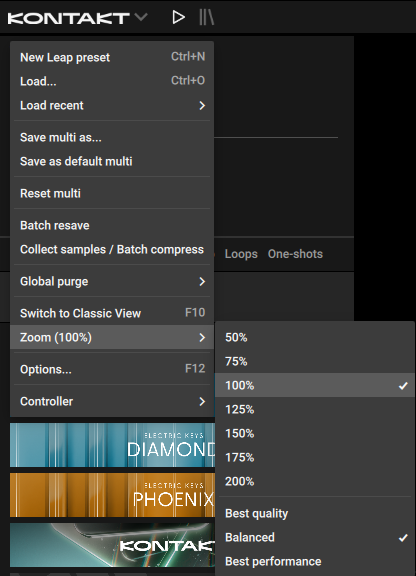
Displaying the Virtual Keyboard and Instrument headers
In the bottom right of the Kontakt window, you can find two buttons:
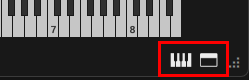
- The Keyboard button toggles the visibility of the virtual keyboard which also shows the colored keys of the light guide, depending on which Instrument or Tool is in focus.
- The Instrument Header button toggles the visibility of the Instrument headers, when in Default View. Instrument headers in default view can be useful to do specific settings, which are only accessible there - and to change the order of instruments and tools in the rack.
In Classic View the Instrument Headers are permanently visible, but come with a narrow option.
Setting a Default View
Note: this option is only available when using Kontakt as a plug-in. It is not available in the standalone Kontakt app. The standalone Kontakt app will remember its state after closing it automatically. Your View settings in both standalone and plug-in are independent from each other.
Kontakt’s view is highly configurable to meet the varying needs of our users. When Kontakt is running as a plug-in in a DAW, you can use the Set current view as default function to create a view configuration that applies to all future instances. You can find it in the Kontakt Main Menu: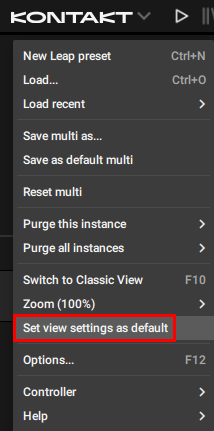
For example, this can be used to set all future instances to open in Classic View, with the Files tab and Quick-Load panel shown, at 75%: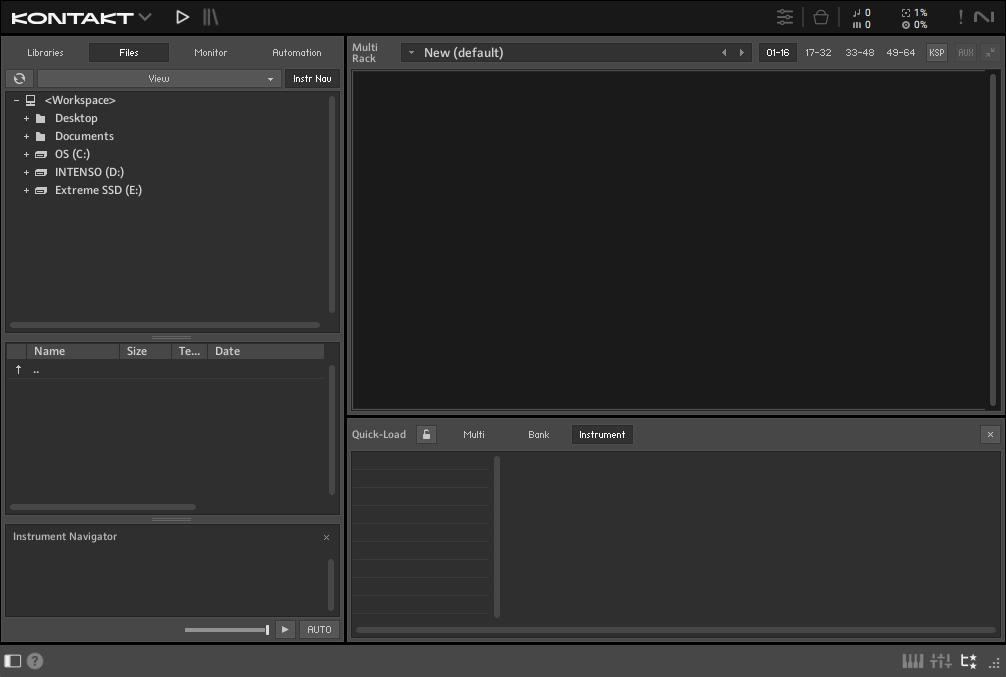
Was this article helpful?
That’s Great!
Thank you for your feedback
Sorry! We couldn't be helpful
Thank you for your feedback
Feedback sent
We appreciate your effort and will try to fix the article