With the release of Kontakt 7.7, several updates have been made to the user interface, introducing new navigation options and workflow improvements. This article outlines the key changes and how they affect day-to-day use.
TABLE OF CONTENTS
- Updated Header Layout
- View Modes
- Setting a Default View
- How to Create a Multi Instrument in Kontakt 7.7 (and higher)
Updated Header Layout
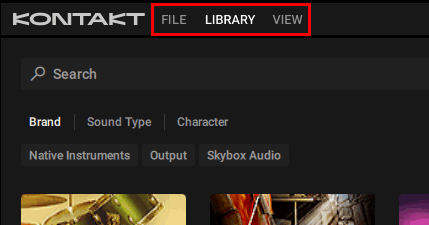
Kontakt's header has been reworked around these three entry points:
- FILE: This is the main menu, which includes Options, Purging, and Hardware Connectivity, etc.
- LIBRARY: Opens the fullscreen Browser.
- VIEW: You can switch between Single View and Rack View, configure Layout and Zoom, and set a default view (mode, layout, zoom) - only available when Kontakt is running as a plug-in.
View Modes
This switches between Single View and Rack View.
Single View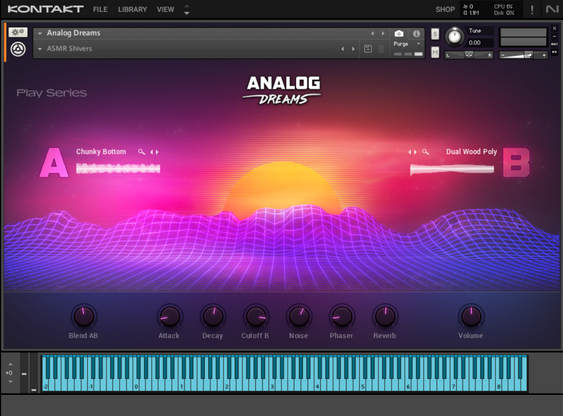
Please note that newly created Kontakt instances in Single View launch with the Browser shown on the right: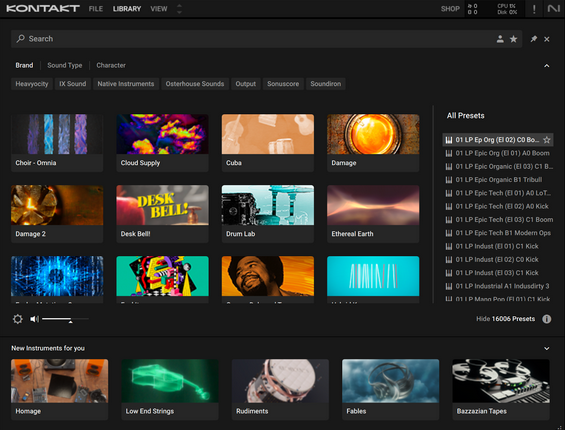
Rack View: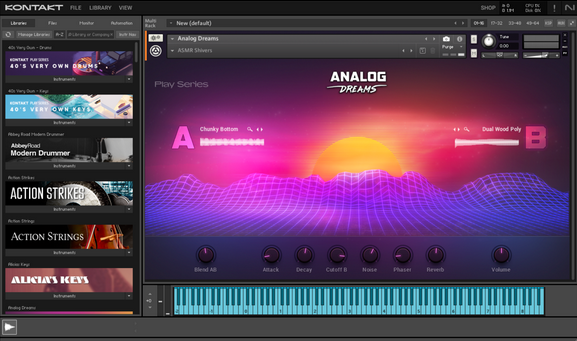
You can switch between them from VIEW:
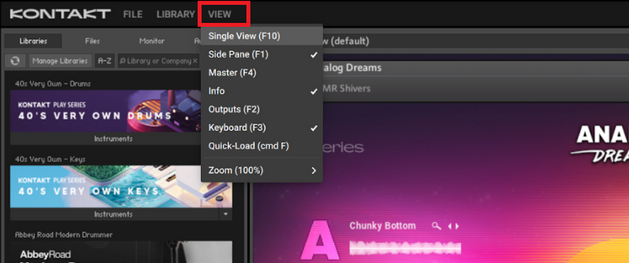
Note: New installations of Kontakt default to Single View. For customers updating from a previous version, Kontakt will launch in the view mode that it was last used in.
Setting a Default View
Note: this option is only available when using Kontakt as a plug-in. It is not available in the standalone Kontakt app.
Kontakt’s view is highly configurable to meet the varying needs of our users. When Kontakt is running as a plug-in in a DAW, VIEW > Set current view as default is available to create a view configuration that applies to all future instances:
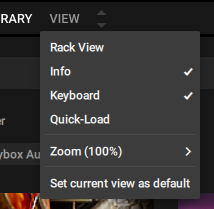
For example, this can be used to set all future instances to open in Rack View, with the Files tab and Quick-Load panel shown, at 75%: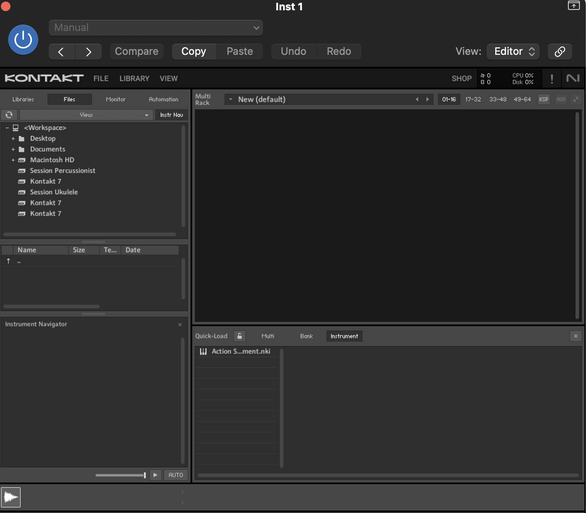
This function can also be used to close the New Instruments for you panel for all future instances: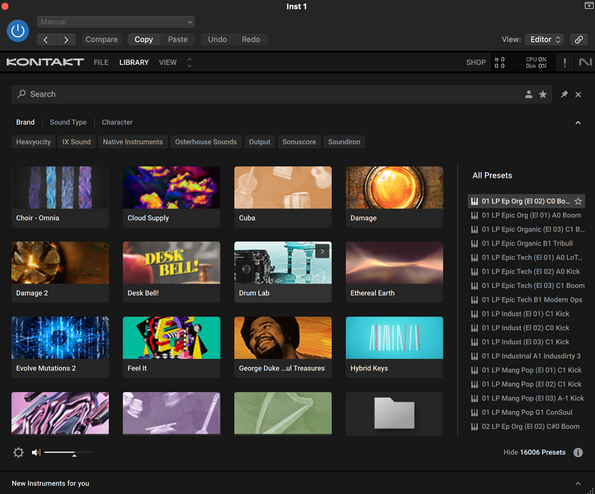
Finally, there’s a new preference: Options > Interface > Display fullscreen Browser when launching new Rack View. When this is activated, new instances of Kontakt in Rack View will launch with the fullscreen Browser shown: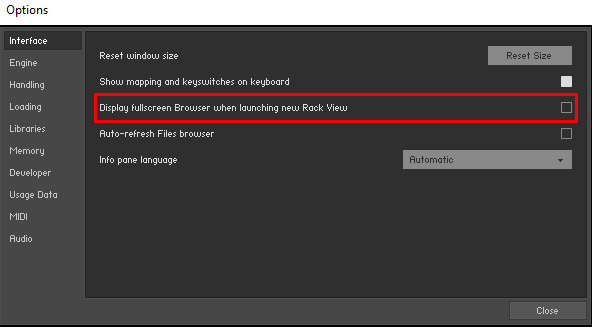
How to Create a Multi Instrument in Kontakt 7.7 (and higher)
In Kontakt, you can create a Multi Instrument with up to 64 instruments in a Rack. You can find more info in the Kontakt 7 manual.
Since Kontakt 7.7, the way to load multiple instruments into the Rack has changed. Here is the new workflow:
1. Click LIBRARY to open the Browser and double-click the preset you want to load: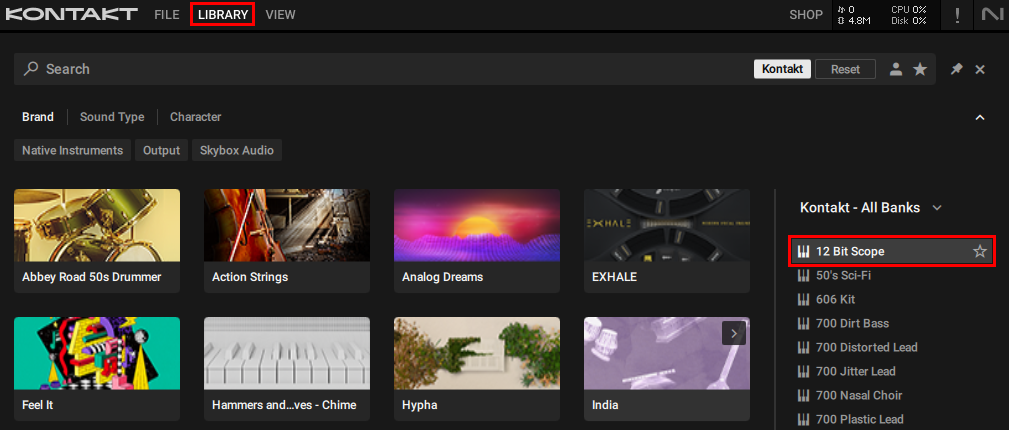
2. Click in the area below the actual instrument. This will make sure that the next instrument you load is added to the existing one (instead of replacing it):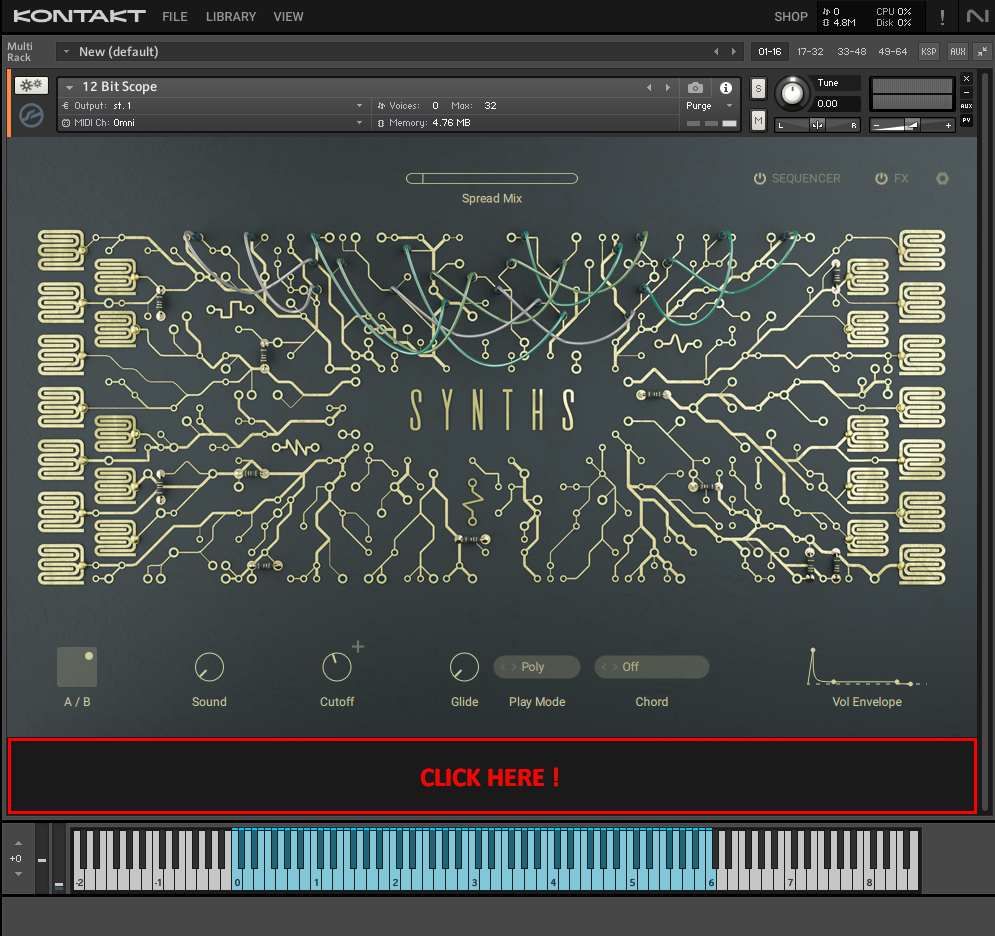
3. Click LIBRARY again, find another preset and double-click it: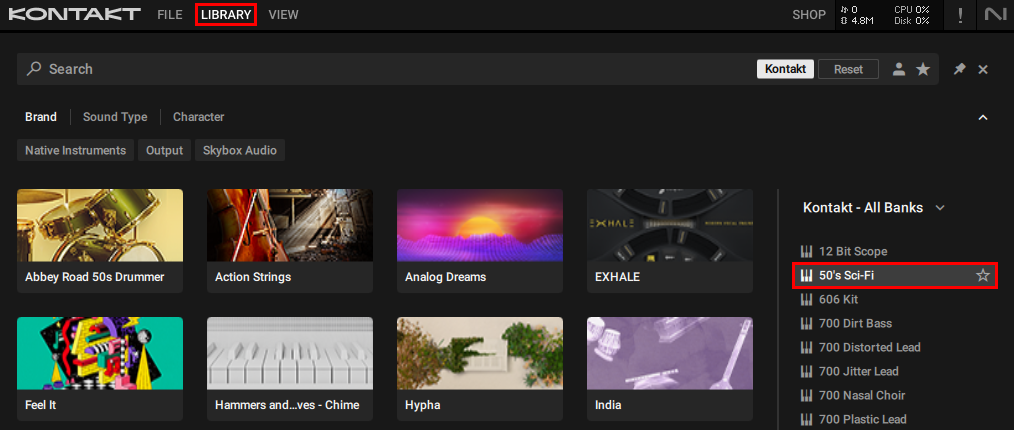
4. Both instruments are now loaded in the same Rack: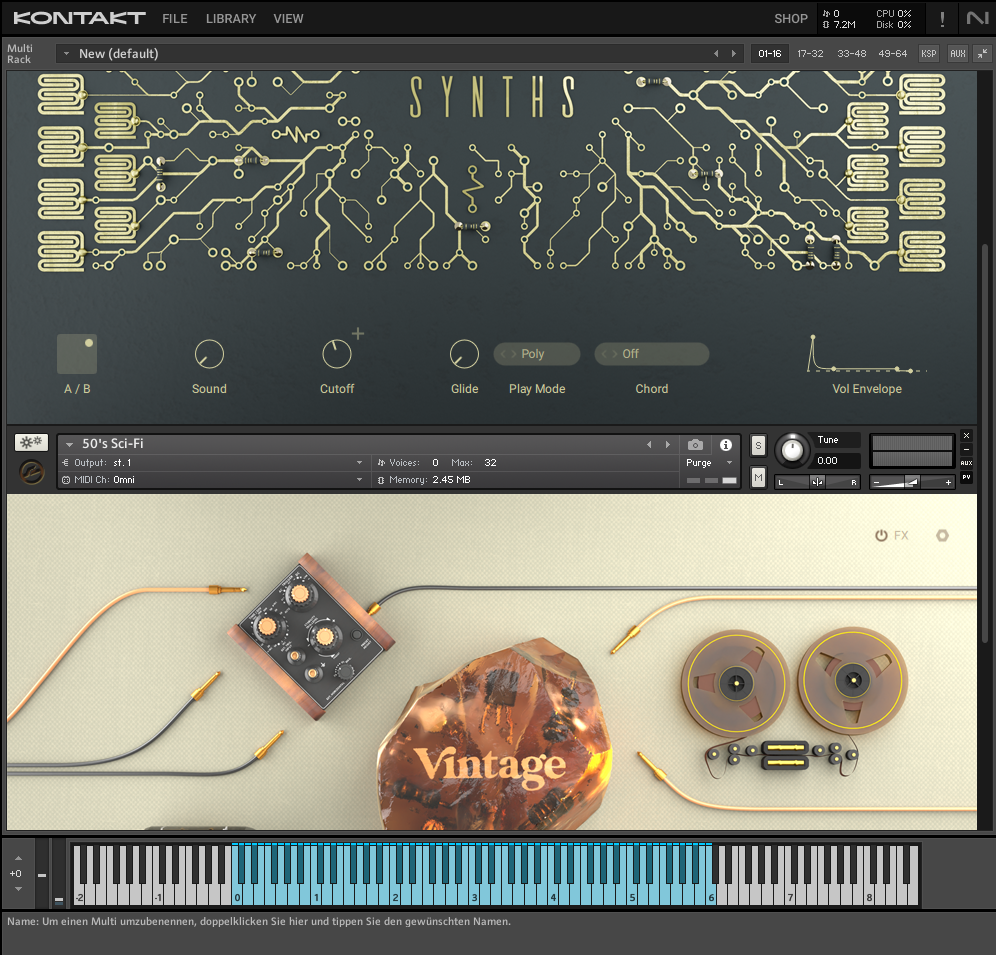
These updates improve navigation and make it easier to manage layouts and multi-instrument workflows in Kontakt 7.7. Adjusting your default view can help streamline your setup across projects.
Was this article helpful?
That’s Great!
Thank you for your feedback
Sorry! We couldn't be helpful
Thank you for your feedback
Feedback sent
We appreciate your effort and will try to fix the article