TABLE OF CONTENTS
macOS
1. Enable Full Disk Access
Please grant Full Disk Access to Kontakt, all NI apps, and other audio software:
- Open your Mac's System Preferences and select Security & Privacy.
- In the Privacy tab, choose Full Disk Access.
- If available, click the lock icon in the bottom left of the window and enter your macOS password.
- Ensure that your desired app appears in the list.
If it does not appear in this list, click the + icon and add the location of the app from here:
- Native Access and other audio software: Macintosh HD > Applications
- Other NI apps: Macintosh HD > Applications > Native instruments - Once completed, click the lock icon again (if available).
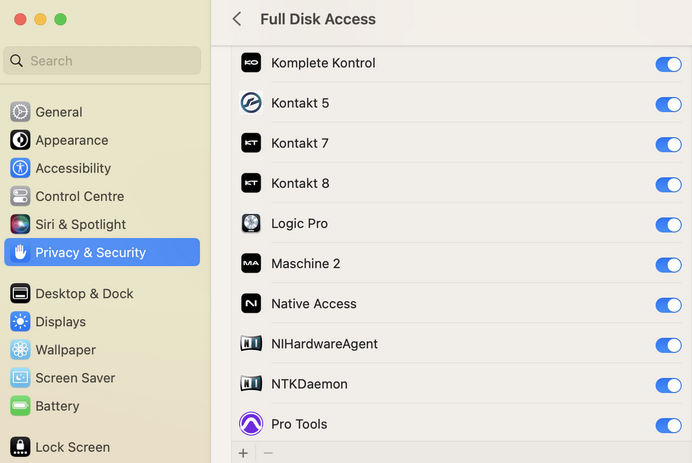
Note: the look of the Full Disk settings can vary depending on your macOS version.
2. Reinitializing the Kontakt database
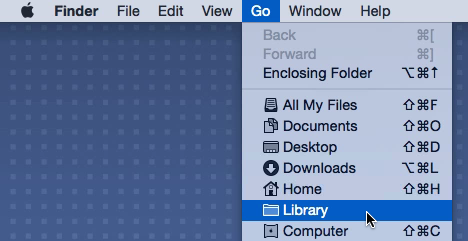
- Hold down the alt key on your computer's keyboard and click Go in the Finder menu bar. Choose the appearing Library entry in the drop-down menu.
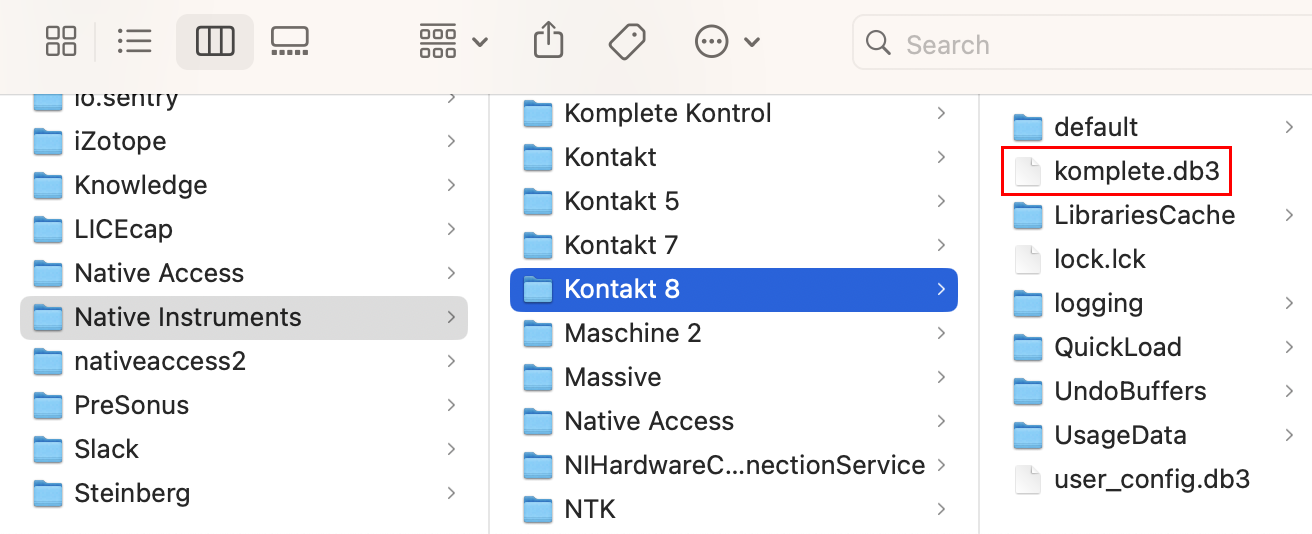
- Navigate to Application Support > Native Instruments.
- Open the folder of your Kontakt version, e.g. "Kontakt 8". (Please note that Kontakt 6 is displayd as "Kontakt".)
- Delete the file komplete.db3:
- Start Kontakt as a standalone application (not in your DAW). It may take a few moments to reinitialize the database. The browser problems should then be resolved.
Windows
Reinitializing the Kontakt database
- Click the Windows start button at the bottom left of your screen.
- Type "%localappdata%" and click the option that appears.
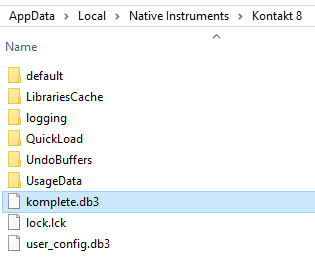
- Navigate to the Native Instruments folder.
- Open the folder of your Kontakt version, e.g. "Kontakt 8". (Please note that Kontakt 6 is displayd as "Kontakt".)
- Delete the file komplete.db3:
- Start Kontakt as a standalone application (not in your DAW). It may take a few moments to reinitialize the database. The browser problems should then be resolved.
Was this article helpful?
That’s Great!
Thank you for your feedback
Sorry! We couldn't be helpful
Thank you for your feedback
Feedback sent
We appreciate your effort and will try to fix the article