Kontakt | Thumbnail picture icons are missing in the Kontakt browser
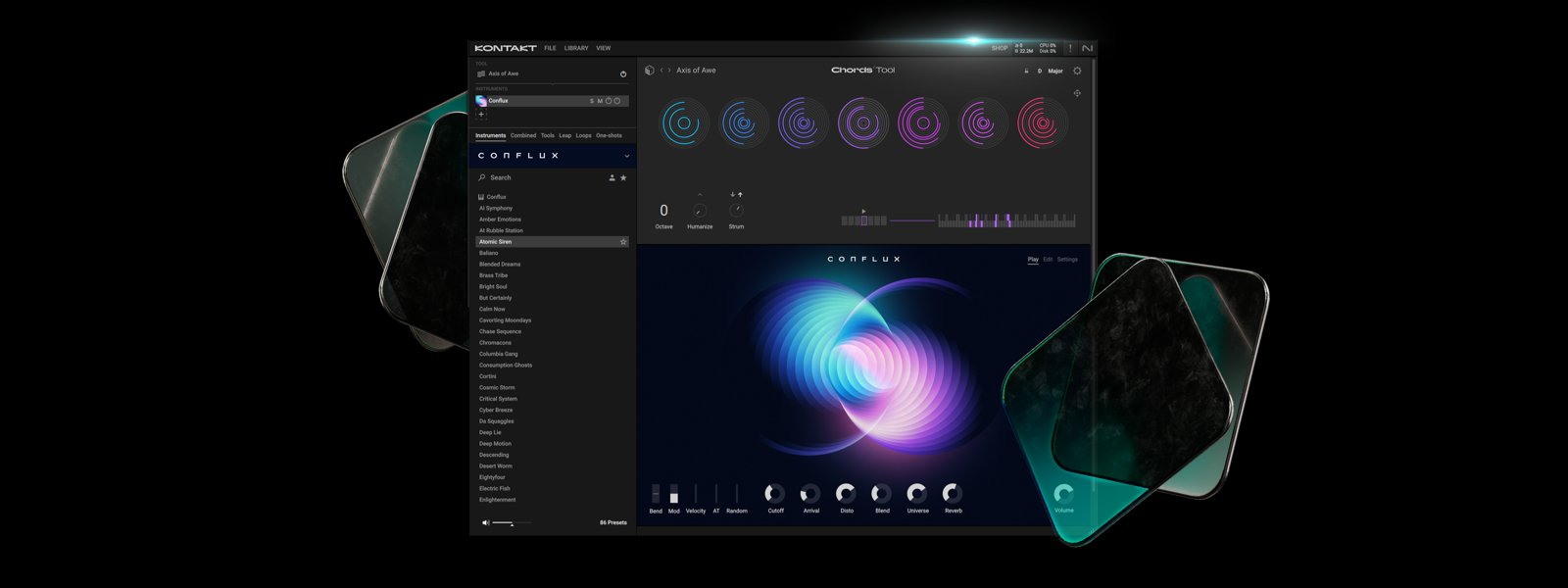
If some thumbnail images are not appearing in Kontakt's browser, you can resolve this behavior using the steps below for MacOS and Windows:
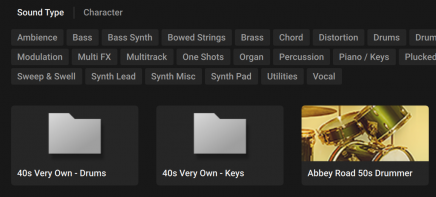
- Close Kontakt and all other audio software.
- Open a Finder window and go to the following location:
Macintosh HD > Users > Shared - Locate the folder named NI Resources and move it to the trash.
- Next, click Go in the Finder menu bar while holding down the option / alt key on the computer keyboard. Choose the Library entry that appears in the drop-down menu.
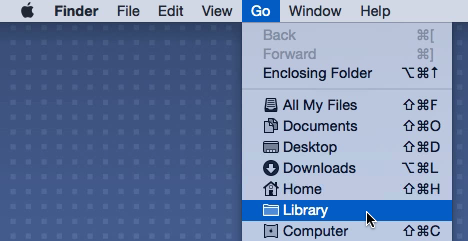
- In the user Library folder, navigate to the following location:
Application Support > Native Instruments - Delete the folder of your Kontakt version, e.g. "Kontakt 8". Please note that Kontakt 6 is displayd as "Kontakt".
- Next, in the same user Library folder, navigate into the folder named Service Center and move the file named pal.db to the trash.
- Empty the system trash and then open Native Access:
Macintosh HD > Applications > Native Access.app - In Native Access, click the Refresh button on the top right and allow it to scan for a moment.
- Open Kontakt in standalone mode and allow it to rebuild its database.
The thumbnails should now appear in the Kontakt Browser.
- Navigate to the following location:
C: > Users > Public > Documents - Locate the folder named NI Resources and move it to the trash.
Next, navigate to:
C: > Users > "Username" > *AppData > Local > Native Instruments*Note: The AppData folder is hidden. This article explains how to access hidden folders on Windows systems.
- Delete the folder of your Kontakt version, e.g. "Kontakt 8". Please note that Kontakt 6 is displayd as "Kontakt".
- Then, navigate to:
C: > Users > "Username" > Documents > Native Instruments > Service Center - Locate the file named pal.db and move it to the trash.
- Open Native Access:
C: > Program Files > Native Instruments > Native Access > Native Access.exe - In Native Access, click the Refresh button on the top right and allow it to scan for a moment.
- Open Kontakt in standalone mode and allow it to rebuild its database.
The thumbnails should now appear in the Kontakt Browser.
Was this article helpful?
That’s Great!
Thank you for your feedback
Sorry! We couldn't be helpful
Thank you for your feedback
Feedback sent
We appreciate your effort and will try to fix the article