Most Native Instruments sample libraries (e.g. Playbox, the Symphony Series, or pianos like Noire) are designed to be used with the Kontakt Sampler.
In case you do not own the full version of Kontakt, there is a free Kontakt Player version that allows you to use all the features of a Kontakt-based Instrument. You can find a comparison chart of these two products here.
This article explains the first steps to follow when you want to use a NI sample library based on Kontakt.
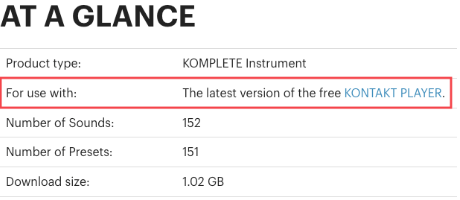
1. Finding Out if your Sample Library Requires Kontakt
2. Downloading and Installing Kontakt (Player)
You can install Kontakt Player (or the full version of Kontakt) with our download and activation tool Native Access.
You find Kontakt (Player) in Library > All > Kontakt.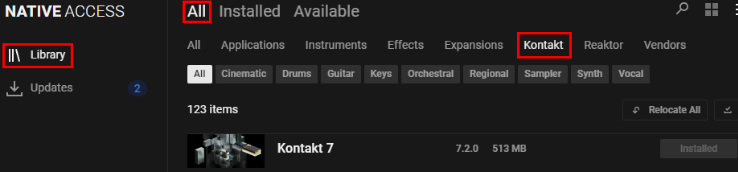
3. Downloading and Installing your Sample Library
You can download your NI Kontakt libraries with Native Access.
You find your installed libraries in Library > All > Kontakt.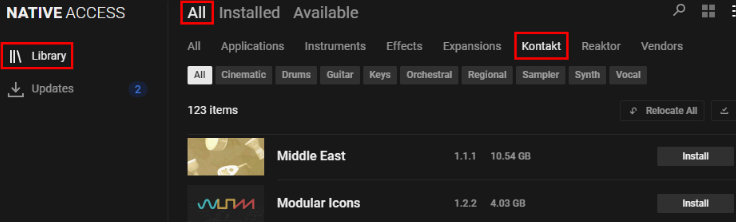
4. Loading your Sample Library in Kontakt
In this chapter, we describe getting started with Kontakt 8 Player and the Library Browser.
- Open Kontakt (Player) standalone. By default the location of your standalone application is here:
- macOS: Macintosh HD > Applications > Native Instruments > Kontakt (X)
- Windows: C: > Program Files > Native Instruments > Kontakt (X)
- Configure the Audio and MIDI Settings for Kontakt (Player).
- Highlight the LIBRARY button in Kontakt's header. On Kontakt 8, click the Instruments tab:
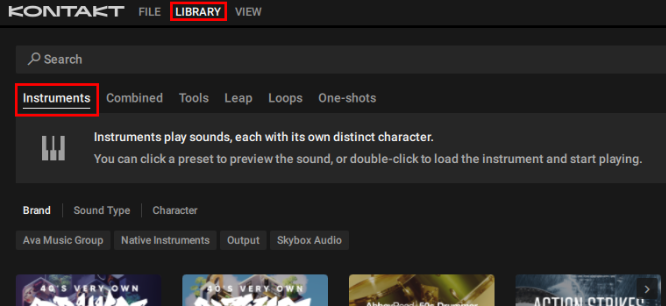
- The Library Browser displays all Kontakt libraries that are installed. Scroll through the browser and click the picture icon for your library. This will display a list of instrument presets on the right.
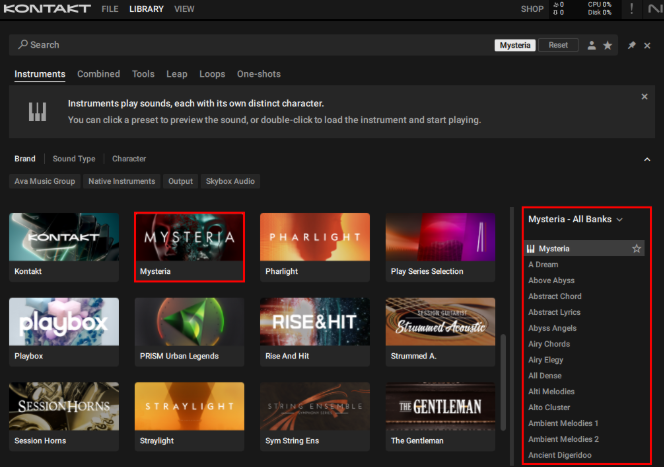
- Clicking once on a preset will activate a preview. Double-clicking the preset will load the instrument.
5. Loading Kontakt Libraries in your DAW
Important note: Before proceeding with Kontakt in your DAW, you must start Kontakt in standalone mode at least once in order for Kontakt to properly build its database. Please see the previous chapter above to open Kontakt in standalone mode.
To use your library in a DAW, you must first load Kontakt (Player) as a plug-in and then load the library from the Kontakt (Player) plug-in. The browser works the same way as shown in the previous chapter.
The only difference between the standalone and plug-in versions of Kontakt are the Audio and MIDI settings: When using Kontakt in your DAW, all Audio and MIDI settings are configured in your DAW's Preferences, and not within the Kontakt plug-in.
More Info and Resources
You can search our Knowledge Base to find more information about using NI plug-ins in your DAW. Type in the name of your DAW (e.g. Ableton Live, Logic, etc.) into the search field to find relevant details.
You can find more information on using the Kontakt (Player) in the User Manual. Manuals for the individual Kontakt Instruments can be found on the corresponding product pages on our webshop.
Was this article helpful?
That’s Great!
Thank you for your feedback
Sorry! We couldn't be helpful
Thank you for your feedback
Feedback sent
We appreciate your effort and will try to fix the article