I Do Not See Multiple Outputs in Kontakt When Using It in My DAW
TABLE OF CONTENTS
Symptom
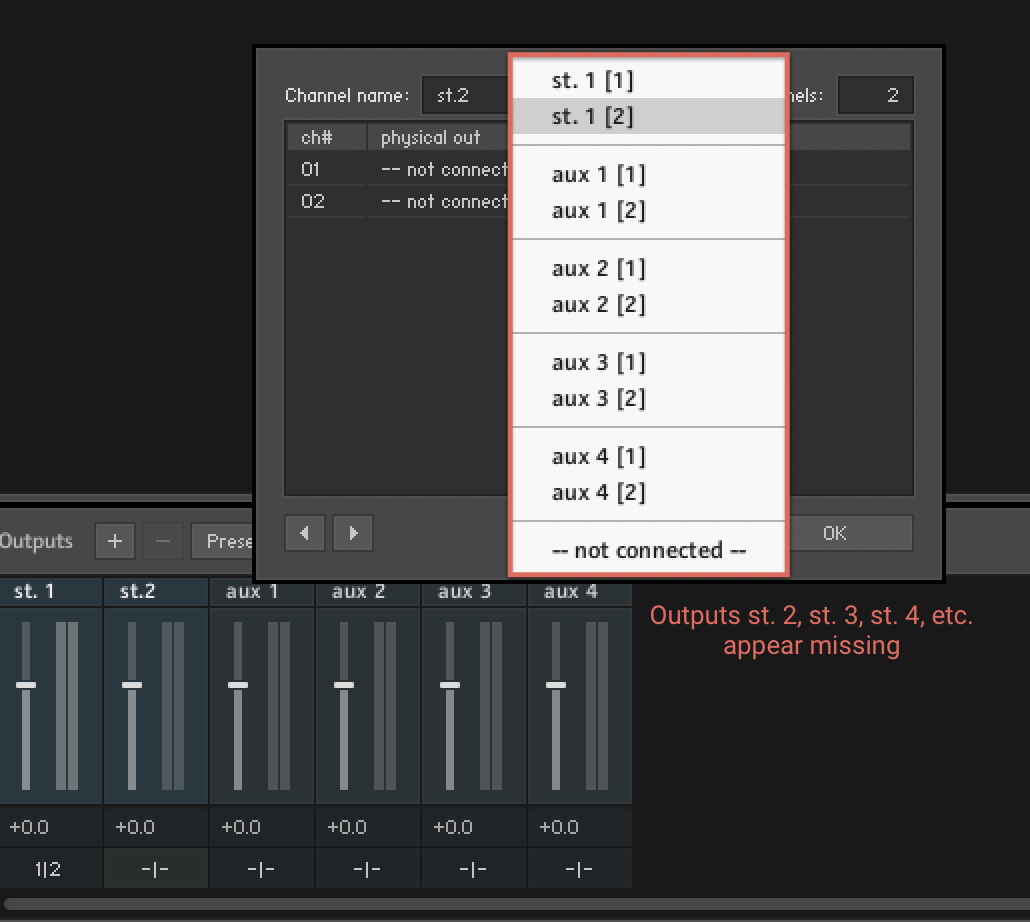
When using Kontakt in a DAW, only the outputs (st. 1) are available and it is not possible to assign multiple instruments to their own individual outputs.
Cause
The Kontakt output preferences are either corrupt or were inadvertently saved with a different configuration.
Solution
To remedy this issue, you must remove the default folder which contains your Kontakt audio output settings. Follow the steps below to do this:
- Navigate to the following folder:
• Windows: C: > Users > *username* > AppData > Local > Native Instruments > Kontakt
• macOS: Macintosh HD > Users > *username* > Library > Application Support > Native Instruments > Kontakt
Note: 'App Data' is a hidden folder. Read this article to learn how to enable the view of hidden folders on your Windows system.
Note: The User Library folder is hidden. To access it, click Go in the Finder menu bar. Then, hold down the Alt/Option key on your computer's keyboard. Choose the appearing Library entry in the drop-down menu.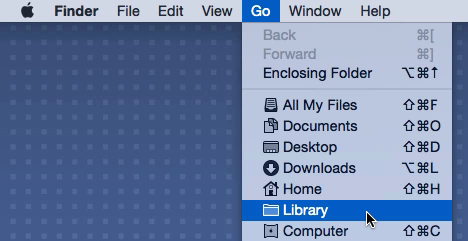
- Move the default folder to your Desktop.
- Open Kontakt as a standalone application. This will recreate the default folder that was removed and reset the output configuration to the default settings.
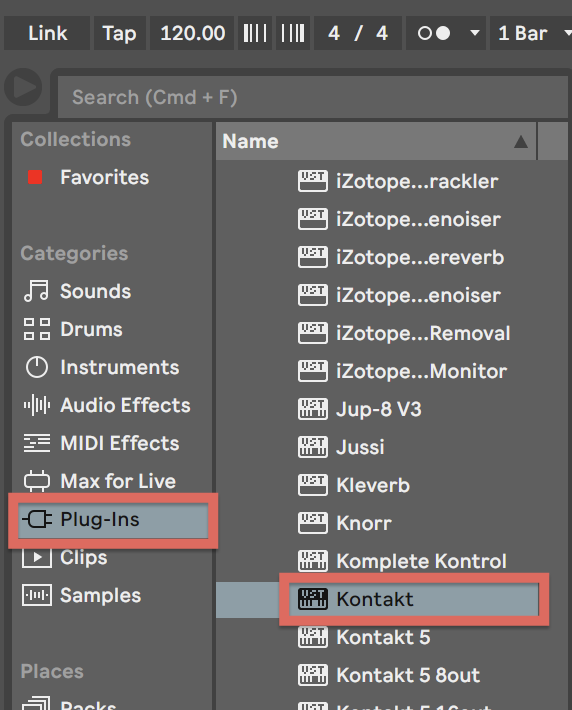
- Close the Kontakt application and open your DAW. Load an instance of Kontakt. In the example below, we are loading Kontakt as a VST in Ableton Live. The steps will be similar in other DAWs.
Important Note: This step is currently not achievable in Pro Tools. You will need to use another DAW, and then save that configuration for AAX in order to proceed. The Kontakt team is aware of this issue and is currently working on a fix.
- In the Kontakt instance, enable the Outputs section if it isn't visible already.
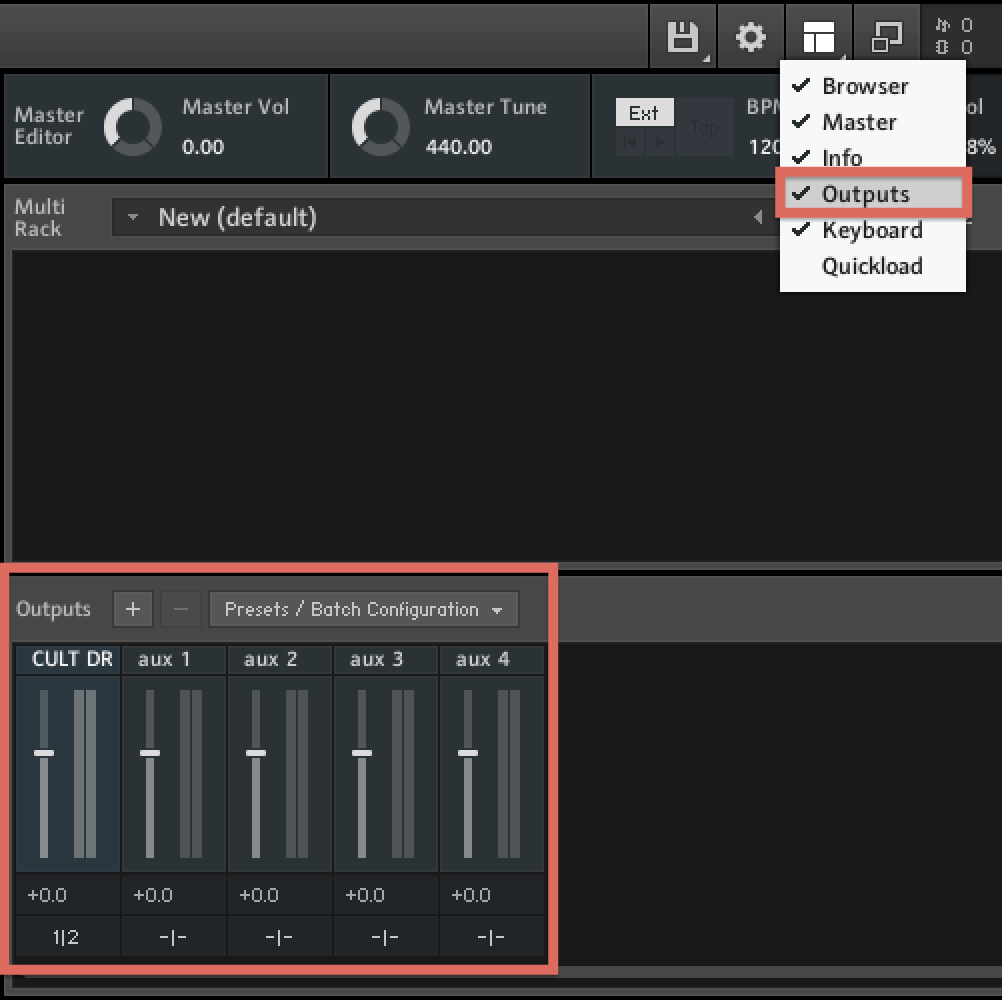
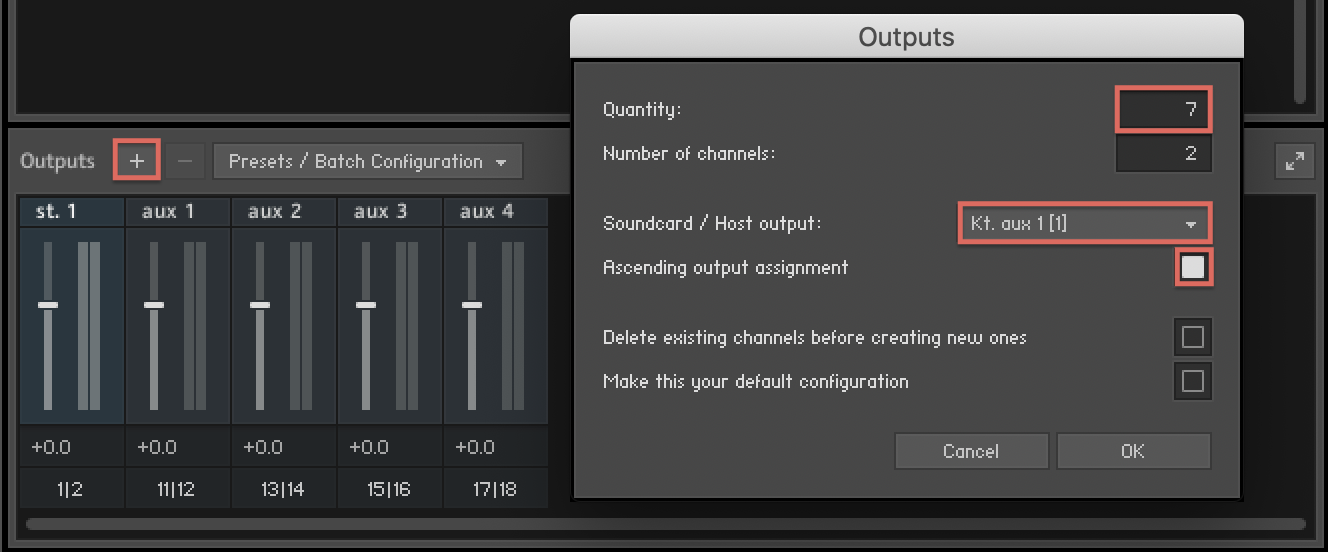
- Click on the + sign to create new outputs. In this example, we are creating 7 Stereo (i.e. with 2 channels) outputs. Stereo outputs 1 and 2 are already created by default, so the Soundcard / Host output is set to begin with the third entry, in this case, named Kt. aux 1 [1]. All outputs will be generated and organized in an ascending fashion, hence creating outputs 3|4, 5|6, and so on. Click OK to confirm the changes.
- Finally, click on Presets / Batch Configuration and navigate to Save current output section state as default for > All formats or whichever format you want to save those settings for.
Alternatively, you can also select Save output section preset as... and save this configuration as a preset which you can load at a later time.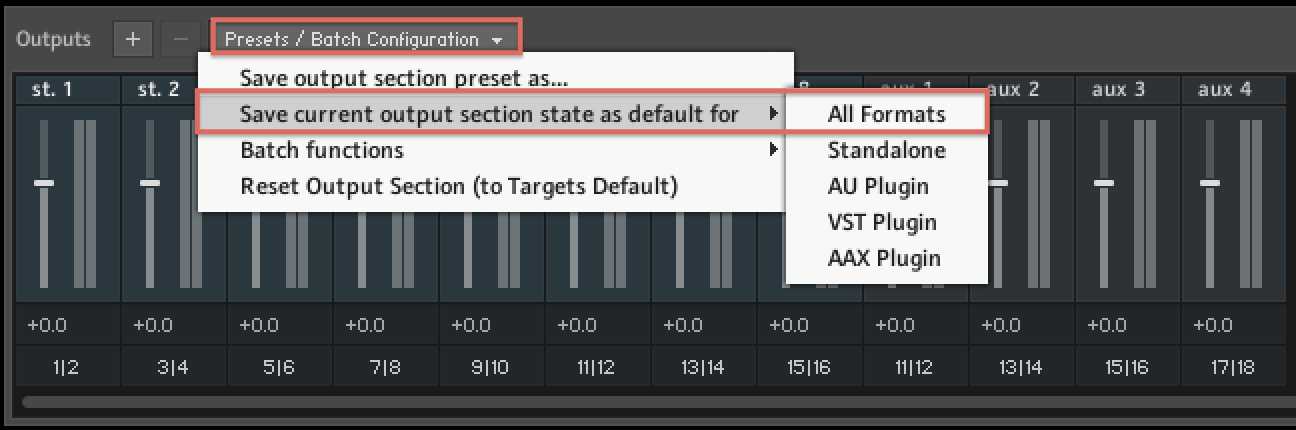
You should now be able to assign multiple libraries to different outputs in order to mix them separately in your DAW.
Was this article helpful?
That’s Great!
Thank you for your feedback
Sorry! We couldn't be helpful
Thank you for your feedback
Feedback sent
We appreciate your effort and will try to fix the article