How to Create Multiple Outputs in Kontakt and Route Them to a DAW
This article explains how to create additional outputs in Kontakt in order to route signals to multiple tracks in a DAW. This is useful if you want to use your DAW's track parameters like panorama, volume, or effects for single Kontakt Instruments.
TABLE OF CONTENTS
- Configuring Kontakt's Outputs Section
- Routing the Instruments to Separate Outputs in Kontakt
- Multi-Output Configuration and Routing in your DAW
Configuring Kontakt's Outputs Section
- Load an instance of Kontakt, and enable Outputs in the Workspace menu to make the Outputs area visible at the bottom of Kontakt's interface.
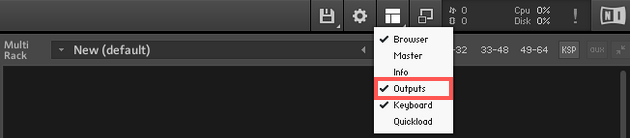
- The Outputs section is now displayed in the lower half of the Rack space.
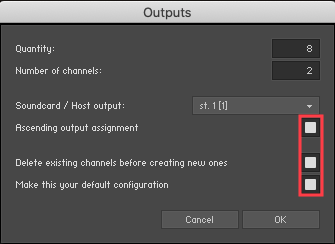
Click the '+' button to display the Outputs options dialog.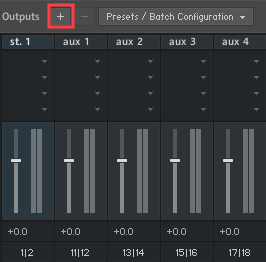
- This menu is used to create additional Kontakt output channels.
- Quantity sets the number of Kontakt output channels you want to add.
Click the Quantity field and drag the mouse cursor up or down. - Number of channels lets you choose the channel configuration for all new Kontakt Outputs (e.g. 1 for mono, or 2 for stereo).
In our example, we want to route Kontakt presets to a total of 8 stereo output channels, so we choose a Quantity of 8 and set the Number of channels to 2.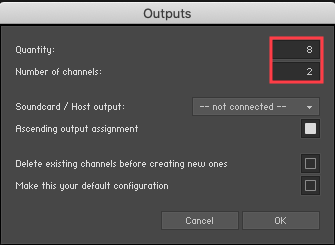
- Quantity sets the number of Kontakt output channels you want to add.
- In the Soundcard / Host output drop-down menu, select st. 1 [1].
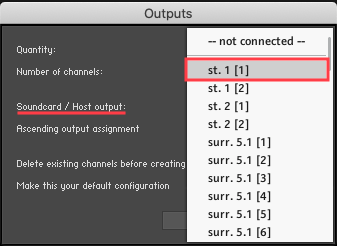
- Finish by ticking these remaining boxes:
- Ascending output assignment (assigns each new channel to the next available outputs).
- Delete existing channels before creating new ones (create all new output channels).
- Make this your default configuration (saves setup for future DAW projects).
- Click OK to confirm.
- If the steps above have been carried out correctly, you will now receive a message confirming the Output configuration was saved as default.
Click OK to proceed.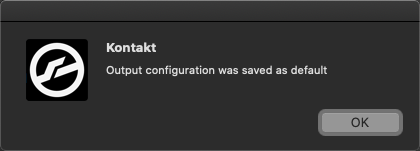
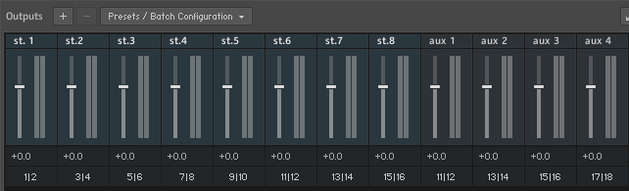
Kontakt's Outputs Section now shows 8 Master Channel Outputs, each routed to a different stereo output of your DAW.
Routing the Instruments to Separate Outputs in Kontakt
- Route all Instruments loaded in Kontakt's Instrument Rack to separate outputs. When loading Instruments into the Rack, they are routed to the first stereo output (st. 1) by default. Select the desired Output for each Instrument from its Header. In this example, we route a Retro Machines Instrument to the second stereo output named:
st. 2 [2 ch. routed 3|4]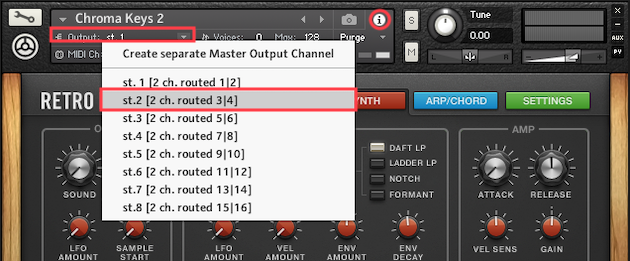
- Repeat this procedure for all KONTAKT Instruments loaded in the Rack, choosing one available stereo output after the other.
Multi-Output Configuration and Routing in your DAW
Define the Kontakt Instrument outputs and route them to the inputs of the audio tracks in your DAW. The Kontakt Instrument will be played back through these audio tracks.
Since the multi-output configuration process is different for each host, please consult the manual of your DAW for further information on the process.
The following articles offer further instructions to route Kontakt Instruments to multiple audio channels in the respective DAW specified below:
- How to Route Kontakt to Multiple Outputs in Ableton Live
- How to Route Kontakt to Multiple Outputs in Cubase
- How to Route Kontakt to Multiple Outputs in Digital Performer
- How to Route Kontakt to Multiple Outputs in FL Studio
- How to Route Kontakt to Multiple Outputs in Logic Pro X
- How to Route Kontakt to Multiple Outputs in Pro Tools
- How to Route Kontakt to Multiple Outputs in Reaper
- How to Route KONTAKT to Multiple Outputs in PreSonus Studio One
Was this article helpful?
That’s Great!
Thank you for your feedback
Sorry! We couldn't be helpful
Thank you for your feedback
Feedback sent
We appreciate your effort and will try to fix the article