Native Instruments | Triggering Maschine Scenes with MIDI Notes in Your DAW
In this article, we explain how to set Maschine to trigger Scenes using MIDI notes in your DAW.
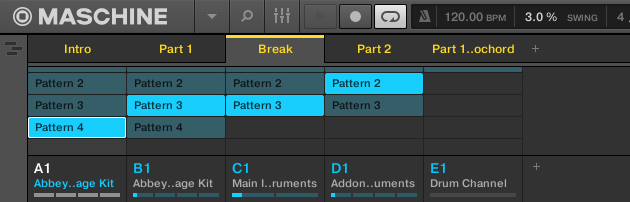
1. Setting Up the Maschine Plug-In
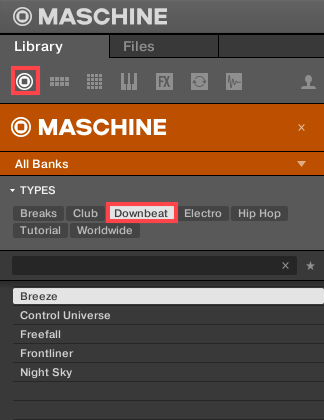
- Load Maschine in your DAW as a plug-in and open a Project. In this example, the Breeze project from the Factory Library is used.
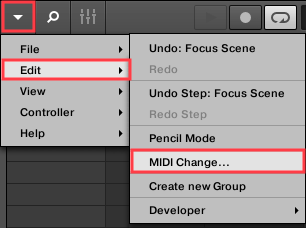
- In the Maschine software menu, go to Edit > MIDI Change.
- In the Scene area, set Trigger to MIDI Note and Channel to 1.

Note: Keep the Section and Lock fields set to None.
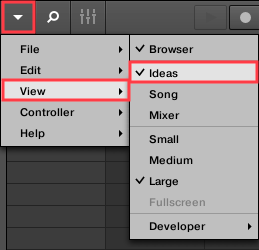
- Close the MIDI Change window and use the Maschine software menu to select View > Ideas.
2. Setting Up the MIDI Keyboard and DAW
- Record-enable the instrument track in your DAW where Maschine is loaded.
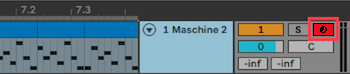
Note: The DAW used in this article may be different than yours, but the procedure is the same in every DAW.
- Use the octave-transpose buttons on your MIDI keyboard so the keymap reaches down to C-2. In this example, C-2 (i.e. "C Minus 2") is the C Key located two octaves down from C0 (i.e. "C-Zero").

3. Playing and Recording the Scenes in Your DAW
The note-keys C-2 and higher will activate the corresponding Scenes in Maschine.
In this example, these five scenes are triggered by the MIDI notes C-2 through E-2, and can be played in any order.
You can capture your MIDI Scene performance by clicking Record on your DAW transport bar.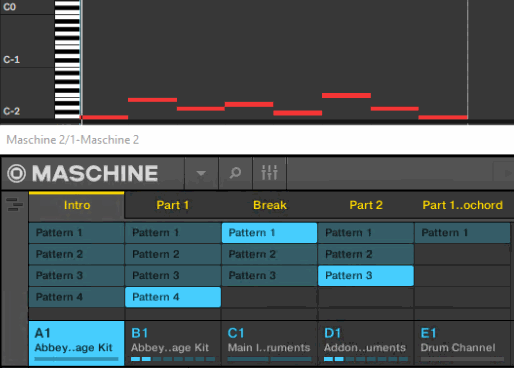
Was this article helpful?
That’s Great!
Thank you for your feedback
Sorry! We couldn't be helpful
Thank you for your feedback
Feedback sent
We appreciate your effort and will try to fix the article