Native Instruments | Triggering Maschine Instruments from PreSonus Studio One
This article explains how to trigger and record Maschine melodic Instrument sounds using your Maschine controller.
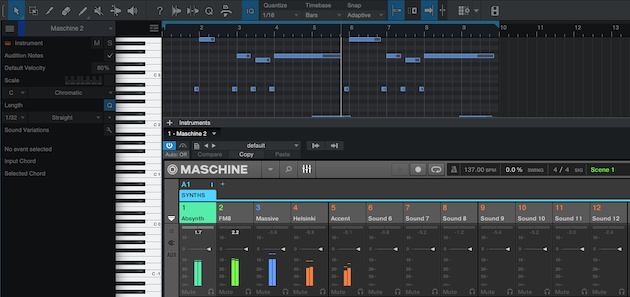
TABLE OF CONTENTS
- Studio One MIDI Device Settings
- Configuring MIDI Input on Maschine Instruments
- Transposing Maschine Pads to the Correct Octave
- Recording Maschine Instruments on Studio One Tracks
Studio One MIDI Device Settings
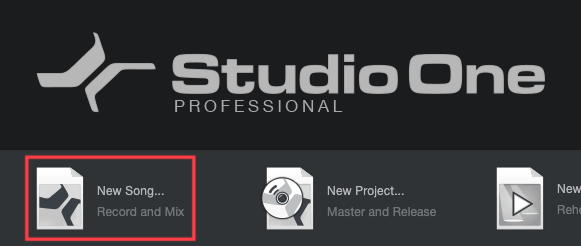
- For this exercise, we recommend starting from a new/empty Studio One project (i.e. New Song).
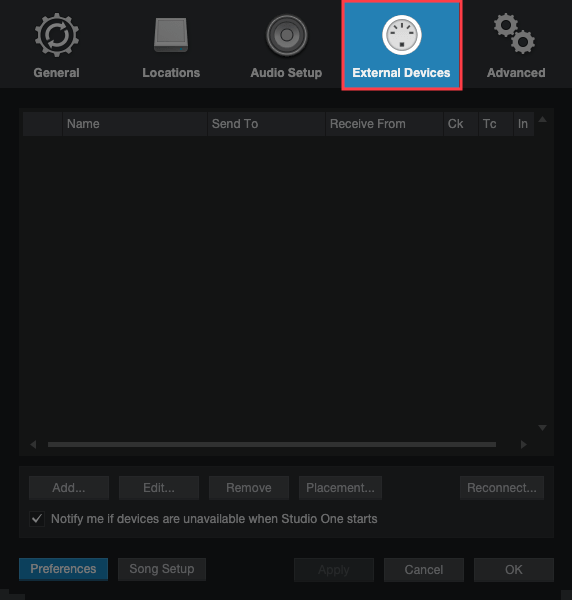
- Connect your Maschine controller and go to Studio One Preferences > External Devices.
- Click ADD, and use the pop-up window to select New Keyboard.
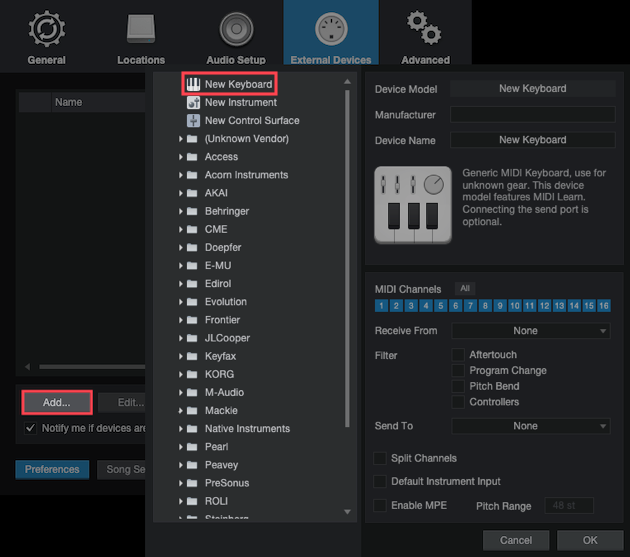
- To the right of this window, select your Maschine Controller in both the Receive From and Send To drop-menus. In this example, Maschine Plus Virtual is selected in both fields.
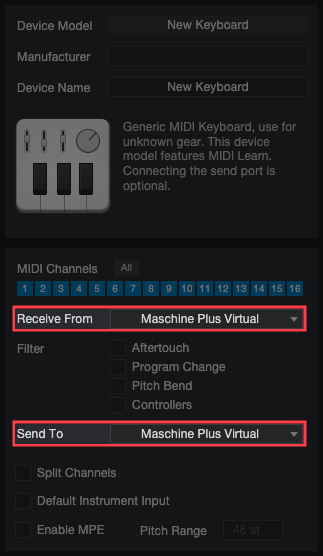
- Click OK to close the Add Device and Preferences windows.
Configuring MIDI Input on Maschine Instruments
This chapter explains how to set up individual Maschine Instruments (i.e. Sounds on Pads) to receive MIDI note input on each Pad individually.
- Insert Maschine as a Studio One Instrument plug-in.
- Open the Maschine 2 plug-in window and load a Sound or Instrument onto Maschine Sound 1.
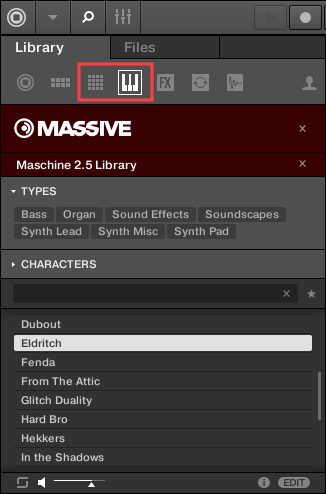
Note: Melodic instrument sounds can be found in both of the Browser tabs outlined above.
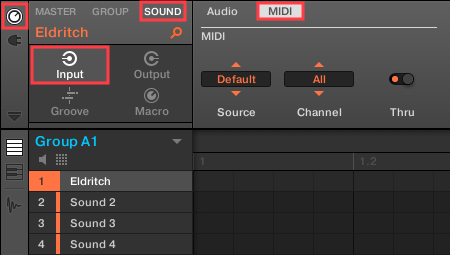
- Once a sound is loaded, click Channel > Sound > Input > MIDI to access the MIDI routings for this individual Sound slot.
- For Source choose Host, and select a MIDI Channel. We recommend for this exercise, MIDI Channel 1.
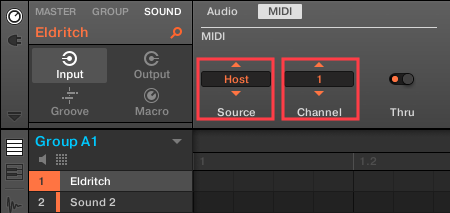
Note: If you're using more Instruments on additional Sound slots, repeat steps 3 & 4 above and choose the next available MIDI Channel for each additional Instrument.
- Switch your Maschine controller to MIDI mode.
Transposing Maschine Pads to the Correct Octave
While your Maschine controller is in MIDI mode, play the Maschine Pads and use the Group buttons marked with letters C, D, E, and F. This will transpose the pads up or down into the correct note-octave.
Note: On a Maschine Mikro (MK1 / MK2 / MK3), hold down the GROUP button and press the Maschine Pads marked C (Pad 15), D (Pad 16), E (Pad 9), and F (Pad 10).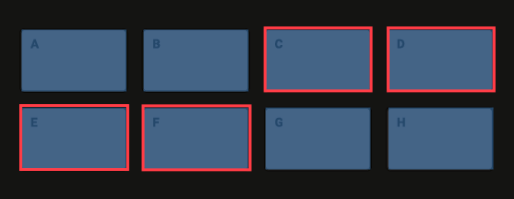
- Choose the Group-Letter button that best suits the note-octave you wish to play on.
- You can also choose Group buttons B and A for lower octaves or G and H for higher octaves.
Click to expand the next chapter below, to set up your Studio One MIDI tracks.
Recording Maschine Instruments on Studio One Tracks
If using just one Instrument (Sound), you can record-enable the Studio One Instrument Track containing Maschine. This allows you to play and sequence the Instrument using your Maschine Pads in MIDI mode.
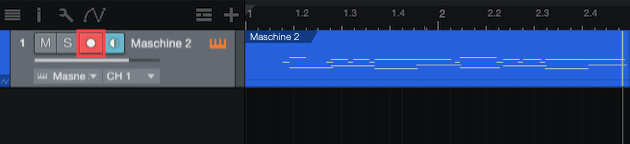
If using more Instruments on additional Maschine Sound slots, please follow these instructions below.
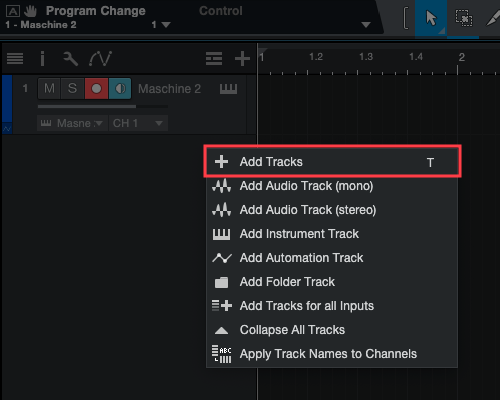
- Right-click the Studio One track area, and select Add Tracks. Create a track for each Instrument (Sound) loaded into Maschine.
- In the Add Tracks menu, set Type to Instrument and set the Count to however many additional Instruments (Sounds) are loaded in Maschine (see below).
- In the Output section, enable Existing Instrument, choose Maschine 2 from the drop-down menu, and select the MIDI Channel associated with the next Maschine Instrument (Sound) that is loaded. Click OK.
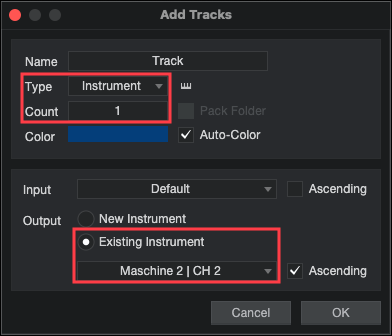
Note: In this example, our first Instrument is loaded in Maschine Sound 1 and an additional Instrument is loaded in Maschine Sound 2. These are set to receive note-input over the respective MIDI Channels that were assigned (i.e. MIDI Channels 1 & 2).
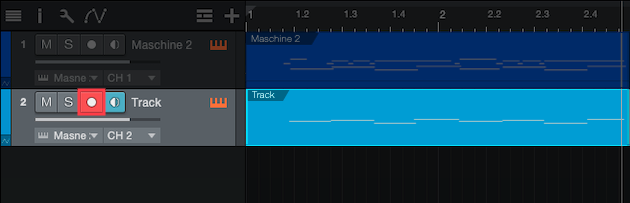
- Arm the Studio One Instrument Track you want to record. You can play and sequence the Instrument or Sound on this track with your Maschine Pads. You can repeat this process for any additional Instruments (Sounds) you may have loaded in Maschine.
Was this article helpful?
That’s Great!
Thank you for your feedback
Sorry! We couldn't be helpful
Thank you for your feedback
Feedback sent
We appreciate your effort and will try to fix the article