Setting up Your Maschine Controller for Host Transport Control in Studio One
This article explains how to set up your Maschine controller to use the transport controls (Play, Rec, Stop, etc.) in PreSonus Studio One.
1. Configuring the Maschine Controller for Host Transport Control
- Connect your Maschine Controller and open the Controller Editor application.
- Make sure your Maschine Controller is active or powered on. It will be recognized by the Controller Editor if Connect is highlighted.
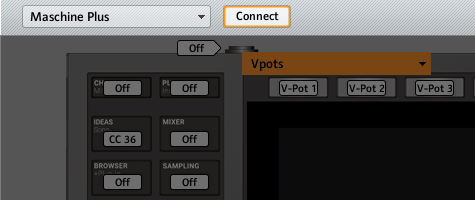
Note: In this example, Maschine+ is used. Choose the first entry for your Maschine Controller model here.
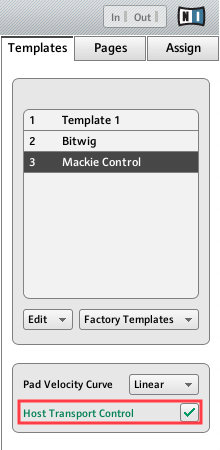
- Load the Mackie Control template from the Factory Templates drop-down menu.

Note: Maschine Jam Users can choose Mackie Control Light or MCU Transport.
- Enable Host Transport Control by ticking its check box.
- Check the template to verify that the REC button is assigned. Click to highlight the area representing the REC button. If it's labeled Off, go to Assign > Type. The Type must be set to MCU Button and its Parameter ID must be 95 (Record).
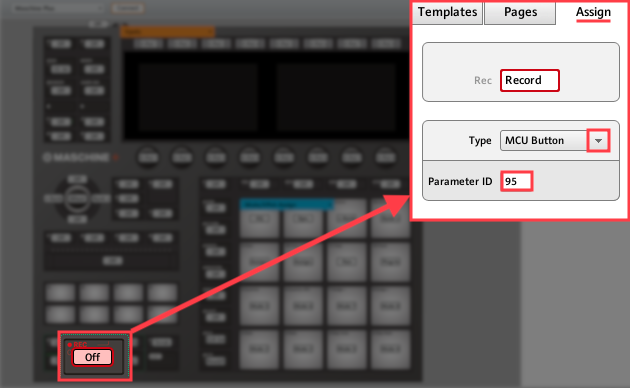
Note: This only applies to some Maschine Controller models.
- Quit Controller Editor once the configuration is complete.
2. Configuring Studio One for Host Transport Control
- Launch Studio One and insert Maschine as an Instrument plug-in.
- Go to the Studio One Preferences > External Devices.
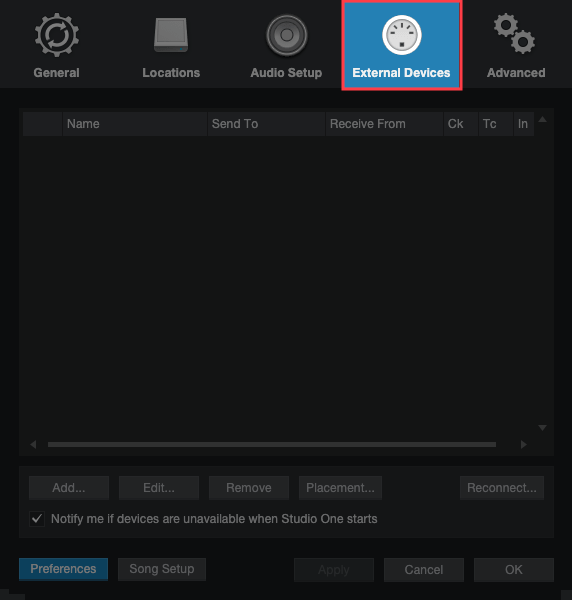
- Click ADD, and use the pop-up window to select Mackie > Control from the folders list.
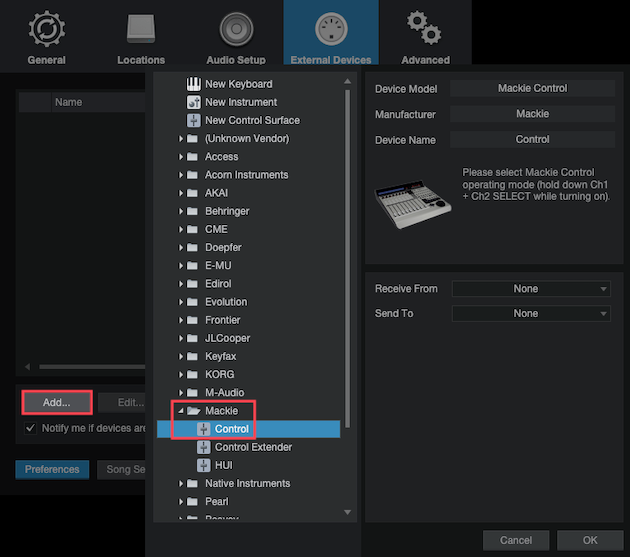
- To the right of this window, select your Maschine Controller in both the Receive From and Send To drop-menus. In this example, Maschine Plus Virtual is selected in both fields.
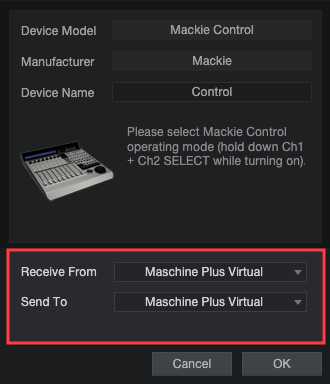
- Click OK to close the Add Device and Preferences windows.
Note: Depending on your Maschine Controller model and Operating System, the selections seen above will vary. Use the following table to find the right selection for your device:
| Device | Receive From | Send To |
| Maschine Plus | Maschine Plus Virtual (Mac + Win) | Maschine Plus Virtual (Mac + Win) |
| Maschine MK3 | Maschine MK3 Virtual Input Maschine MK3 Ctrl MIDI | Maschine MK3 Virtual Output Maschine MK3 Ctrl MIDI |
| Maschine MK2 | Maschine MK2 Virtual Input Maschine MK2 In | Maschine MK2 Virtual Output Maschine MK2 Out |
| Maschine MK1 | Maschine Controller Virtual Input Maschine Controller In | Maschine Controller Virtual Output Maschine Controller Out |
| Maschine JAM | Maschine Jam - 1 Input (Mac + Win) | Maschine Jam - 1 Output (Mac + Win) |
| Maschine Studio | Maschine Studio Virtual Input Maschine Studio In | Maschine Studio Virtual Output Maschine Studio Out 1 |
| Maschine Mikro MK3 | Maschine Mikro MK3 | Maschine Mikro MK3 (Mac + Win) |
| Maschine Mikro MK2 | Maschine Mikro MK2 Input Maschine Mikro MK2 In | Maschine Mikro MK2 Output Maschine Mikro MK2 Out |
| Maschine Mikro MK1 | Maschine Mikro Input Maschine Mikro In | Maschine Mikro Output Maschine Mikro Out |
Your Maschine controller is now configured to use the transport controls in Studio One.
You can control the Maschine plug-in and Host Transport when the device is in Maschine mode. Switching to MIDI mode allows you to use Host Transport Control in Studio One. This article explains how to switch your Maschine controller into MIDI mode.
Note: In MIDI mode, the REC button activates Recording in Studio One. In Maschine mode, the REC button activates Record in the Maschine plug-in only.
Was this article helpful?
That’s Great!
Thank you for your feedback
Sorry! We couldn't be helpful
Thank you for your feedback
Feedback sent
We appreciate your effort and will try to fix the article