This article will explain how to route Battery cells to separate audio tracks in Cubase.
In certain scenarios, you may wish to route your samples from Battery to separate tracks in your host software. This allows you to apply different send and insert effects or use your host's volume and panorama controls for each drum sound individually.
TABLE OF CONTENTS
Battery 4
- Load Battery 4 as a plug-in in Cubase.
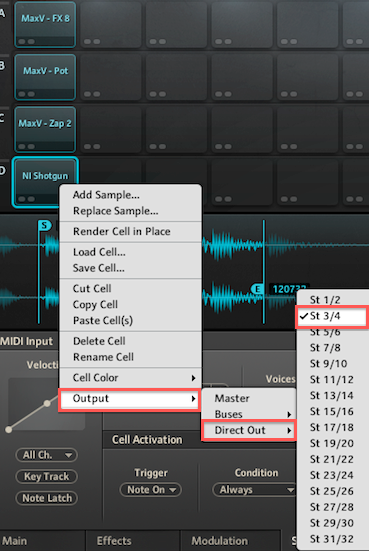
- After loading a Battery Kit, select and right-click the Cell you wish to be sent to a separate audio output. A drop-down menu will appear.
- Scroll down to Output and choose Direct Out, to route the audio to an individual channel.
Note: By default, all Cells are routed to the Master channel (St 1/2).
Battery 3
- Load Battery 3 as a plug-in in Cubase.
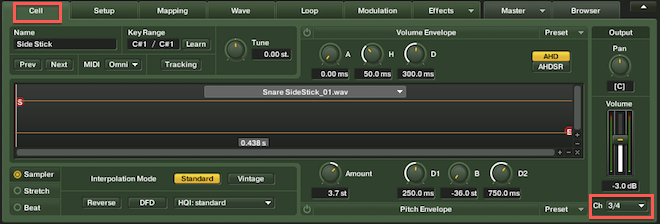
- After loading a Battery Kit, select a drum Cell, then click the Cell tab on the left side of the Edit pane.
- Open the Ch (Channel) menu in the lower right corner and choose the desired channel destination. In the example below, the Cell is routed to Channels 3/4.
Note: By default, all Cells are routed to the Master channel.
Cubase Setup
Battery: In this example, Battery 4 is used. These instructions also apply to Battery 3.
- In Cubase, go to: Studio > VST Instruments.
- In the VST Instruments rack, click the small arrow symbol next to the Battery 4 slot, to open the output selection menu.
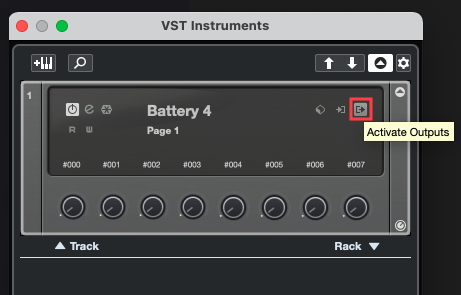
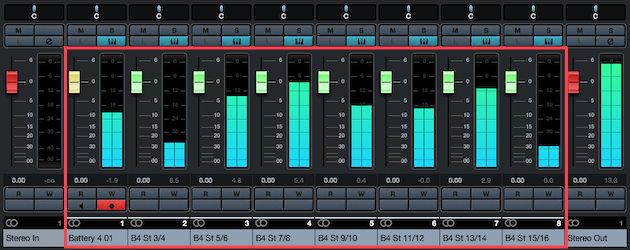
- The Battery 4 Master channel (B4 St 1/2), is active by default. To activate additional outputs, select them from this menu. A new output track will be added in Cubase for each activated channel. In the example below, the Battery 4 outputs B4 St 1/2 through B4 St 15/16 have been activated.
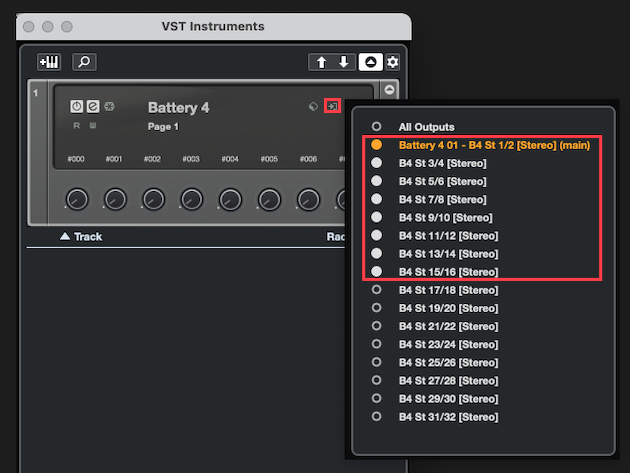
- Now the Battery Cell's audio will be routed through its assigned audio track in Cubase.
Was this article helpful?
That’s Great!
Thank you for your feedback
Sorry! We couldn't be helpful
Thank you for your feedback
Feedback sent
We appreciate your effort and will try to fix the article