This article covers the steps to correctly configure the audio output settings in Maschine 3 when using the ASIO driver on Windows.
Configuring Output Settings
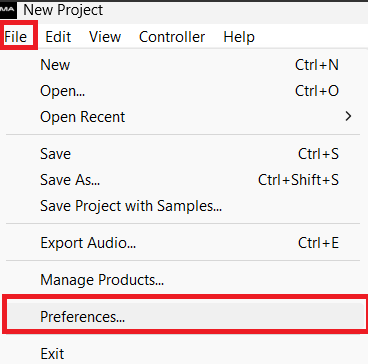
Go to File > Preferences...
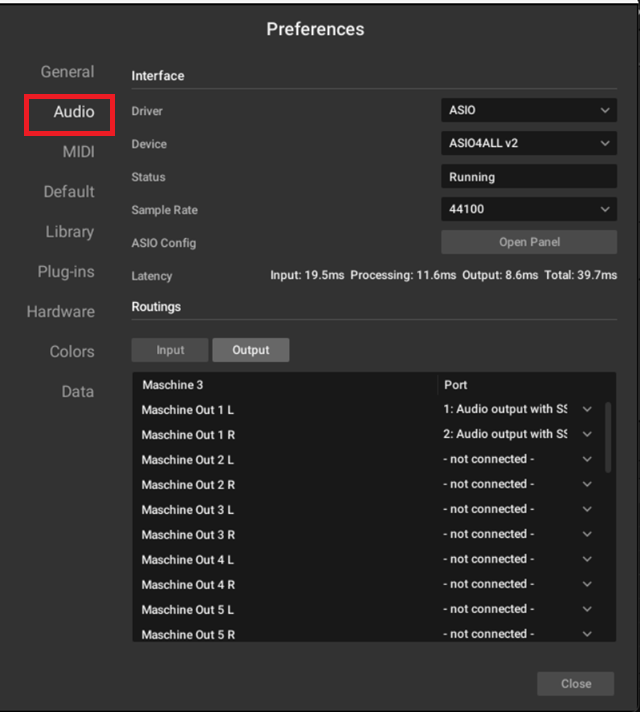
To display the Audio page, click the Audio tab on the left of the Preferences panel.
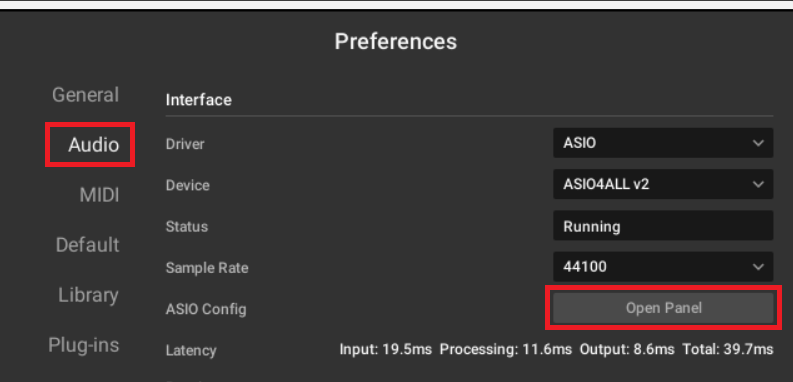
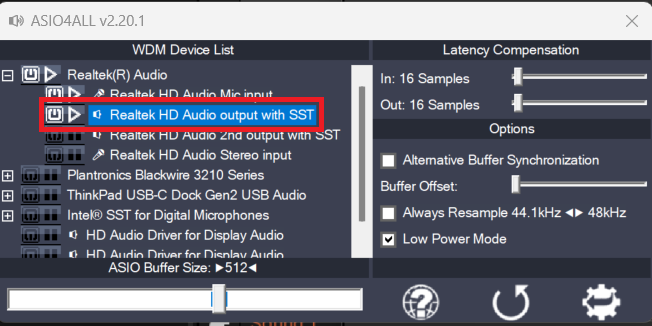
Click Open Panel
You will be presented with the ASIO control panel.
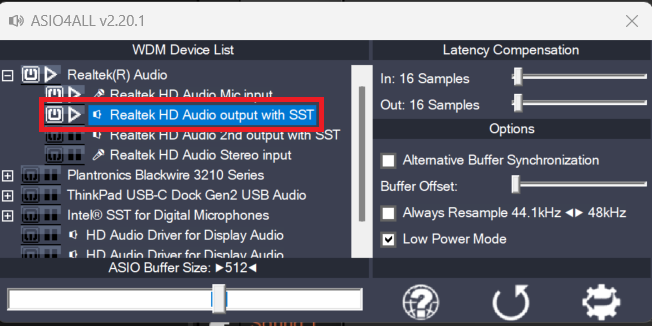
Click the settings icon, and expand Realtek(R) Audio by clicking the + sign
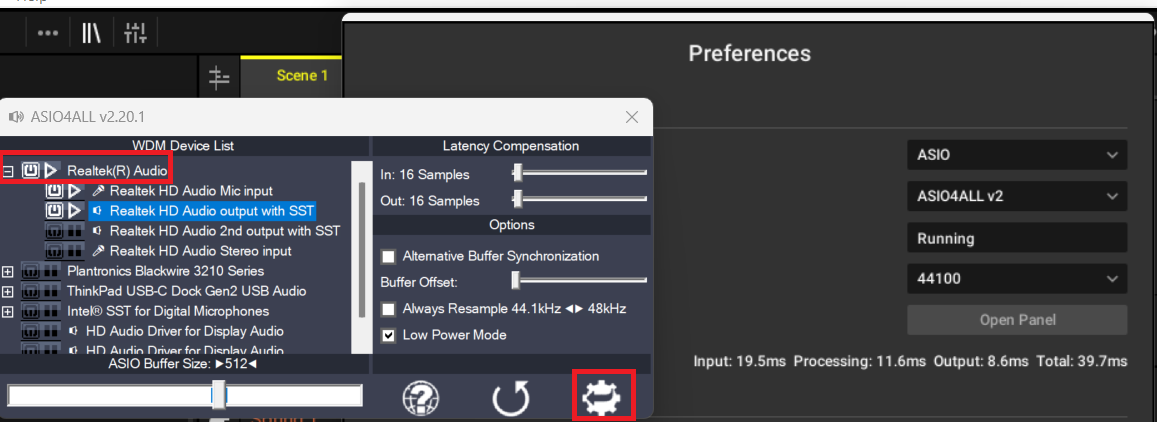
Realtek HD Audio output
Realtek HD Audio 2nd output
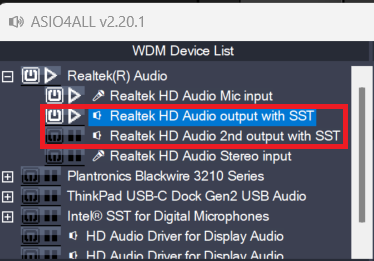
Enable Realtek HD Audio output
Do not use Realtek HD Audio 2nd output as this will not work.
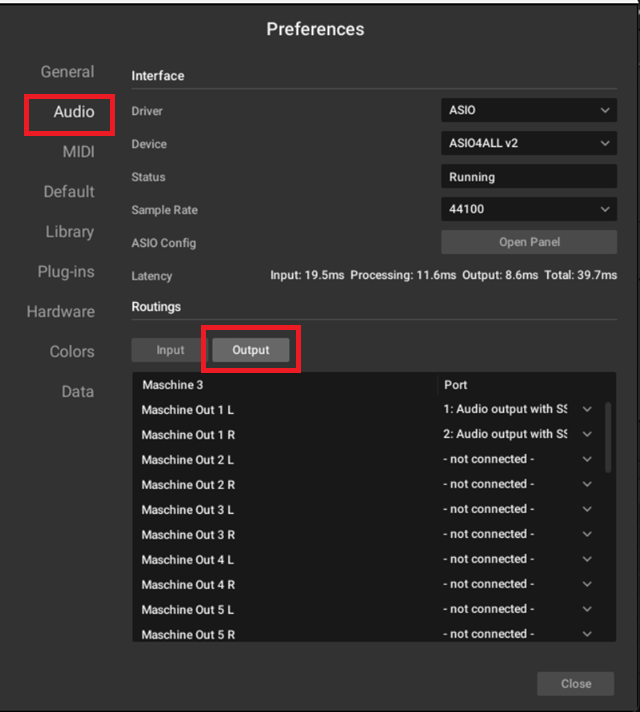
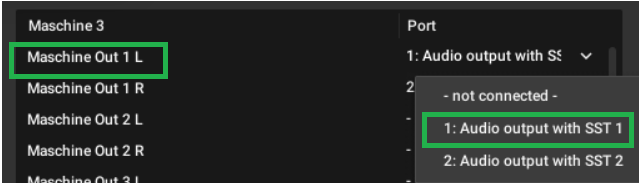
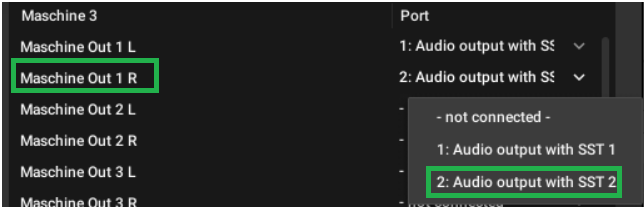
Important: If you are seeing '2nd output' in the Port field - this will not work
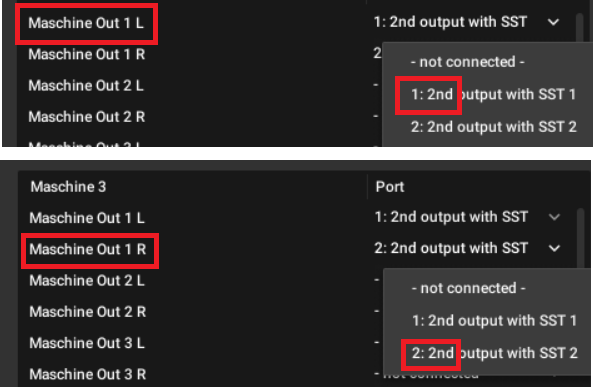
Navigate back to the ASIO control panel and select the correct output - 'Realtek HD Audio output with...', then restart Maschine 3.
Playback is Distorted
If you find the audio playback is buffering/distorting, please tweak your sample rate and buffer size.
I Cannot Hear Audio From Other Applications
If you can only hear audio playback in Maschine 3, but not in other applications like YouTube - you will need to disable exclusive mode in order to hear audio from multiple applications.
Was this article helpful?
That’s Great!
Thank you for your feedback
Sorry! We couldn't be helpful
Thank you for your feedback
Feedback sent
We appreciate your effort and will try to fix the article