Getting Started with AIR Music Tech Products Purchased from the Native Instruments Shop
Thank you for purchasing an AIR Music Tech product from the Native Instruments Shop!
After completing your purchase, you'll receive an email containing your AIR Music Tech serial number and installation instructions. Using this serial number, you can register your product with your inMusic Profile and download it through the inMusic Software Center on Mac or PC, or directly on supported MPC and Force hardware
This article will guide you through the registration and installation process, explain where to find your serial number, and help you get your new AIR software up and running as quickly as possible.
TABLE OF CONTENTS
- What You'll Receive After Purchase
- Installing AIR Music Tech Software on Windows or macOS
- Installing AIR Music Tech Software on MPC or Force
What You'll Receive After Purchase
After purchasing an AIR Music Tech product from the Native Instruments Shop, you'll receive two emails:
- An order confirmation from Native Instruments.
- A fulfillment email containing your 30-digit AIR Music Tech serial number and installation instructions.
Keep your serial number handy, as you'll need it to register and activate your software.
Installing AIR Music Tech Software on Windows or macOS
Follow these steps to download, install, and activate your AIR Music Tech software on a Windows or macOS computer.
- Download the inMusic Software Center
- After the download completes, launch the inMusic Software Center Application
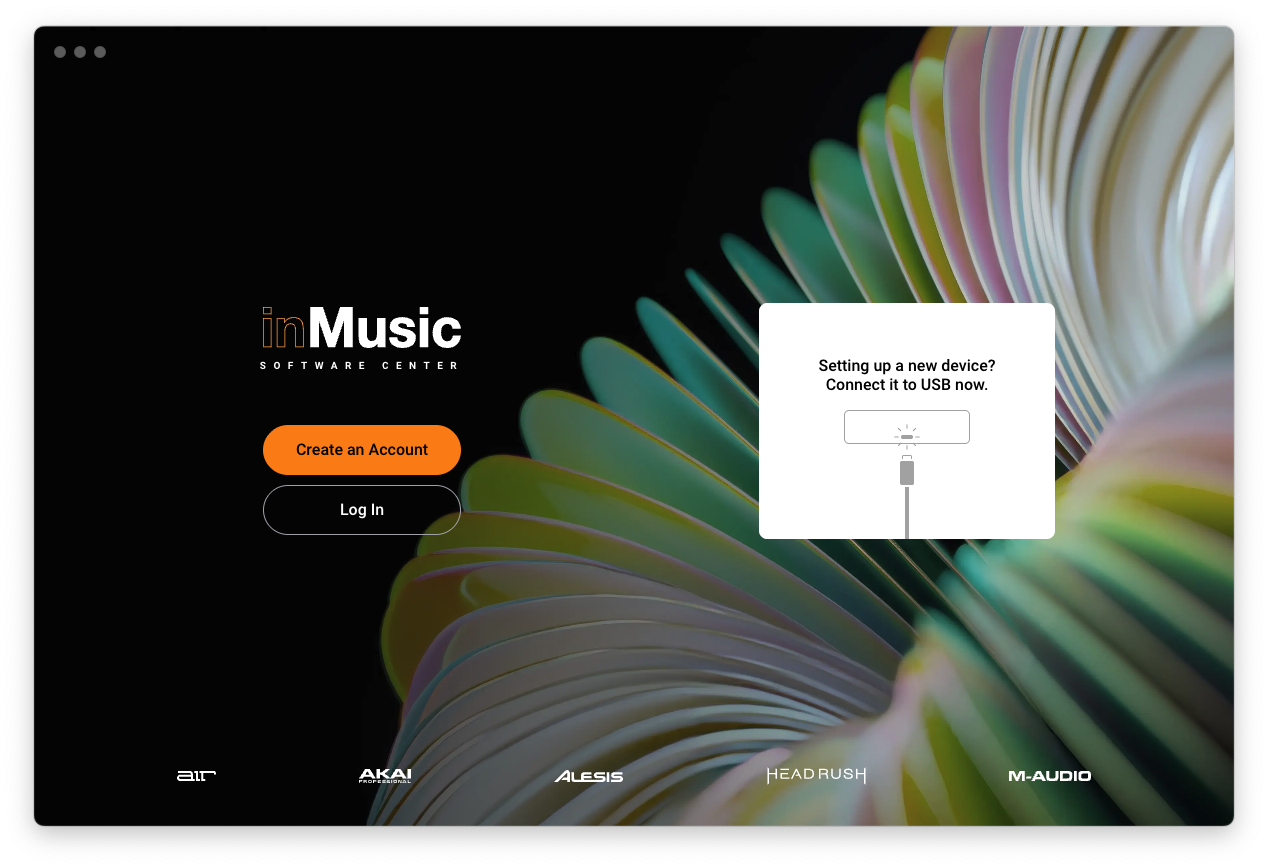
- Click Log In, and your default web browser will open for sign-in to your inMusic Profile. Enter both your email address and password and click on "SIGN IN".
- If you're new to inMusic Profile, click Create an Account
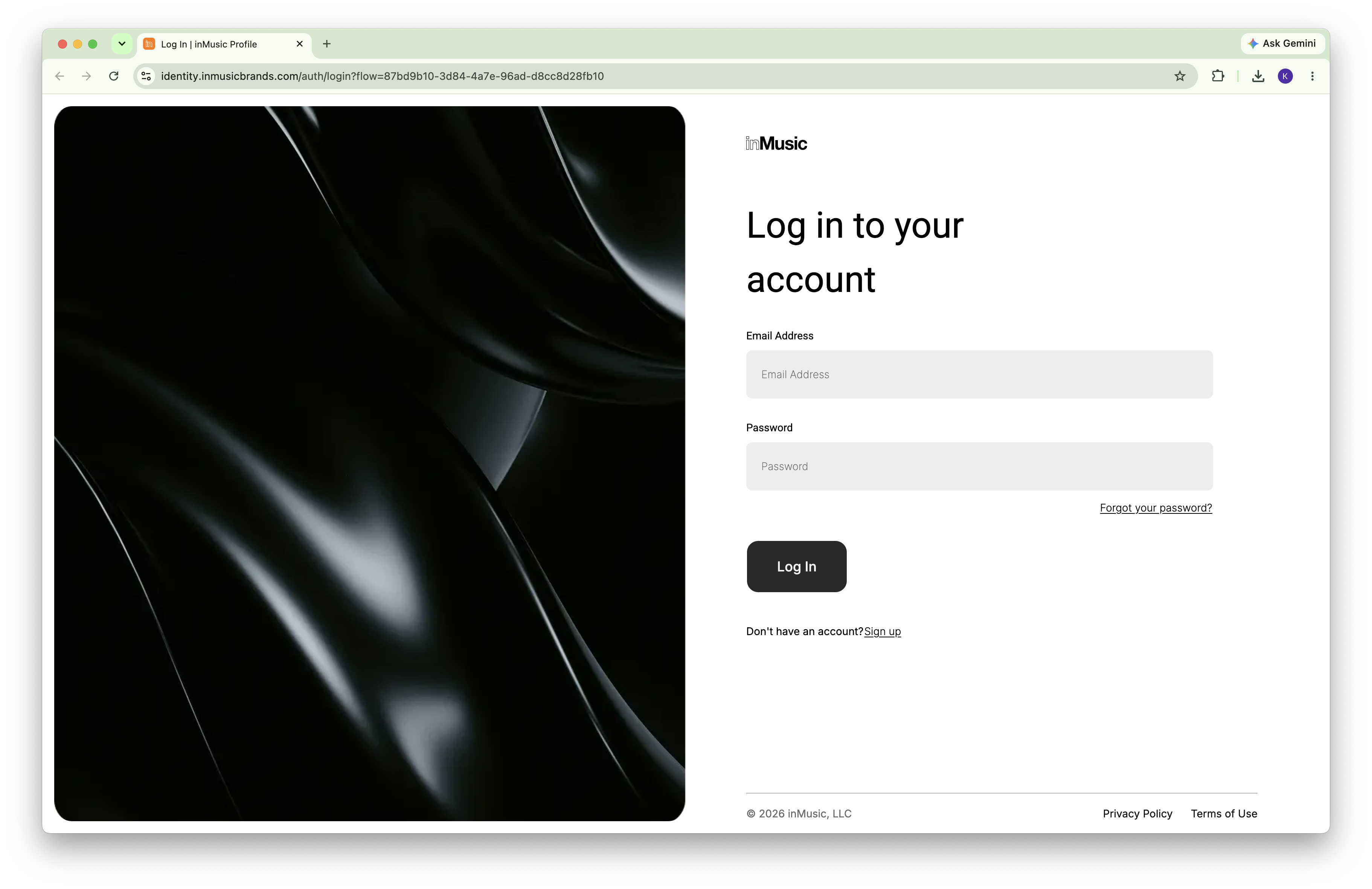
- If you're new to inMusic Profile, click Create an Account
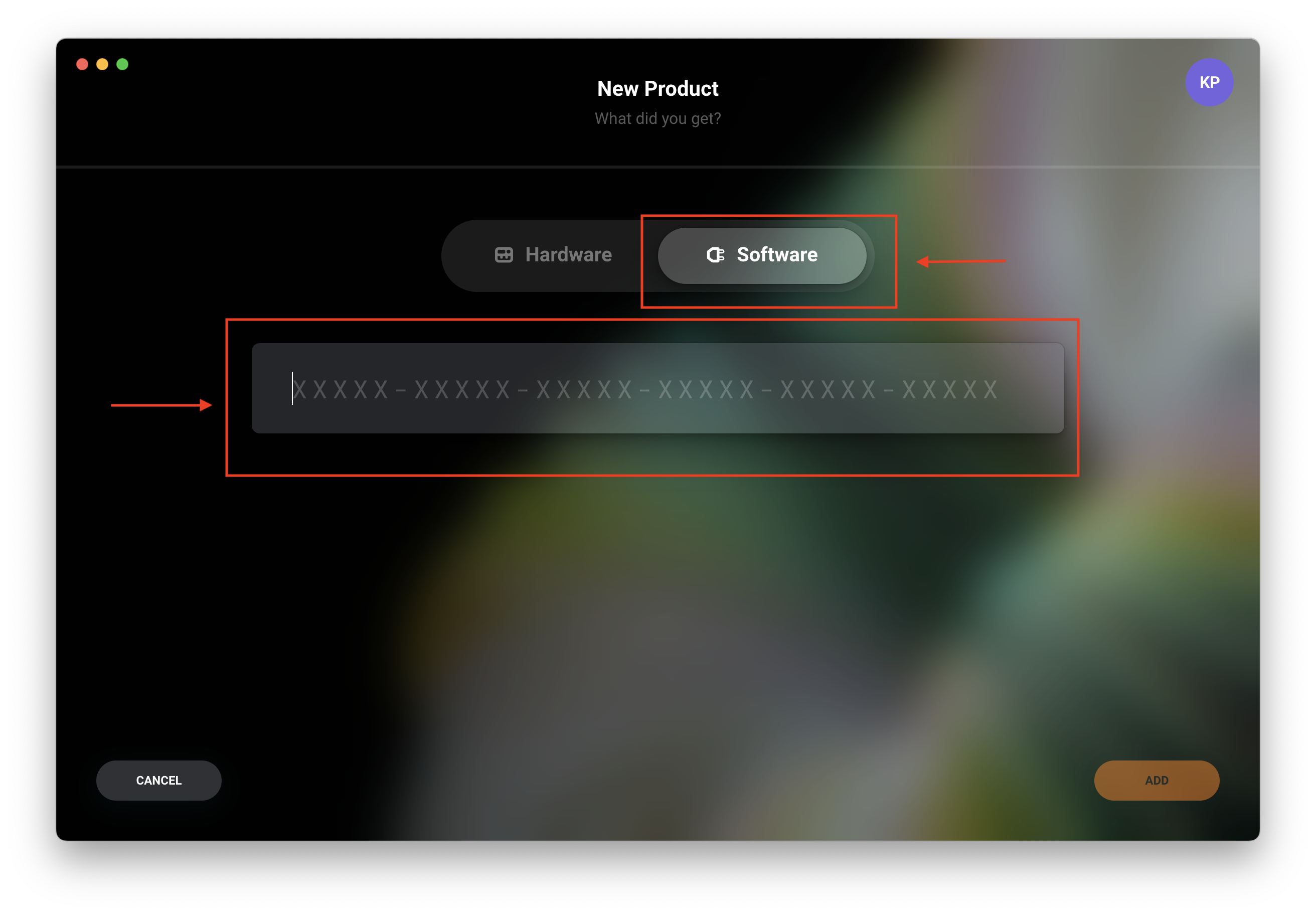
- Click Add Product
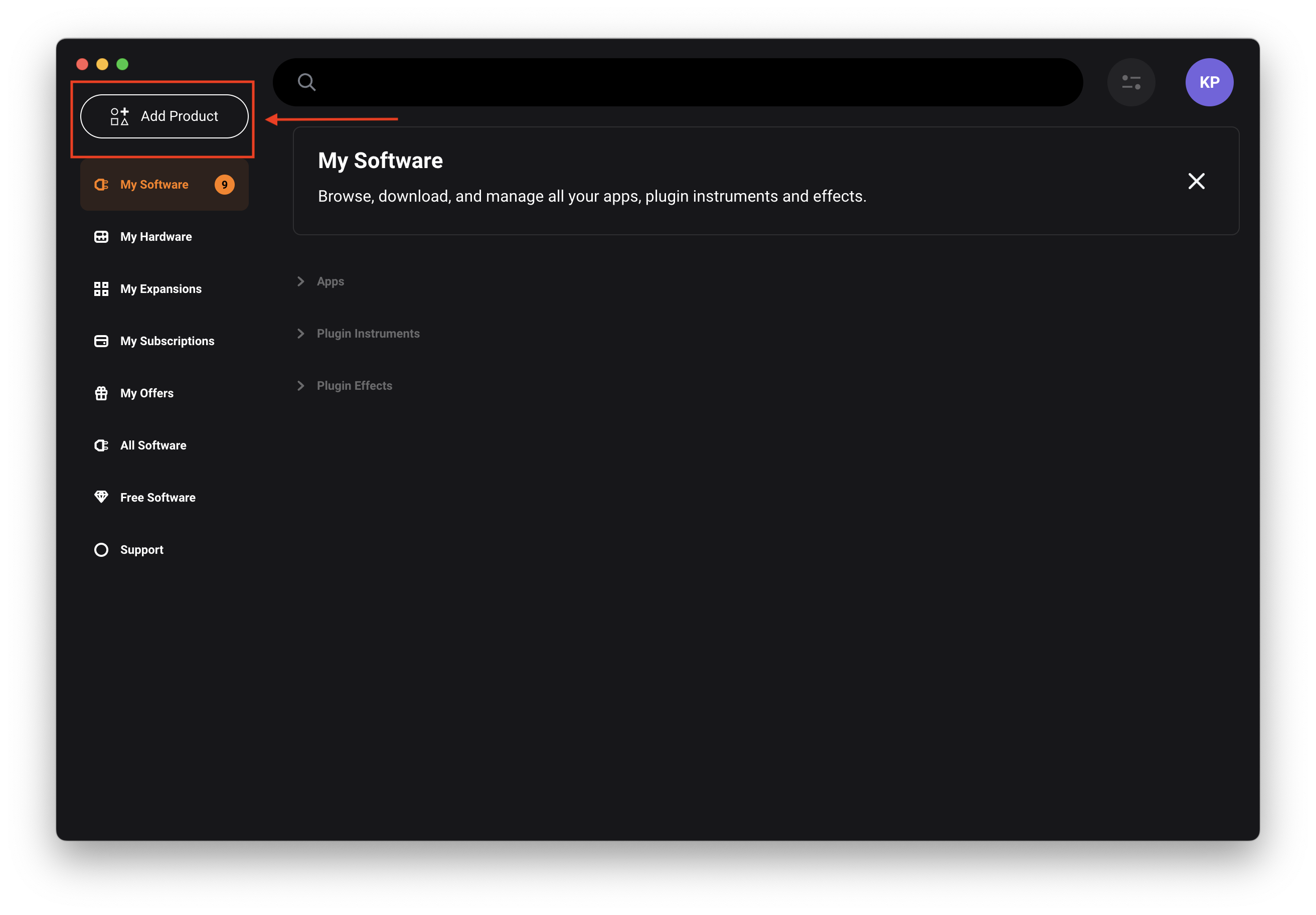
- Click Software, and paste your 30-Digit License received via email
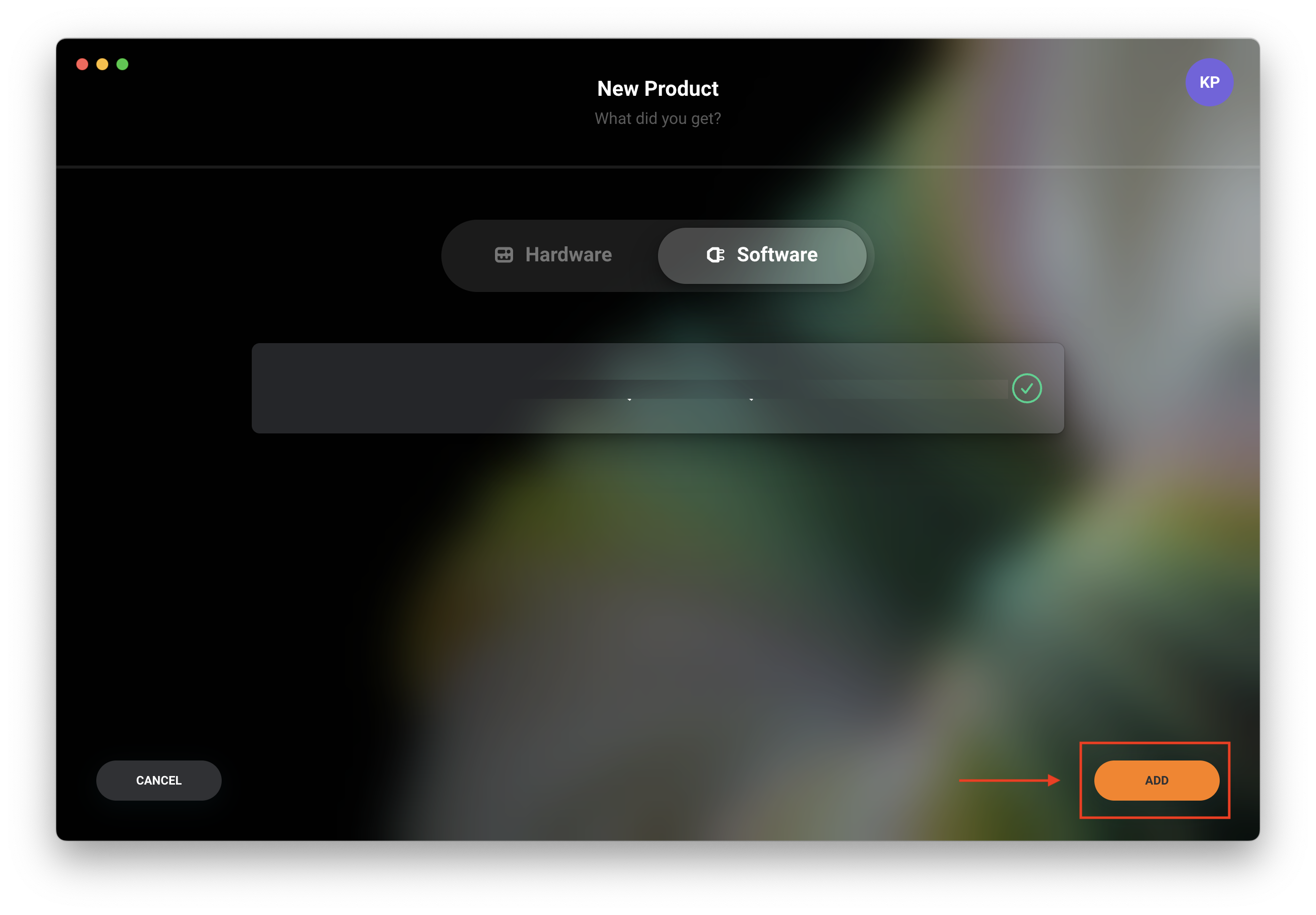
- Click Add
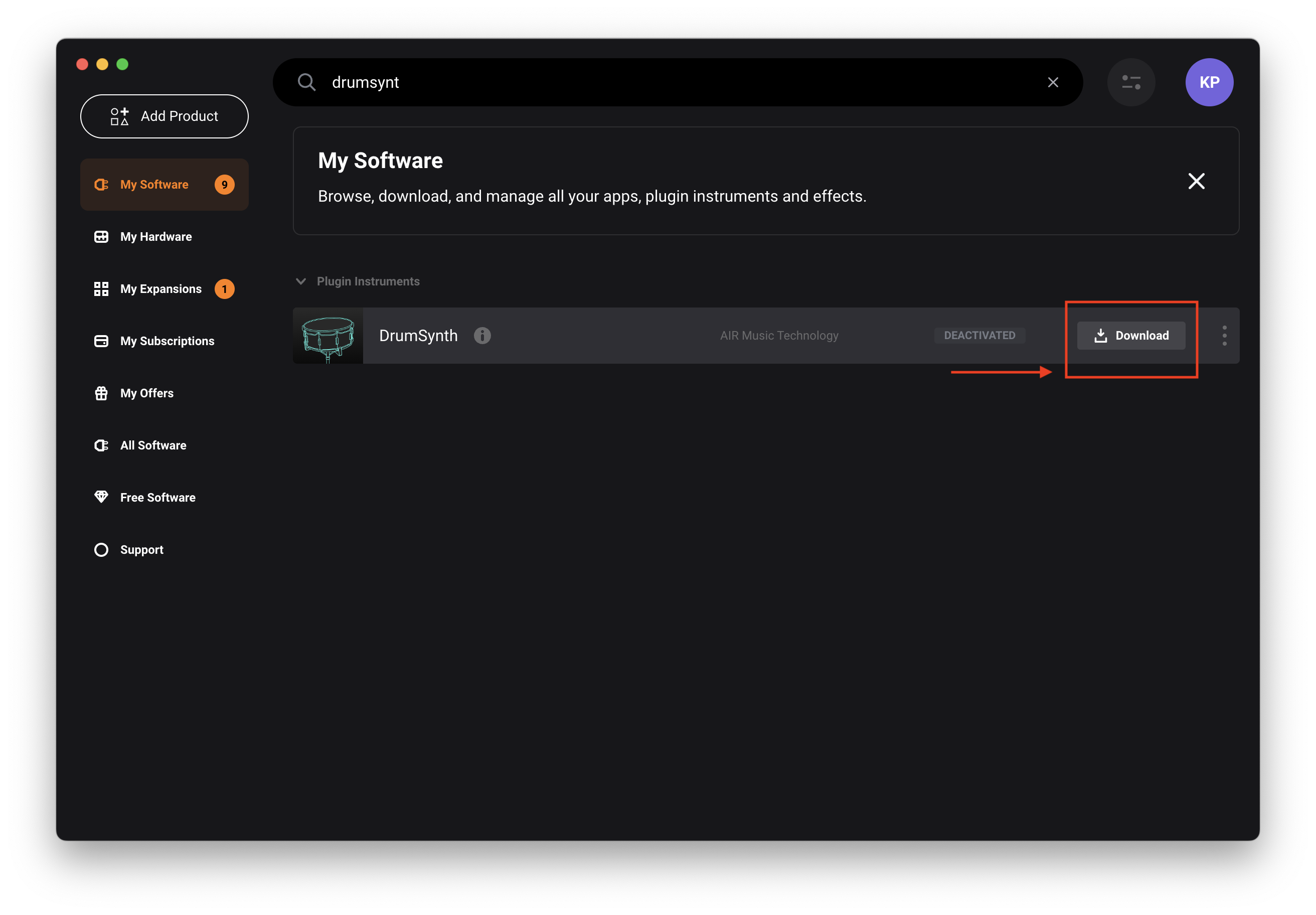
- Navigate to My Software
- Locate your AIR Music Tech product
- Click Download and Install the software.
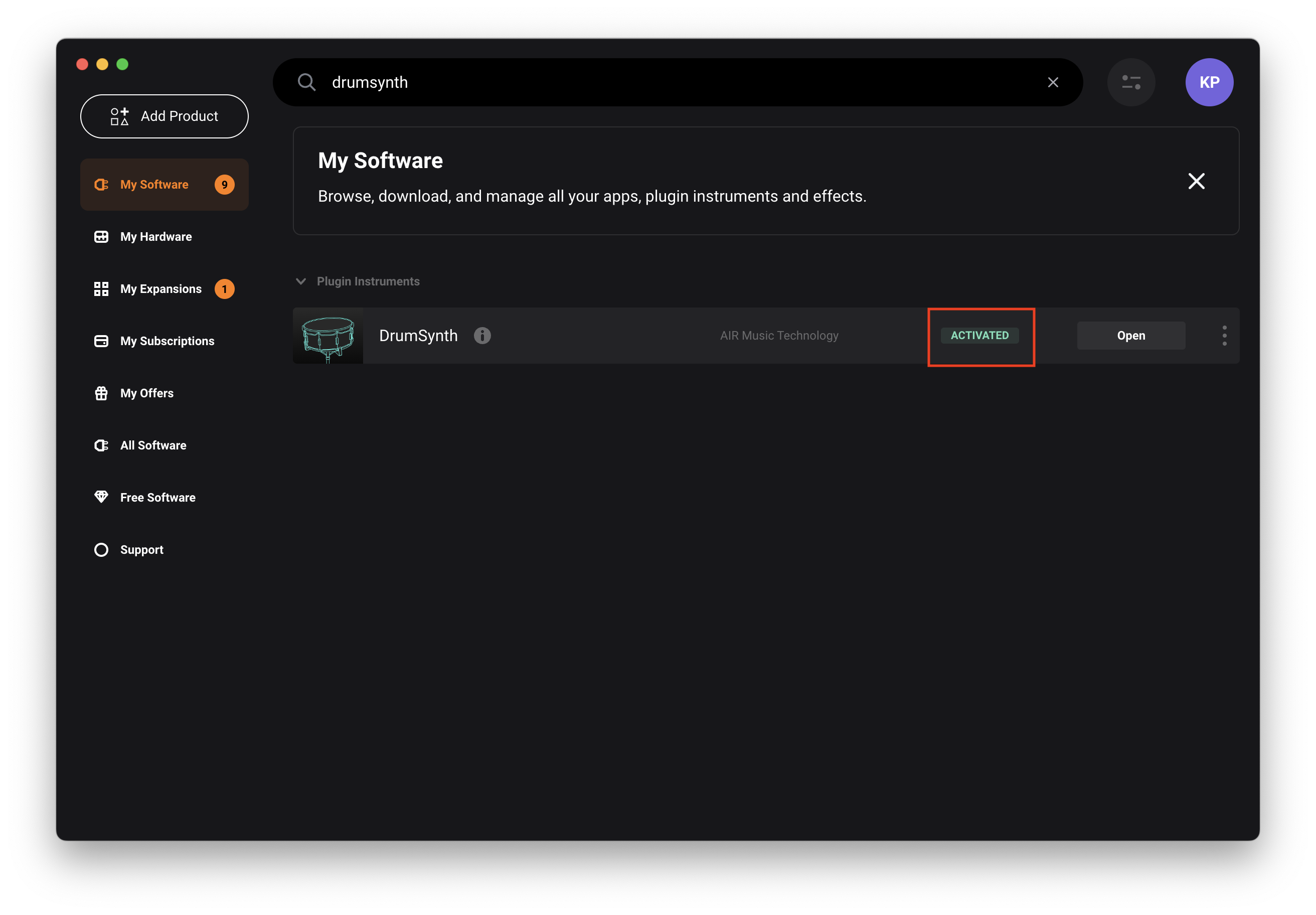
- Your product will activate automatically during the installation process.
- Launch the standalone app (if available), or launch your DAW and scan for new plugins
Installing AIR Music Tech Software on MPC or Force
Some AIR Music Tech products can also be installed directly on compatible standalone MPC and Force devices.
- Connect to the internet and ensure that the connection is stable.
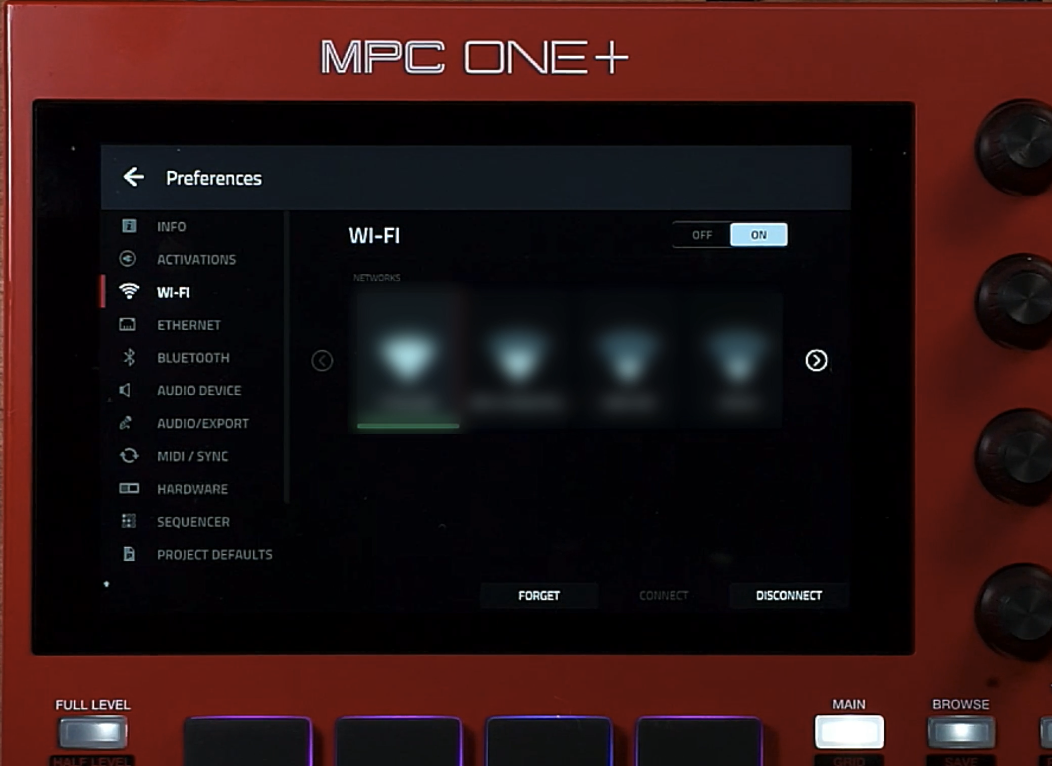
- On your MPC hardware, press the Menu button.
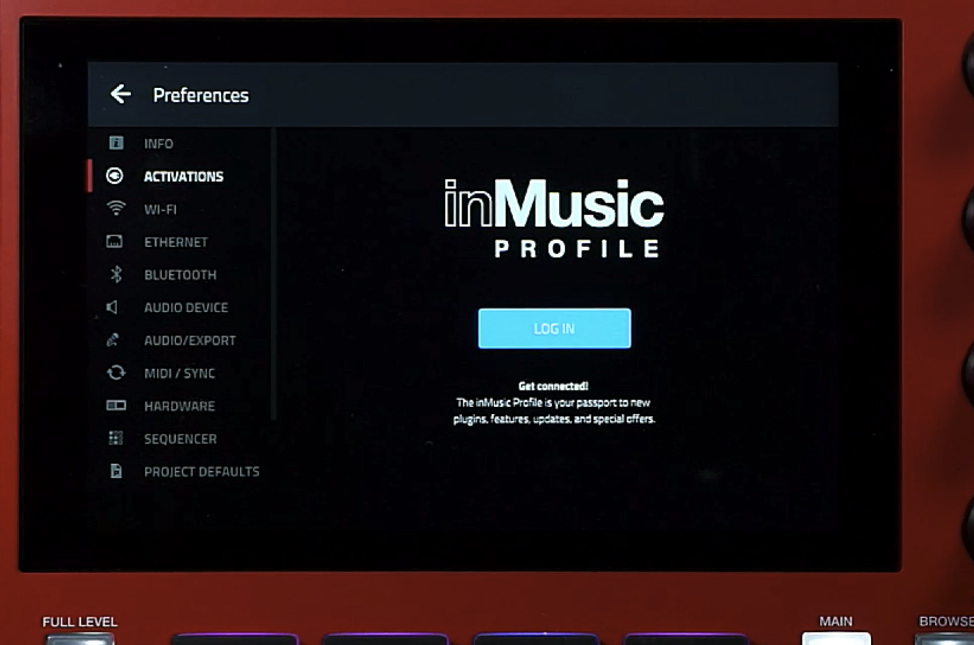
- Navigate to Preferences and tap the Activations tab on the left.
- Log in to your inMusic Profile:
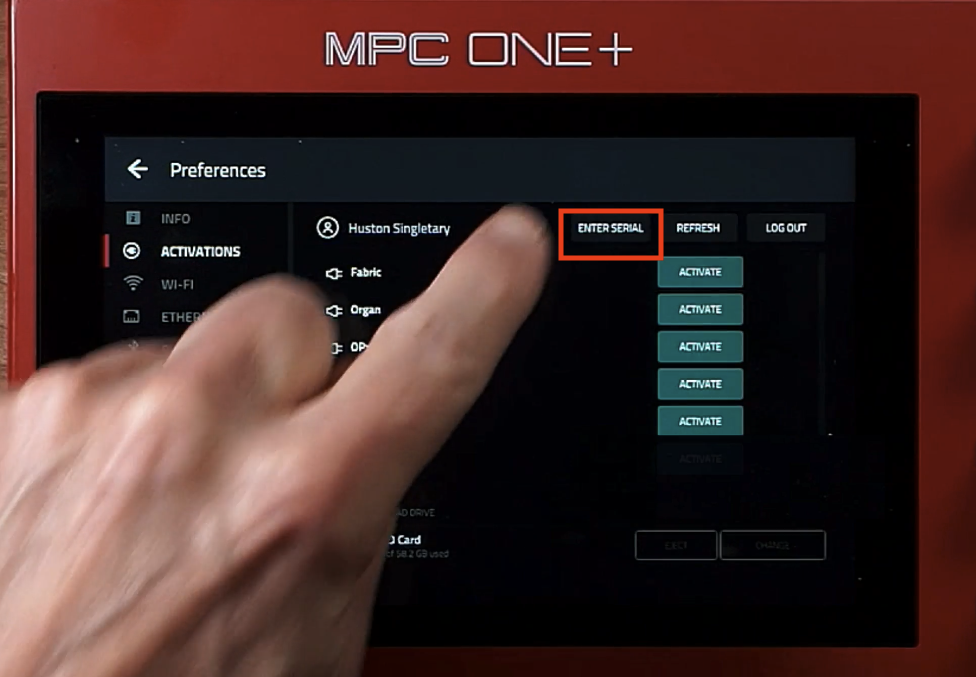
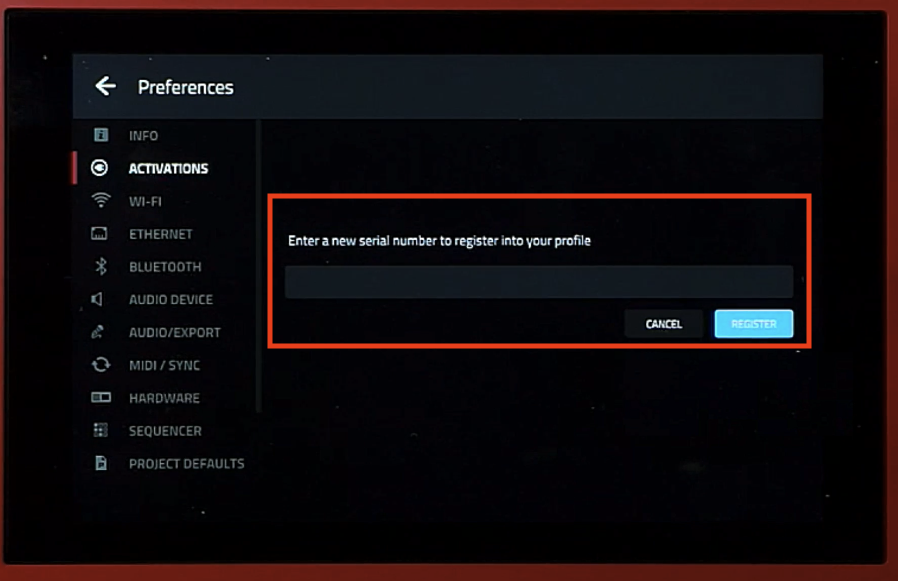
- Tap ENTER SERIAL towards the top of your display:
- Type / Enter the 30-digit license supplied by Native Instruments from the order confirmation email and tap REGISTER. Note, upon entering your license ensure to type this exactly as seen while including the '-' between each of the 4 digits: XXXXX-XXXX-XXXX-XXXX-XXXX-XXXX
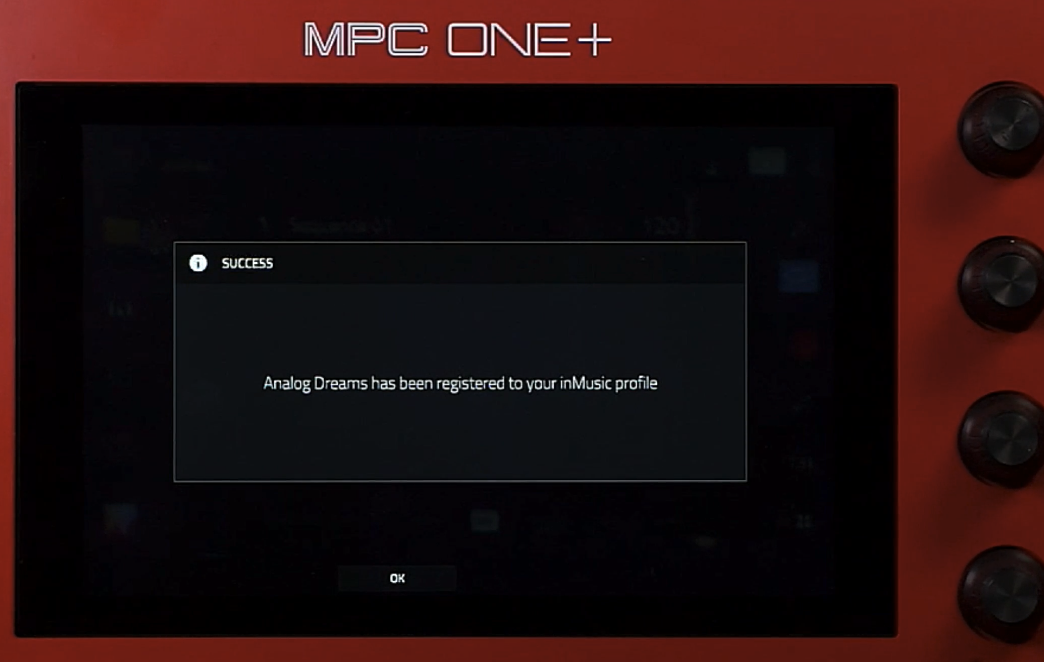
- Your AIR Music Tech product has been registered:
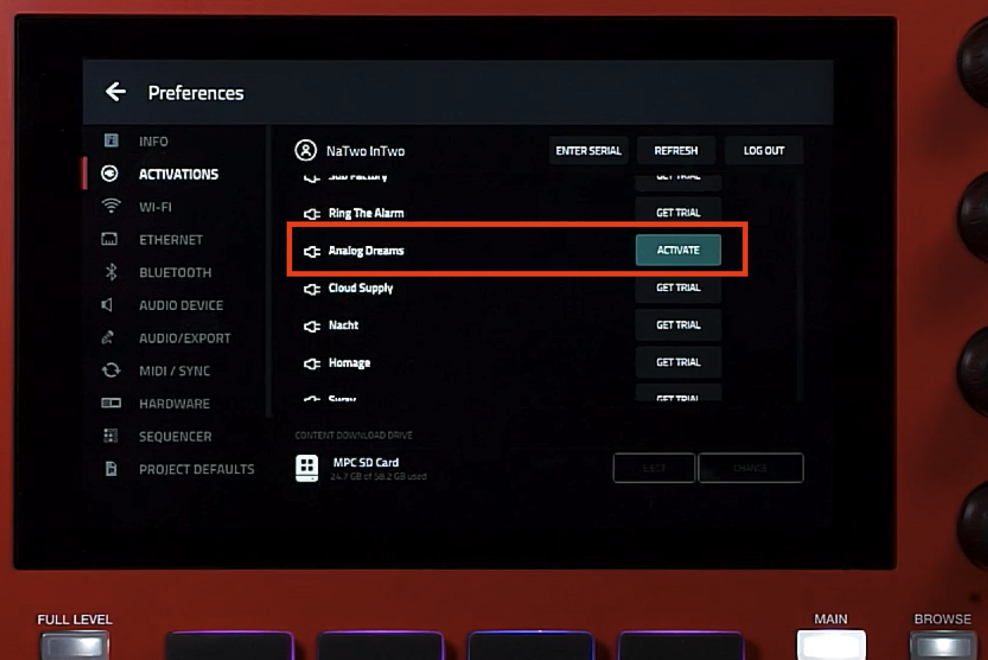
- Observe your list of plugins from the Activations pane to view your newly redeemed plugin. Tap Refresh if it is missing from the list and ensure you're connected to the internet.
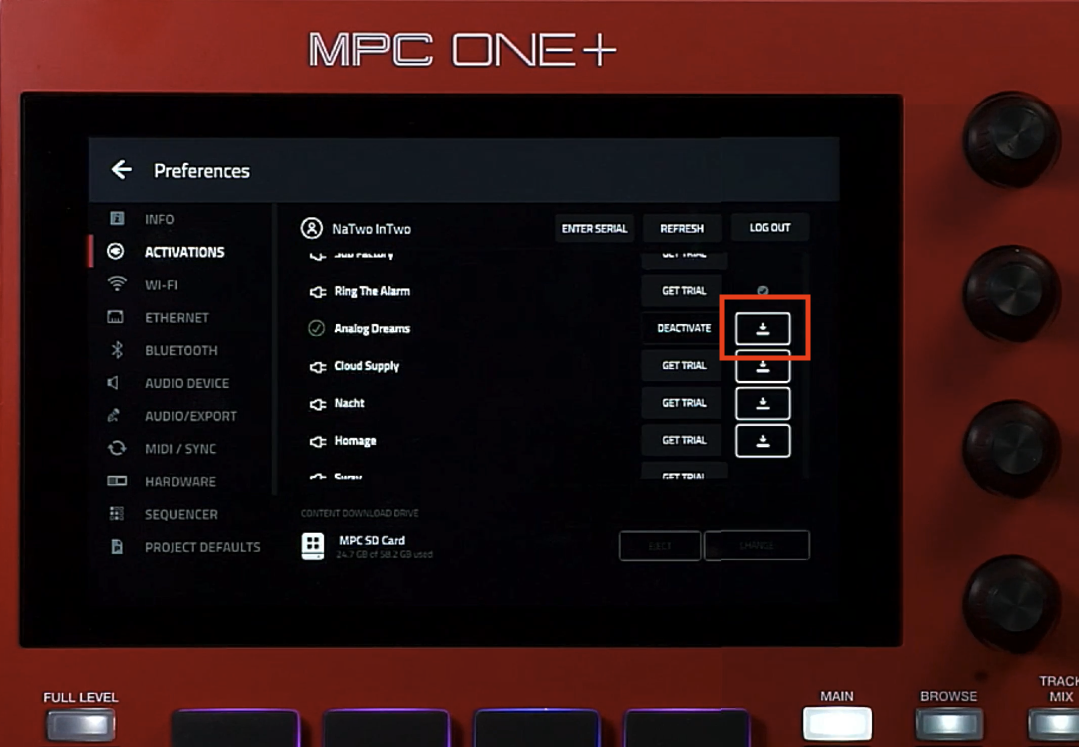
- Tap the Activate button:
- Select a drive as the download location. Tap the Change button to change the drive.
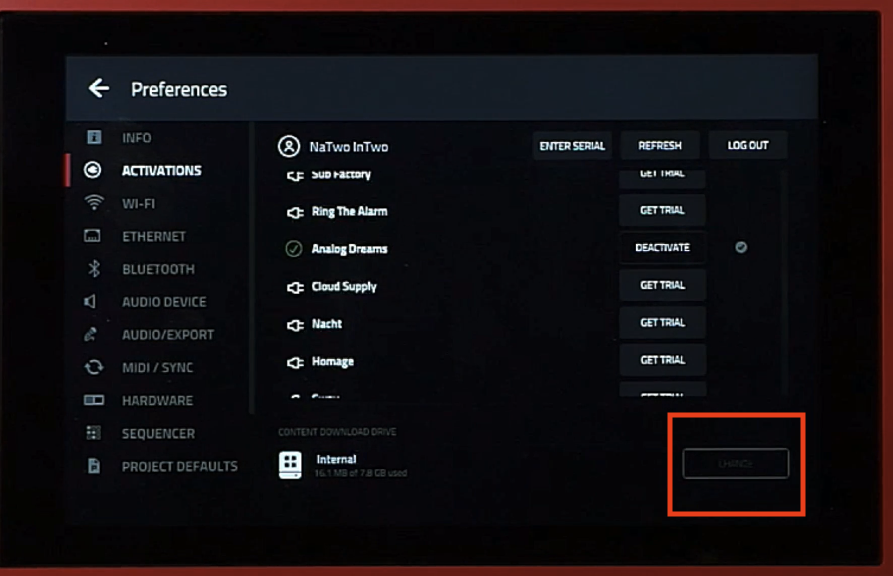
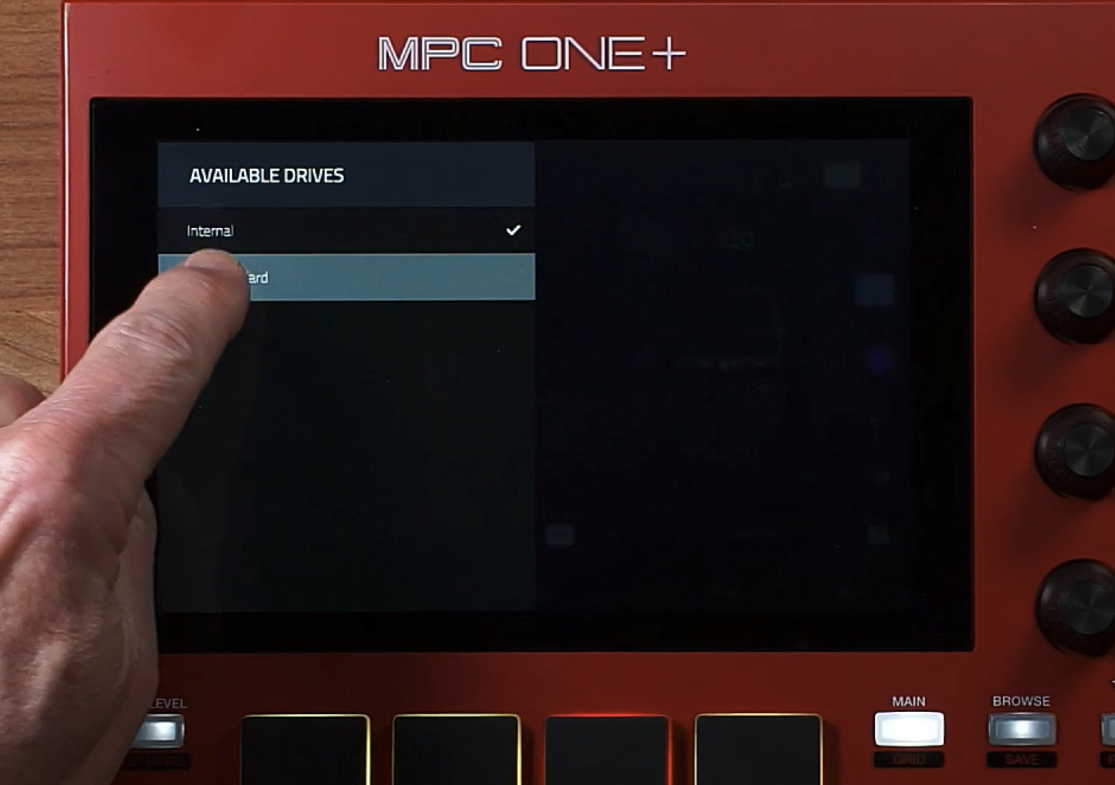
- Ensure a storage device (formatted to exFAT) is connected to your MPC and tap the Download button to start the download:
Frequently Asked Questions
I purchased my software from Native Instruments. Why do I need an inMusic Profile?
AIR Music Tech products use the inMusic registration system for software delivery, licensing, and downloads. An inMusic Profile is required to register and access your AIR products.
Where can I find my serial number?
Your serial number is included in the fulfillment email sent after your purchase.
If you can't find the email, check your spam or junk folder before contacting support.
Can I activate my AIR product using Native Access?
No. AIR Music Tech products purchased from the Native Instruments Shop are registered and downloaded through the inMusic ecosystem using the serial number provided after purchase.
I haven't received my serial number email. What should I do?
First, check your spam or junk folder. If the email is still missing, contact support and supply your order number so we can help locate your purchase.
Can I use the Plugivery redemption process?
No. If you purchased directly from the Native Instruments Shop, simply use the serial number included in your fulfillment email and follow the steps in this guide.
Was this article helpful?
That’s Great!
Thank you for your feedback
Sorry! We couldn't be helpful
Thank you for your feedback
Feedback sent
We appreciate your effort and will try to fix the article