Native Access Error Message: "Download Failed: Please Check Your Internet Connection" (Windows)
Symptom
On a Windows computer, Native Access displays the following error message when attempting to self-update upon launching:
No compatible update found. Download failed. Please Check Your Internet Connection and try again.
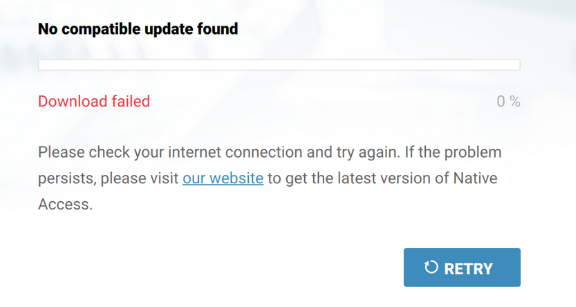
The error may also appear with the information:
- No compatible update found
- Failed to download the latest Update
- Searching for the latest Update
Cause
This error is in most cases caused by unsupported proxy configurations.
Solution
The steps below show how to resolve the error:
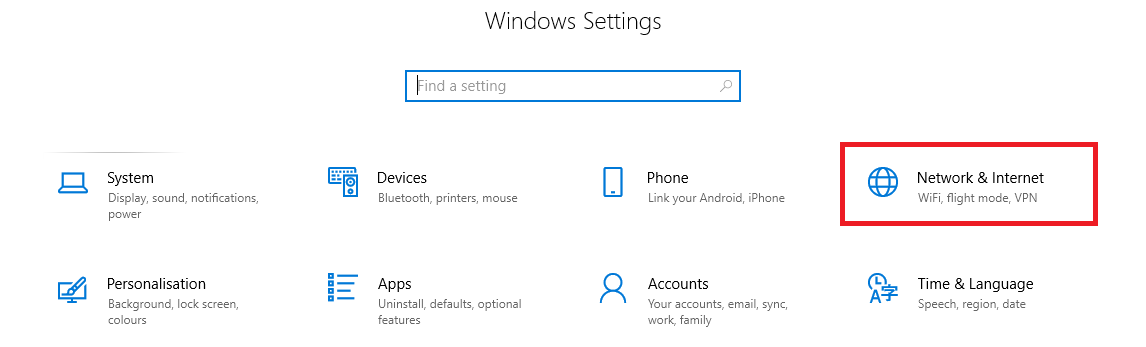
- Open your Windows Settings by pressing Windows+I on the keyboard.
- Choose the option Network & Internet.
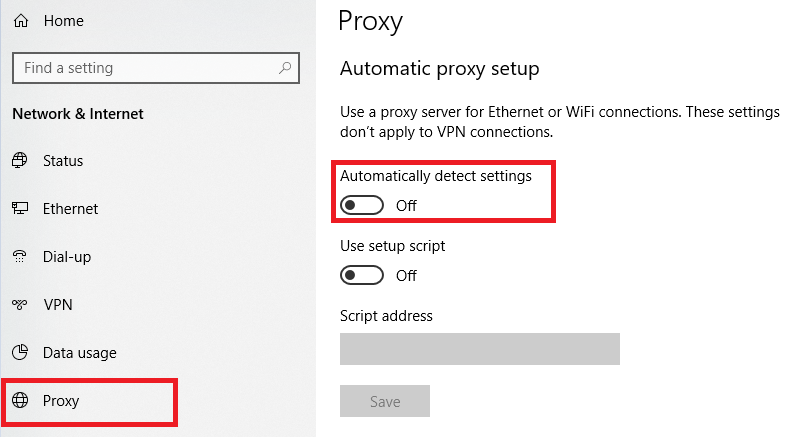
- Click on the Proxy tab and disable the option Automatically Detect Settings.
- Start Native Access again. It will now self-update successfully.
Was this article helpful?
That’s Great!
Thank you for your feedback
Sorry! We couldn't be helpful
Thank you for your feedback
Feedback sent
We appreciate your effort and will try to fix the article