Moving a Native Instruments Product to Another Location on Your Computer
This article explains how to move a Native Instruments product to another location on your computer. When deciding whether to move an NI product, please consider the following:
- It's not recommended to move your Native Instruments standalone apps after installation, as this can lead to various problems such as failed updates.
- Computers running macOS use dedicated system folders for VST, AU, and AAX plug-ins. You should not move your plug-in files to another location on a Mac, as your DAW will not be able to detect them.
Please follow the guides per version of Native Access to move and re-locate your NI Expansions or Sample Library folder:
Native Access 2:
Note: Native Access 2 is available on macOS 10.14 (and higher) and Windows 10 (and higher). If you are using macOS 10.13 (or lower) or Windows 7 / 8, please read the chapter "Native Access (light version)" below instead.
Native Access 2 is available here.
- Close your DAW and all other Audio / MIDI-related software.
- Move your NI product.
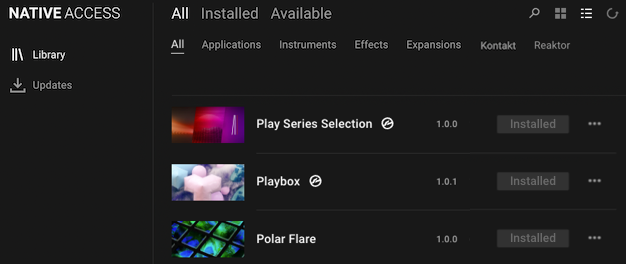
- Start Native Access and click the Refresh icon (upper right).
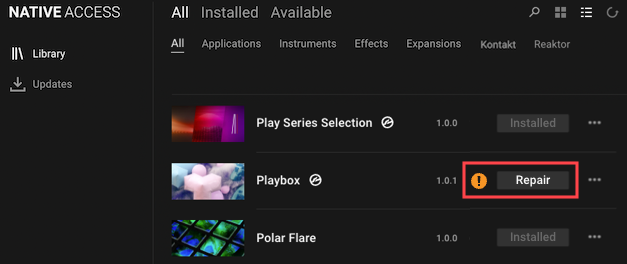
- Go to Library > All. Find the product and click Repair.
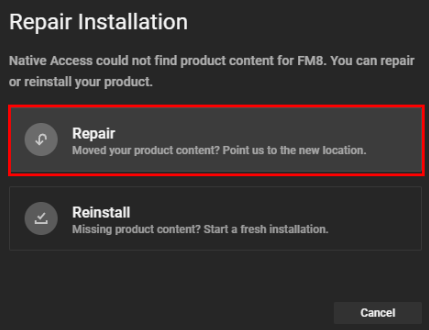
- In the Repair Installation window, click Repair.
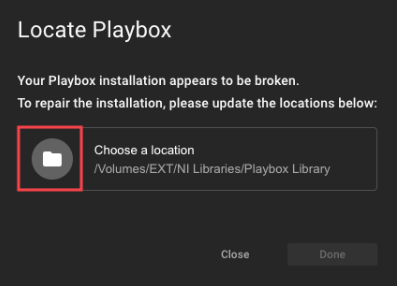
- The Locate window displays the product's last known location. Click the folder symbol.
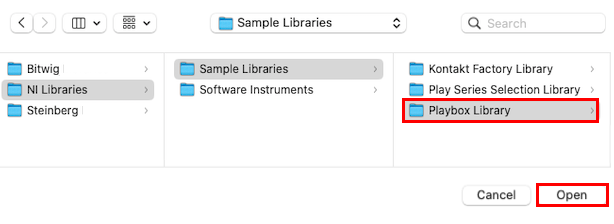
- Browse to the new location and select the product / product folder.
- The Locate window will show that the library folder was successfully relocated.
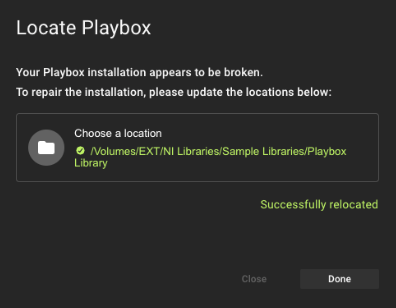
- Click Done to close the Locate window and your NI product will now display correctly.
Native Access 1:
Note: This feature is available on OS X 10.10 - 10.13. and Windows 7 (and higher). If you are using macOS 10.14 (or higher) or Windows 10 (or higher), please read the chapter "Native Access 2" above. If you are using OS X 10.9, please refer to this article instead.
You can find the legacy installers for Native Access 1 in this article.
- Move your NI product to its new location.
- Launch Native Access.
- Go to the Installed products tab. The product you moved is marked with a yellow REPAIR label.
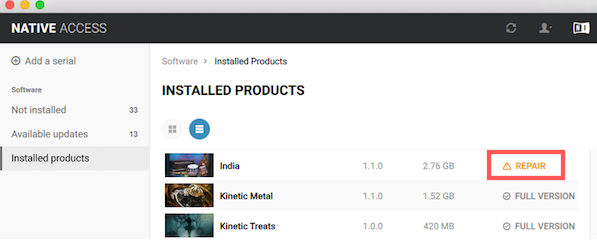
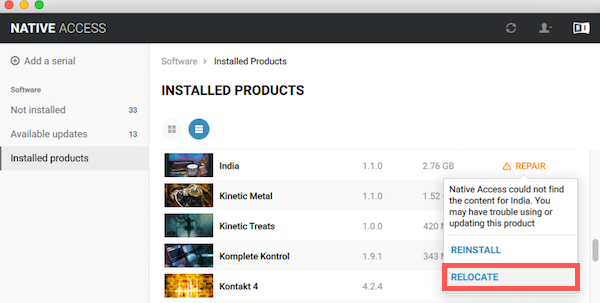
- Click on REPAIR and select RELOCATE in the drop-down menu.
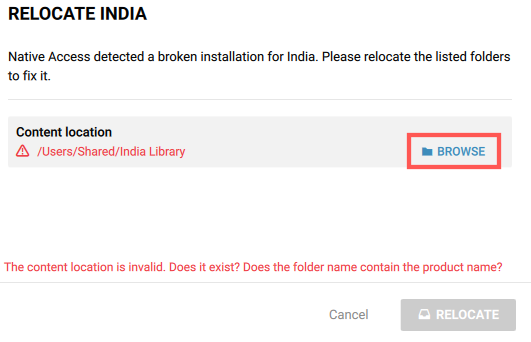
- In the Relocate window Native Access lists the old location of your NI product and notifies you it is invalid. Click BROWSE next to the product you have moved.
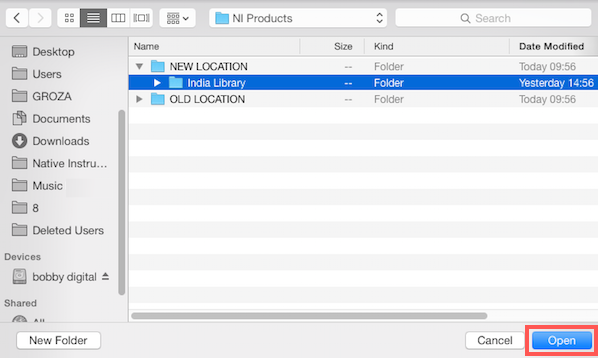
- Browse to your product's new location, select its folder and click Open.
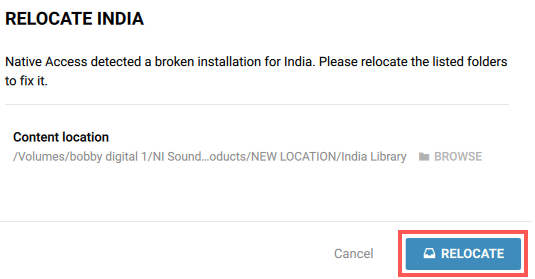
- The Relocate window now lists your product's new location path. Click the RELOCATE button.
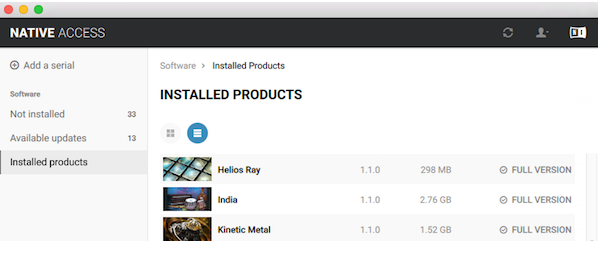
- Your installation is now repaired. Your NI product appears as correctly installed in Native Access.
Was this article helpful?
That’s Great!
Thank you for your feedback
Sorry! We couldn't be helpful
Thank you for your feedback
Feedback sent
We appreciate your effort and will try to fix the article