You can move the BATTERY 3 library to a different location after installation, such as an external drive.
This guide shows how to update the content path so BATTERY can locate your library correctly.
How to Move the BATTERY 3 Library
- After moving the Library to a new location, start BATTERY 3, File > Options.
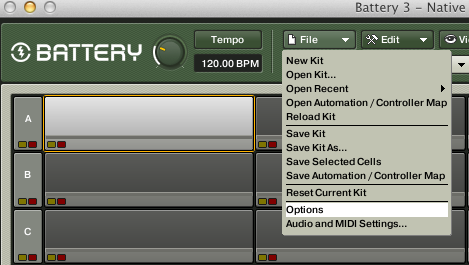
- In the field Factory Content Path, click on the small box containing the folder symbol.

A new window will open where you can select a new location for the BATTERY 3 Library. Once the path is selected, click Choose.
Important: Make sure the library is fully moved before updating the path. If files are missing or incomplete, samples may fail to load.
Was this article helpful?
That’s Great!
Thank you for your feedback
Sorry! We couldn't be helpful
Thank you for your feedback
Feedback sent
We appreciate your effort and will try to fix the article