Symptom
When attempting to route audio to the Input Decks, setup timecode CD or vinyl or use a microphone, Traktor does not receive any input.
Cause
MacOS 10.14 Mojave (and higher) and Windows require you to confirm permission for any application which can access the audio inputs of your computer.
MacOS Solution
When you start Traktor for the first time, it asks for permission to access the microphone:
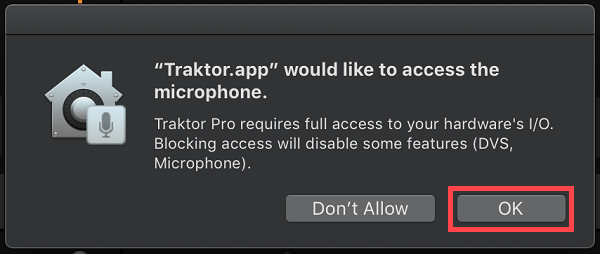
In case you inadvertently chose Don't Allow or ignored the prompt, you can adjust your Mac settings to enable microphone permission:
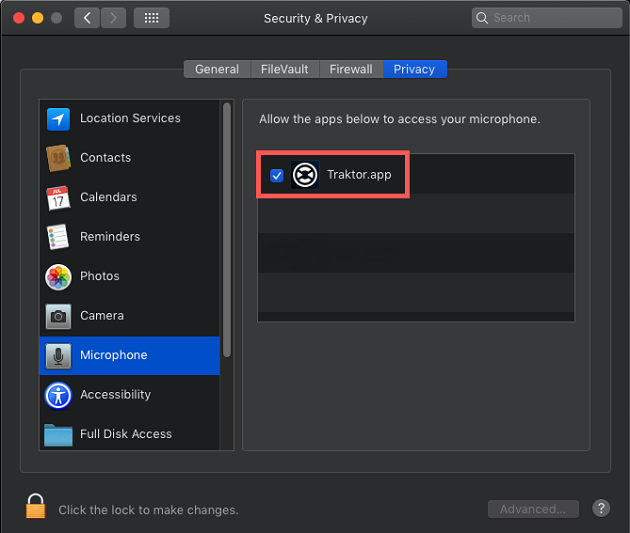
- Go to System Preferences > Security & Privacy > Privacy > Microphone
- Click on the lock icon next to Click the lock to make changes and enter your computer log-in details.
- Enable the microphone setting for your app by ticking the corresponding box. In the below example, we are enabling the microphone access for Traktor.
Windows Solution
On Windows 10, go to Start > Settings > Privacy > Microphone.
Ensure that the following features are activated:
- Microphone access for this device
- Allow apps to access your microphone
- Allow desktop apps to access your microphone
On Windows 11, go to Start > Settings > Privacy & security > Microphone.
Ensure that the following features are activated:
- Microphone access
- Let apps access your microphone
- Let desktop apps access your microphone
Was this article helpful?
That’s Great!
Thank you for your feedback
Sorry! We couldn't be helpful
Thank you for your feedback
Feedback sent
We appreciate your effort and will try to fix the article